
Summary
Using Mod.IO to install mods on a Core Keeper server streamlines the process, allowing players to easily browse, install, and update mods without manual file management. Mod.IO integration enhances customization options, enabling players to access community-created content and tailor their gaming experience. Additionally, Mod.IO simplifies mod compatibility checks and version control, ensuring smoother gameplay for all participants on the server.
| Note | Learn how to install mods on a Core Keeper client here. |
How to Enable Mod.IO on a Core Keeper Server
1. Log in to the BisectHosting Starbase panel.
2. Stop the server.
3. Go to the Startup tab.
4. On the [Mod.IO] - Enable Mod.IO field, choose Enabled from the dropdown.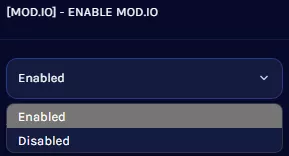
5. Log in to Mod.IO. 
6. Go to the API Access tab here. 
7. Navigate to the OAuth Access line.
8. Under Token Name, enter the desired name.
9. Choose Read + Write from the dropdown.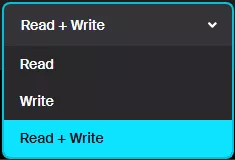
10. Press the add button.
11. Take note of the created token. As the token will only be displayed upon creation, save a backup.
12. Return to the BisectHosting Starbase panel.
13. Go to the Startup tab.
14. On the [Mod.IO] - OAuth Key field, paste the token from Step 11.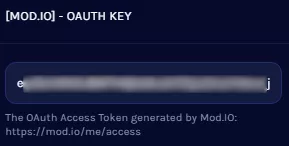
15. Return to the Mod.IO API Access tab.
16. Under API Access, view and accept the terms.
17. Press the Request API Key button.
18. Take note of the User ID Path section.
19. Copy the API Key.
20. Return to the BisectHosting Starbase panel.
21. Go to the Startup tab.
22. On the [Mod.IO] - API Key field, paste the key from Step 19.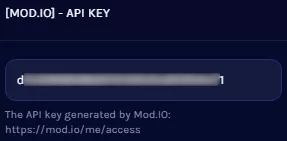
23. From the [Mod.IO] - User ID field, input the ID Path from Step 18.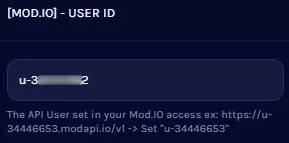
24. Start the server.
How to Install Mods with Mod.IO on a Core Keeper Server
1. Log in to the BisectHosting Starbase panel.
2. Stop the server.
3. Using the connected Mod.IO account, subscribe to the desired mods here. Unsubscribe to remove mods. 
4. Start the server.