Summary
Space Engineers offers numerous user-created mods that users can download and install on their servers from the Steam Workshop or Mod.io. Steps for installing mods on a Space Engineers Torch server may vary slightly from the typical installation process, as file locations differ for Torch. However, by utilizing Torch, players can also add numerous helpful plugins alongside their mods, to customize their servers even further.
How to Install Mods on a Space Engineers Torch Server (Steam)
1. Log in to the BisectHosting Starbase panel.
2. Stop the server.
3. Go to the Files tab.
4. Find the following directory: /home/container/Instance/Saves/World .
5. Open the Sandbox_config.sbc file.
6. Navigate to the <Mods /> section.
7. Replace the text with the following template. <Mods> <ModItem FriendlyName="Mod title - As shown in Steam Workshop"> <Name>WorkshopID.sbm</Name> <PublishedFileId>WorkshopID</PublishedFileId> <PublishedServiceName>Steam</PublishedServiceName> </ModItem> </Mods>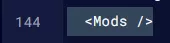
8. For <ModItem FriendlyName="">, input the title of the mod shown on Steam.
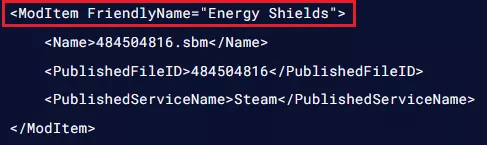
9. For the <Name> field, input the workshopID before .sbm. The workshopID can be found in the URL of the mod page.
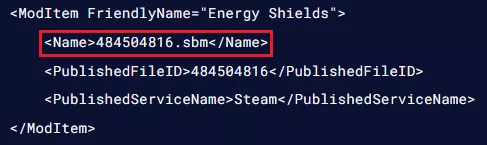
10. For <PublishedFileID>, input the WorkshopID again.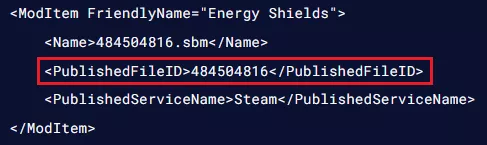
11. Fill out <PublishedServiceName> with the platform the mod is on, this will be Steam for workshop mods.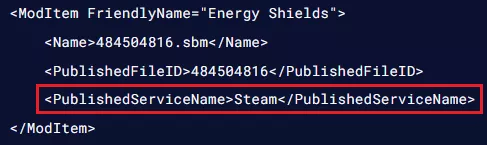
12. To add more than one mod, duplicate everything between the <Mods> lines, or copy the following template.
<Mods>
<ModItem FriendlyName="Mod title - As shown in steam">
<Name>workshopID.sbm</Name>
<PublishedFileId>workshopID</PublishedFileId>
<PublishedServiceName>Steam</PublishedServiceName>
</ModItem>
<ModItem FriendlyName="Mod Title 2 - As shown in steam">
<Name>workshopID2.sbm</Name>
<PublishedFileId>workshopID2</PublishedFileId>
<PublishedServiceName>Steam</PublishedServiceName>
</ModItem>
<ModItem FriendlyName="Mod Title 3 - As shown in steam">
<Name>workshopID3.sbm</Name>
<PublishedFileId>workshopID3</PublishedFileId>
<PublishedServiceName>Steam</PublishedServiceName>
</ModItem>
</Mods>
13. Once finished editing, choose the Save button.
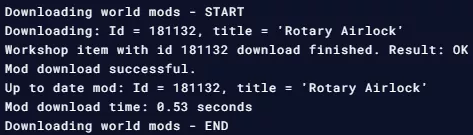
14. Start the server. The mods will be downloaded as the server starts.
How to Install Mods on a Space Engineers Torch Server (Mod.IO)
1. Select the desired mod from Mod.IO.
2. From the Mod's description, take note of the #ID.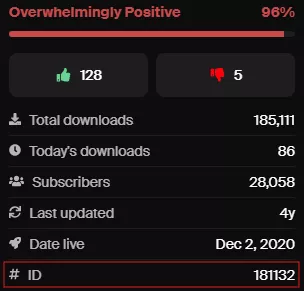
3. Log in to the BisectHosting Starbase panel.
4. Stop the server.
5. Go to the Files tab.
6. Find the following directory: /home/container/Instance/Saves/World .
7. Open the Sandbox_config.sbc file.
8. Navigate to the <Mods /> line.
9. Replace the <Mods /> text with the following template. <Mods> <ModItem FriendlyName="Mod title - As shown in Mod.IO"> <Name>ID.sbm</Name> <PublishedFileId>ID</PublishedFileId> <PublishedServiceName>mod.io</PublishedServiceName> </ModItem> </Mods>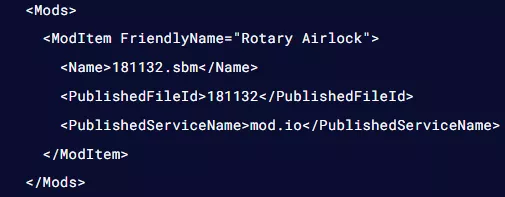
| Line | Edit |
ModItem FriendlyName= |
Enter the Mod.IO mod title |
Name |
Input the ID from Step 2 and add .sbm |
PublishedFileId |
Enter the ID from Step 2. |
10. For multiple mods, duplicate everything between the <Mods></Mods> lines, or copy the following template: <Mods> <ModItem FriendlyName="Mod title 1 - As shown in Mod.IO"> <Name>ID1.sbm</Name> <PublishedFileId>ID1</PublishedFileId> <PublishedServiceName>mod.io</PublishedServiceName> </ModItem>
<ModItem FriendlyName="Mod title 2 - As shown in Mod.IO">
<Name>ID2.sbm</Name>
<PublishedFileId>ID2</PublishedFileId>
<PublishedServiceName>mod.io</PublishedServiceName>
</ModItem> </Mods>
11. Press the Save button.
12. Start the server.
13. Wait for the server to finish downloading the mods.