Hytale Console Commands Guide: Every Server Command & How to Enter
Posted on by

Share:

Share on X

Share on Facebook

Share on Threads

Share on Bluesky

Copy to Clipboard

Share via email
Even in early access, there are multiple ways to enjoy your time in Hytale. You can hop into Exploration for an adventurous journey filled with crafting and mysteries, or Creative for a blank canvas of imagination. If you choose Creative mode, you can still enjoy a procedural world, and you'll also have access to the Hytale console commands. Our guide can show you exactly what console commands you can use as you shape the world according to your own design.
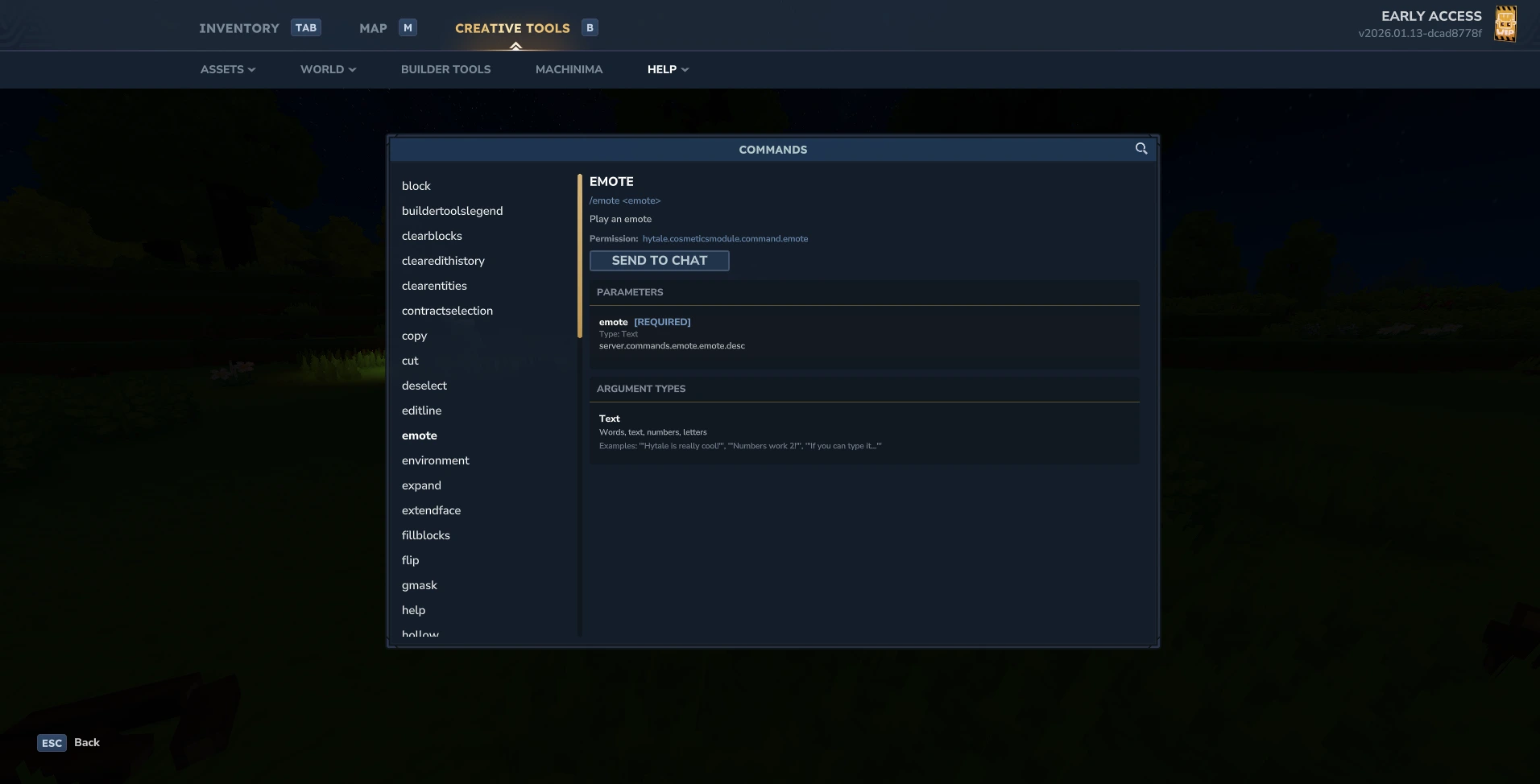 As is the case with many PC titles, you can enter console commands in Hytale by simply pressing 'Enter' to open the chat. If you'd like to see the list of console commands available to you in-game, you can enter /help for a little list. However, there's another way to access specific console commands. So long as you're in Creative mode, you can access the game's builder-specific console commands by doing the following:
How to Access Console Commands in Hytale
As is the case with many PC titles, you can enter console commands in Hytale by simply pressing 'Enter' to open the chat. If you'd like to see the list of console commands available to you in-game, you can enter /help for a little list. However, there's another way to access specific console commands. So long as you're in Creative mode, you can access the game's builder-specific console commands by doing the following:
- Press 'B' to open Creative Tools.
- Select the 'Help' dropdown menu.
- Select 'Commands.'
All Hytale Console Commands (Admin, Server)
One of the best parts of the console commands for Hytale is how much extra power they give you in creative mode. You can use them to take out huge amounts of work from your creative building so that you don't have to place quite as many individual blocks. Here is the full list of console commands you can use in Hytale:Server Admin Commands
- /spawning: Commands related to NPC spawning.
- /ban: Ban a player from the server.
- /unban: Unbans a player from the server.
- /gamemode: Change a player's game mode.
- /give: Spawn items for a player.
- /heal: Heals up to your max health and stamina.
- /kick: Kicks a player from the server.
- /op: Gives admin permissions to a player or yourself.
- /perm: Primary permissions command for groups or users.
- /plugin: Primary command for managing plugins.
- /stop: Forcibly shuts down the server.
- /sudo: Run a command as another player.
- /tp: Teleport to a specific location or player.
- /whitelist: Primary command for managing the server whitelist.
World Commands
- /block: Primary command for block states, debugs, & more.
- /chunk: Primary command for chunk info, loading, & more.
- /fluid: Control fluids at a specific location or radius.
- /lighting: Control and retrieve information for world lighting.
- /path: Main command for managing NPC patrol paths.
- /time: Change the world's time.
- /weather: Change the world's weather.
- /world: Primary command for managing all worlds in the server.
Player Commands
- /damage: Hurts the target player's health.
- /emote: Plays an emote.
- /help: Shows the entire list of console commands.
- /kill: Kills and respawns the target player.
- /mount: Dismount yourself, target players, or check the status of a player's mount.
- /ping: Shows the target player's latency and ticks.
- /spawn: Teleport to the world's spawn location.
- /warp: Primary command for managing warp teleport locations.
- /who: List who is on the server.
- /whoami: Prints your player information in the chat.
- /whereami: Prints your location in the chat.
Builder Commands
- /block: Block-related commands.
- /block set: Set a block.
- /block get: Get a block.
- /block getstate: Get a block state.
- /block row: Spawn base blocks matching a wildcard.
- /block setstate: Set block state.
- /buildertoolslegend: Show or hide builder tools legend HUD.
- /clearblocks: Set Blocks to Empty within specified area.
- /clearedithistory: Clear clipboard history.
- /clearentites: Clear entities.
- /contractselection: Make your selection smaller.
- /copy: Copy the contents of world selection.
- /cut: Cut the contents of world selection.
- /deselect: Clear current world selection.
- /editline: Draw a line of blocks between two points.
- /environment: Sets the environment in a selected area.
- /expand: Expand your selection.
- /extendface: Extend the target face.
- /fillblocks: Fill all air within your selection with specified blocks
- /flip: Flip blocks in your clipboard.
- /gmask: Set the Global Block Mask.
- /hollow: Sets the material inside your selection.
- /hotbar: Sets your hotbar to previously saved value.
- /hub: Return to the Cosmos of Creativity hub.
- /importimage: Open the image to blocks import tool.
- /importobj: Open the OBJ to voxel import tool.
- /itemstate: Set the state of your currently held item.
- /move: Move your selection and its contents by the specified amount.
- /paste: Paste the contents of your clipboard.
- /pos1: Set the first position of your selection.
- /pos2: Set the second position of your selection.
- /prefab: Prefab commands.
- /redo: Redo last change
- /repairfillers: Repair filler blocks in selection
- /replace: Replace a selection from specified block(s) with a block.
- /rotate: Rotate your clipboard.
- /selectchunk: Select a chunk.
- /selectchunksection: Select a chunk selection.
- /selectionhistory: Record selection box changes in the undo/redo history.
- /setblocks: Set all blocks in your selection to the specified block type.
- /settoolhistorysize: Set the amount of historical builder tool actions that can be stored in history.
- /shift: Shift selection.
- /stack: Stack selection.
- /submerge: Submerges the selection with a fluid - using 'Empty' will unsubmerge the selection.
- /tint: Tints selection with a specified color.
- /undo: Undo last change.
- /updateselection: Update selection
- /wall: Sets the material on the walls of your selection with specified thickness.
Join our Newsletter
Subscribe for the latest updates on all things gaming!

How would you rate this blog?
Share your opinion and help us make our blogs even better!
Didn't like
Neutral
Liked

Need a game server?
Rent a game server where you and your friends can play privately with low latency and custom settings. Choose from 110+ games, invite people from around the globe, and enjoy private matches, or build your own online community with your own rules.

Relevant Blogs







GET THE INSIDE SCOOP!
Join our email for updates on our hosted games, company news and exclusive deals. Stay in the loop!