Romestead Controls Guide: PC (Keyboard & Controller)
Posted on by

Share:

Share on X

Share on Facebook

Share on Threads

Share on Bluesky

Copy to Clipboard

Share via email
You have a lot of work to do in Romestead. There are citizens to recruit, monsters to destroy, gods to appease, and an empire to build. But, before you get started, you ought to come to grips with the game's controls. To that end, we have our Romstead controls guide below for your convenience. Take a look and let your roaming, Roman adventure begin!
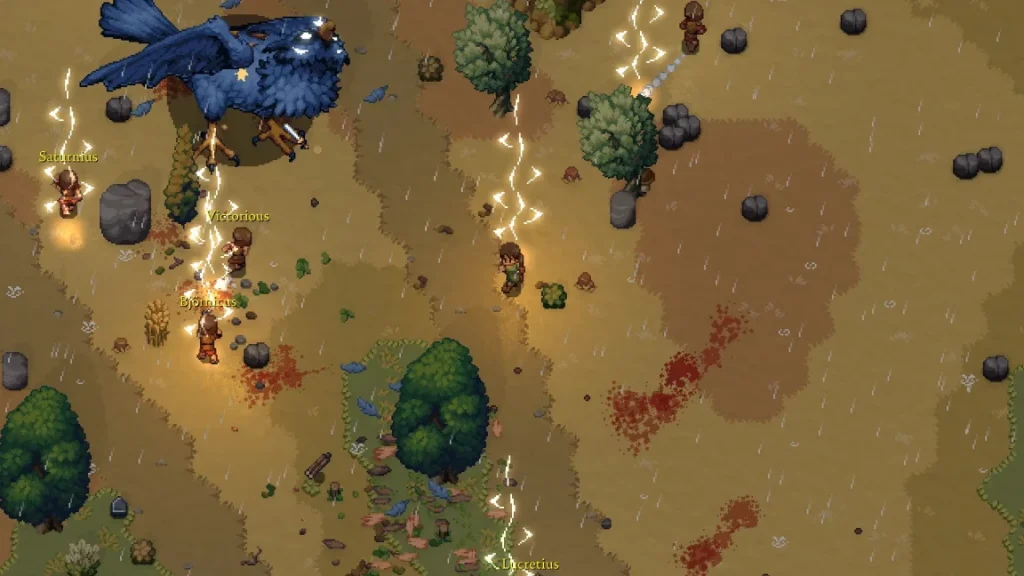 Romestead does feature a few tutorial quests to help you come to grips with the game. However, these tutorial quests are a bit more focused on what you need to do next in-game rather than what your buttons do. We've listed all of the possible in-game commands below, whether you're playing on PC with a mouse & keyboard or a controller.
Keep in mind that if you're using a mouse & keyboard, you will have access to a few more controls than when using a controller. Additionally, you can hop into the game's settings to modify your keybindings yourself for either control option. The game is still in early access, so some keybind switching might not work exactly as intended.
Romestead does feature a few tutorial quests to help you come to grips with the game. However, these tutorial quests are a bit more focused on what you need to do next in-game rather than what your buttons do. We've listed all of the possible in-game commands below, whether you're playing on PC with a mouse & keyboard or a controller.
Keep in mind that if you're using a mouse & keyboard, you will have access to a few more controls than when using a controller. Additionally, you can hop into the game's settings to modify your keybindings yourself for either control option. The game is still in early access, so some keybind switching might not work exactly as intended.
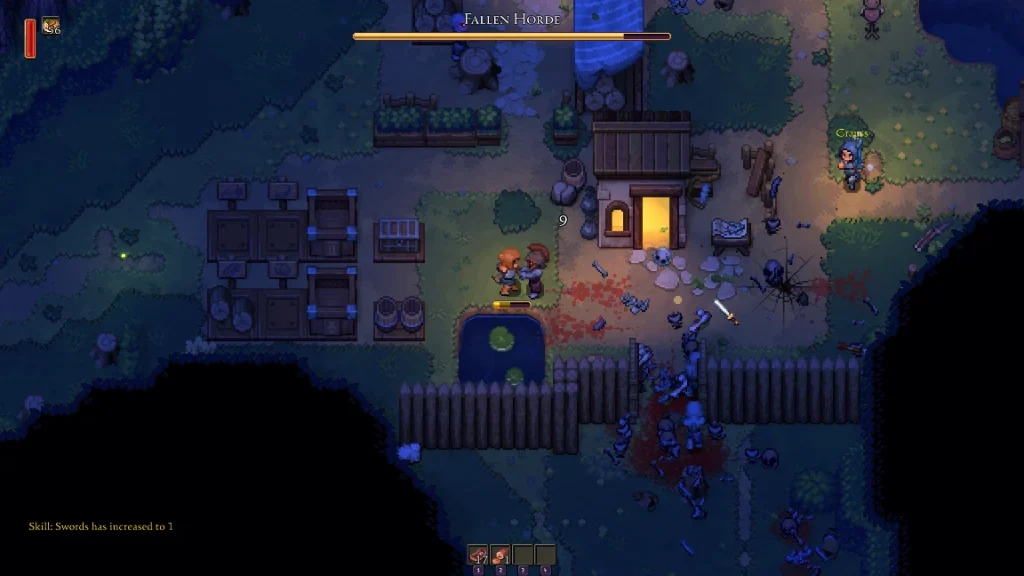
Romestead Controls & Keybinds: PC (Mouse & Keyboard)
Romestead does feature a few tutorial quests to help you come to grips with the game. However, these tutorial quests are a bit more focused on what you need to do next in-game rather than what your buttons do. We've listed all of the possible in-game commands below, whether you're playing on PC with a mouse & keyboard or a controller.
Keep in mind that if you're using a mouse & keyboard, you will have access to a few more controls than when using a controller. Additionally, you can hop into the game's settings to modify your keybindings yourself for either control option. The game is still in early access, so some keybind switching might not work exactly as intended.
- Primary Attack: Left Mouse Button
- Secondary Attack: Right Mouse Button
- Grab/Place: Spacebar
- Dash: Left or Right Shift
- Interact: E
- Cancel Action: Escape
- Furniture Mode: R
- Quick Heal: G
- Open Chat: Enter
- Send Message: Enter
- Toggle Minimap: N
- Place: Left Mouse Button
- Select: Left Mouse Button
- Close/Cancel: Escape
- Use/Quick Equip: Right Mouse Button
- Settings: Escape
- World Map: M
- Quests: T
- Skills: K
- Toggle Walking: CapsLock
- Switch Weapons: F
- Hotbar 1: 1
- Hotbar 2: 2
- Hotbar 3: 3
- Hotbar 4: 4
- Move Up: W
- Move Left: A
- Move Down: S
- Move Right: D
- UI Up: Arrow Up
- UI Left: Arrow Left
- UI Down: Arrow Down
- UI Right: Arrow Right
- Toggle Cursor: Not set by Default
- Hold to Split Stack: Left Control
Romestead Controls & Keybinds: PC (Controller)
- Primary Attack: RT (Xbox) R2 (PlayStation)
- Secondary Attack: LT (Xbox) L2 (PlayStation)
- Grab/Place: RB (Xbox) R1 (PlayStation)
- Dash: A (Xbox) Cross (PlayStation)
- Interact: X (Xbox) Square (PlayStation)
- Cancel Action: B (Xbox) Circle (PlayStation)
- Furniture Mode: Not set by default
- Toggle Minimap: Click in Left Stick
- Place: A (Xbox) Cross (PlayStation)
- Select: A (Xbox) Cross (PlayStation)
- Close/Cancel: B (Xbox) Circle (PlayStation)
- Use/Quick Equip: X (Xbox) Square (PlayStation)
- Drop: Y (Xbox) Triangle (PlayStation)
- Next Window: RB (Xbox) R1 (PlayStation)
- Previous Window: LB (Xbox) L1 (PlayStation)
- Open Notification: LT (Xbox) L2 (PlayStation)
- Bind to Hotbar: RT (Xbox) R2 (PlayStation)
- Toggle Walking: Not set by default
- Switch Weapons: Click in Right Stick
- Hotbar 1: D-Pad Up
- Hotbar 2: D-Pad Left
- Hotbar 3: D-Pad Right
- Hotbar 4: D-Pad Down
- Move Up: Not set by default
- Move Left: Not set by default
- Move Down: Not set by default
- Move Right: Not set by default
- UI Up: D-Pad Up or Left Stick Up
- UI Left: D-Pad Left or Left Stick Left
- UI Down: D-Pad Down or Left Stick Down
- UI Right: D-Pad Right or Left Stick Right
- Toggle Cursor: Not set by Default
Join our Newsletter
Subscribe for the latest updates on all things gaming!

How would you rate this blog?
Share your opinion and help us make our blogs even better!
Didn't like
Neutral
Liked

Need a game server?
Rent a game server where you and your friends can play privately with low latency and custom settings. Choose from 110+ games, invite people from around the globe, and enjoy private matches, or build your own online community with your own rules.

Relevant Blogs







GET THE INSIDE SCOOP!
Join our email for updates on our hosted games, company news and exclusive deals. Stay in the loop!