Minecraft Skyblock Setup Guide: Step by Step Walkthrough, Datapacks, & More
Posted on by

Share:

Share on X

Share on Facebook

Share on Threads

Share on Bluesky

Copy to Clipboard

Share via email
Skyblock has been one of the most beloved fan-made gamemodes since Minecraft’s earliest days, yet it can still be unclear how exactly one sets it up to play. So, today, we explore step by step how to enjoy skyblock alone or with friends in our Minecraft Skyblock setup guide.
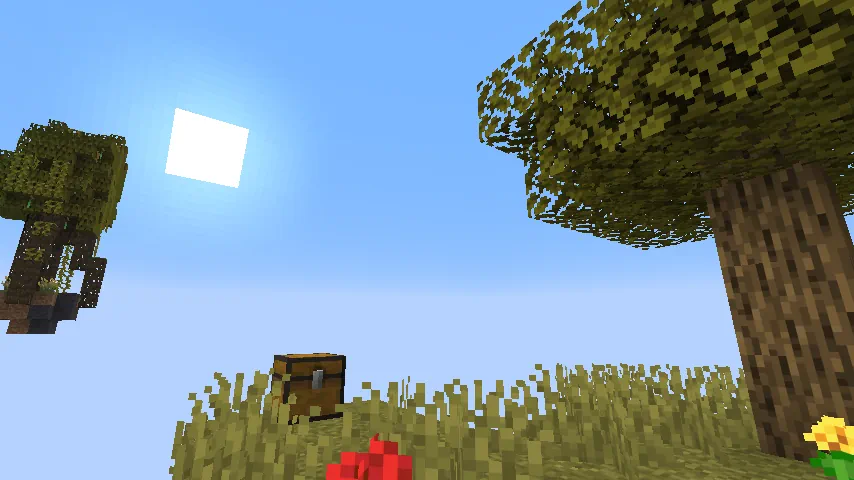 Skyblock is a modified version of Minecraft where players spawn on a small dirt island in the sky, with a tree and a chest that has a select number of items inside. Using only those starting blocks and items, alongside some Minecraft technical knowledge, the goal is to then expand, venturing to new islands.
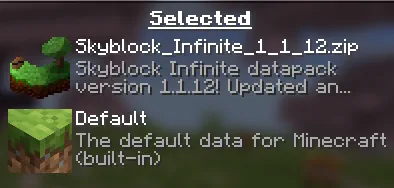 Today, there are many options for skyblock ranging everywhere from worlds to modpacks, each with their own unique take on the idea. However, what we will be using for this guide is a datapack called “Skyblock Infinite,” which offers a faithful rendition of the core vanilla skyblock experience.
To download it, first head over to the Modrinth page here and find the datapack file that matches the version you are currently playing. Once found, download the zip file before proceeding with either the singleplayer or multiplayer steps below.
Today, there are many options for skyblock ranging everywhere from worlds to modpacks, each with their own unique take on the idea. However, what we will be using for this guide is a datapack called “Skyblock Infinite,” which offers a faithful rendition of the core vanilla skyblock experience.
To download it, first head over to the Modrinth page here and find the datapack file that matches the version you are currently playing. Once found, download the zip file before proceeding with either the singleplayer or multiplayer steps below.
What is Skyblock?
Skyblock is a modified version of Minecraft where players spawn on a small dirt island in the sky, with a tree and a chest that has a select number of items inside. Using only those starting blocks and items, alongside some Minecraft technical knowledge, the goal is to then expand, venturing to new islands.
Minecraft Skyblock Setup Guide
Today, there are many options for skyblock ranging everywhere from worlds to modpacks, each with their own unique take on the idea. However, what we will be using for this guide is a datapack called “Skyblock Infinite,” which offers a faithful rendition of the core vanilla skyblock experience.
To download it, first head over to the Modrinth page here and find the datapack file that matches the version you are currently playing. Once found, download the zip file before proceeding with either the singleplayer or multiplayer steps below.
Singleplayer
- Select “Create New World”.
- Click the “More” tab near the top right of the window.
- Click “Data Packs”.
- Select “Open Pack Folder”.
- Upload the previously downloaded datapack zip file to the folder.
- Activate the datapack by clicking it.
- Create the world.
Multiplayer
- Stop the server.
- Open the server files.
- Find and open the world folder.
- Open the “datapacks” folder.
- Upload the previously downloaded datapack zip file to the folder.
- Start the server.
Join our Newsletter
Subscribe for the latest updates on all things gaming!

How would you rate this blog?
Share your opinion and help us make our blogs even better!
Didn't like
Neutral
Liked

Need a game server?
Rent a game server where you and your friends can play privately with low latency and custom settings. Choose from 110+ games, invite people from around the globe, and enjoy private matches, or build your own online community with your own rules.

Relevant Blogs







GET THE INSIDE SCOOP!
Join our email for updates on our hosted games, company news and exclusive deals. Stay in the loop!