How to Add Friends in Hytale: Benefits, Discord Integration, & More
Posted on by

Share:

Share on X

Share on Facebook

Share on Threads

Share on Bluesky

Copy to Clipboard

Share via email
As of update five, friends in Hytale are never more than a few clicks away. So, today, we answer how to add friends in Hytale, why it’s worth the time, and what social features are available, such as appearing offline.
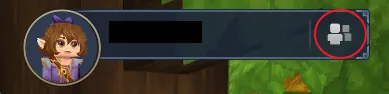 Step 1. Adding friends in Hytale is as easy as can be! The first step is heading to the main menu and selecting the small button depicting a person on the top right of the screen.
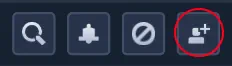 Step 2. Upon clicking the button, a friends list with four buttons at the bottom will open up. From there, click the button depicting a person with a plus sign.
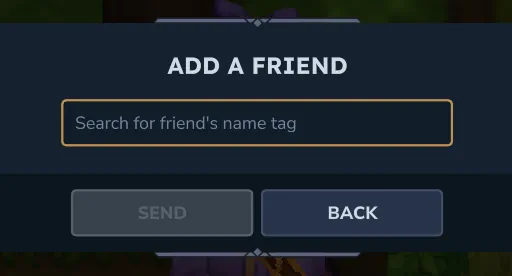 Step 3. When the button has been clicked, a text box will appear requesting the desired friend’s username. It is the same name that is seen in-game. However, if accidentally forgotten, any player can see their own name in the top-right of the main menu. Enter the provided name, and the friend request is complete!
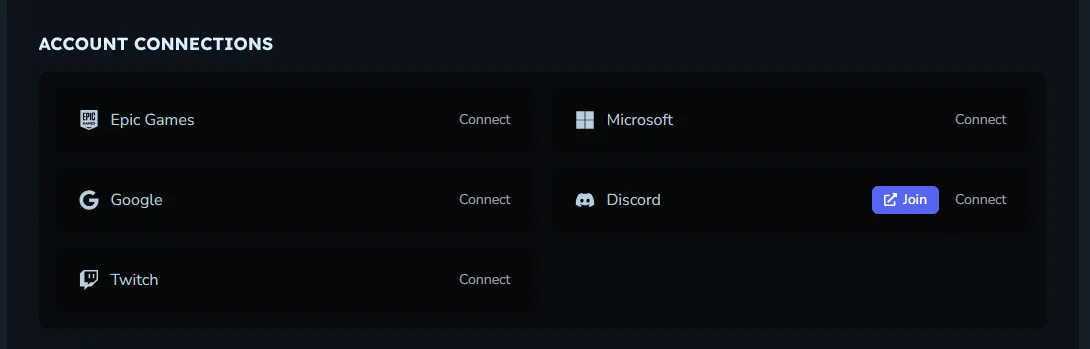 Another option for adding friends is Discord integration. To enable this, head over to the Hytale website and log in to the account management area. The option to connect a Hytale account to Discord is found near the bottom of the account management page. Select “Connect” to begin the security verifications.
Once complete, return to the Hytale client, select “Settings”, and turn on “Discord Integration” under the social tab. This should automatically make Discord friends who have also integrated visible in the friends list.
Another option for adding friends is Discord integration. To enable this, head over to the Hytale website and log in to the account management area. The option to connect a Hytale account to Discord is found near the bottom of the account management page. Select “Connect” to begin the security verifications.
Once complete, return to the Hytale client, select “Settings”, and turn on “Discord Integration” under the social tab. This should automatically make Discord friends who have also integrated visible in the friends list.
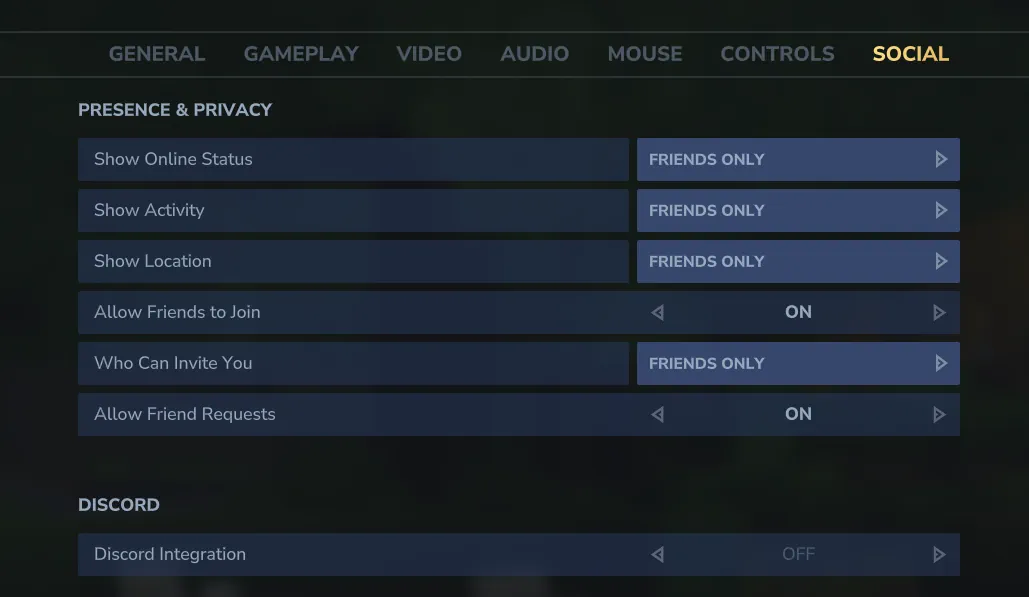 The addition of the friends list also means a few convenient social features! Below we have listed all those available as of Update 5.
How to Add Friends in Hytale
Step 1. Adding friends in Hytale is as easy as can be! The first step is heading to the main menu and selecting the small button depicting a person on the top right of the screen.
Step 2. Upon clicking the button, a friends list with four buttons at the bottom will open up. From there, click the button depicting a person with a plus sign.
Step 3. When the button has been clicked, a text box will appear requesting the desired friend’s username. It is the same name that is seen in-game. However, if accidentally forgotten, any player can see their own name in the top-right of the main menu. Enter the provided name, and the friend request is complete!
Discord Integration
Another option for adding friends is Discord integration. To enable this, head over to the Hytale website and log in to the account management area. The option to connect a Hytale account to Discord is found near the bottom of the account management page. Select “Connect” to begin the security verifications.
Once complete, return to the Hytale client, select “Settings”, and turn on “Discord Integration” under the social tab. This should automatically make Discord friends who have also integrated visible in the friends list.
Social Features
The addition of the friends list also means a few convenient social features! Below we have listed all those available as of Update 5.
Joining Worlds
Friends can join game sessions directly through the friends list or use it to invite online friends to their worlds.Appear Offline
Within the friends list, clicking the green online symbol changes the account to “Appear Offline.” This prevents friends from seeing the account as online and playing the game even if it is.Block
Players encountered in-game can now be blocked. This mutes their text and voice chat in-game. The list of blocked players can be found and managed via the friends list on the main menu.Join our Newsletter
Subscribe for the latest updates on all things gaming!

How would you rate this blog?
Share your opinion and help us make our blogs even better!
Didn't like
Neutral
Liked
Need a game server?
Rent a game server where you and your friends can play privately with low latency and custom settings. Choose from 110+ games, invite people from around the globe, and enjoy private matches, or build your own online community with your own rules.

Relevant Blogs



GET THE INSIDE SCOOP!
Join our email for updates on our hosted games, company news and exclusive deals. Stay in the loop!