

Introducing BisectHosting Server Donations: How to Activate, Send, Receive, & more
Posted on by

Share:

Share on X

Share on Facebook

Share on Threads

Share on Bluesky

Copy to Clipboard

Share via email
There's so much to enjoy when you're playing on a dedicated server from BisectHosting: free DDoS protection, server backups, a feature-rich control panel, and much more. However, one of the best parts of playing on a dedicated server is getting to play with a community of friends and players. With donations, you and your pals can split the cost of a server, you can contribute to some of your favorite servers, or you can accept donations from others for your own server.
Here, we'll tell you everything you need to know about BisectHosting donations, including how to enable them, send them, and more!
 With our new server donations feature, BisectHosting lets users directly support their favorite server communities by donating to help cover hosting costs.
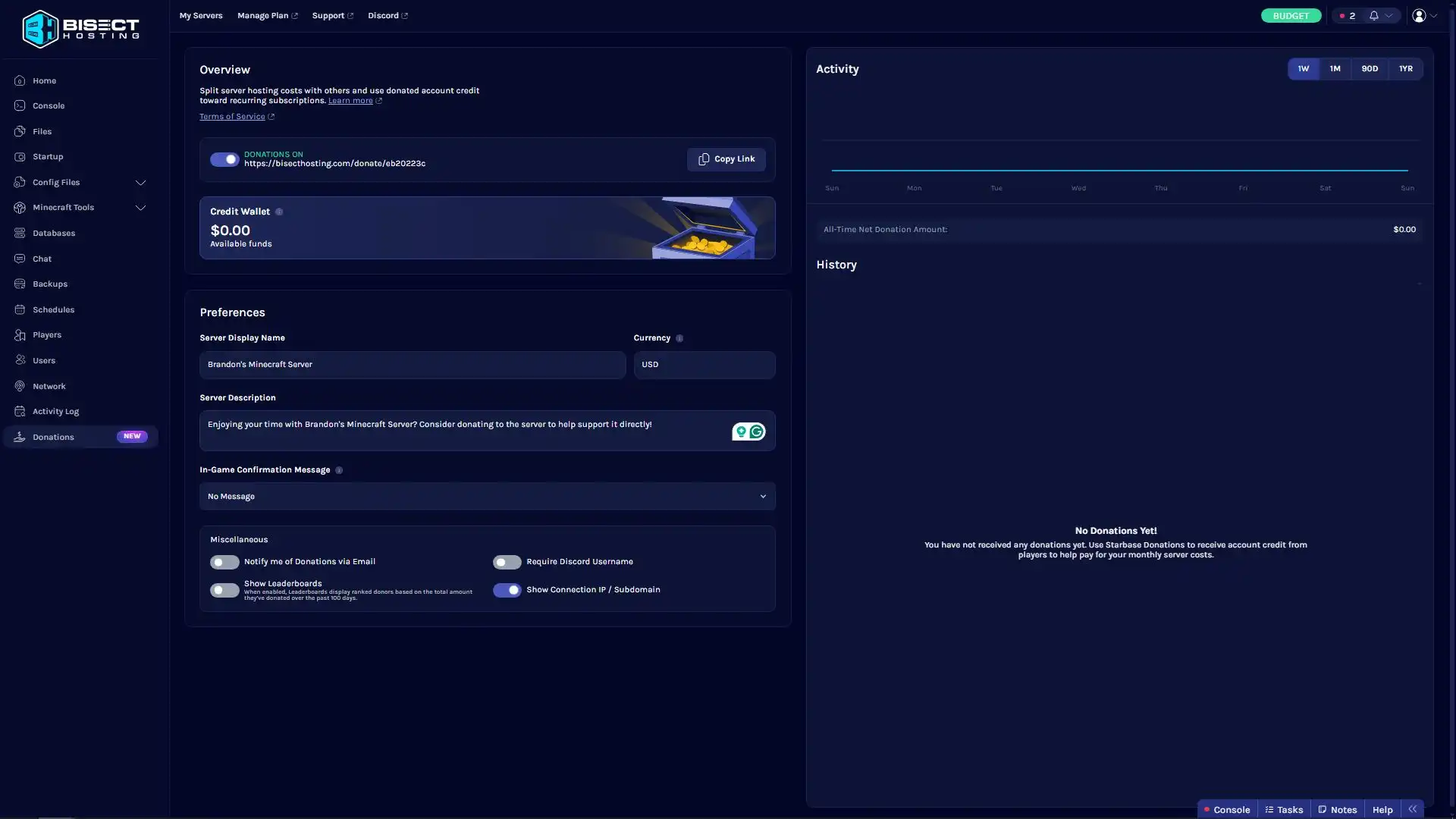 By default, your server's ability to accept donations is turned off. You can change this by simply clicking the toggle button at the top of the Donations Overview. Here, you can view the activity for your server's donations and add some customization options. For example, you can set your server donations display name, add a description of what your server is all about, and more.
Note that to manage server donations, you'll need to be the server owner.
Once you're done, copy your server's donation link via the Copy Link button on the page, and share it with others anywhere you'd like!
By default, your server's ability to accept donations is turned off. You can change this by simply clicking the toggle button at the top of the Donations Overview. Here, you can view the activity for your server's donations and add some customization options. For example, you can set your server donations display name, add a description of what your server is all about, and more.
Note that to manage server donations, you'll need to be the server owner.
Once you're done, copy your server's donation link via the Copy Link button on the page, and share it with others anywhere you'd like!
 Keep in mind that you cannot change your server's used currency after you've created your BisectHosting account. All donations are converted into Account Credits. These are only for redeeming or renewing your BisectHosting dedicated server. You cannot cash out donations. The donations tab in Starbase also shows the current total of received donations in your Credit Wallet.
Introducing BisectHosting Server Donations
Managing Donations For Your Server (How to Activate, Customize)
To manage donations on your BisectHosting server, first, open the Starbase control panel. Here, you'll look at the left-hand side of the panel and select the bottom option titled "Donations."
By default, your server's ability to accept donations is turned off. You can change this by simply clicking the toggle button at the top of the Donations Overview. Here, you can view the activity for your server's donations and add some customization options. For example, you can set your server donations display name, add a description of what your server is all about, and more.
Note that to manage server donations, you'll need to be the server owner.
Once you're done, copy your server's donation link via the Copy Link button on the page, and share it with others anywhere you'd like!
Sending a Server Donation
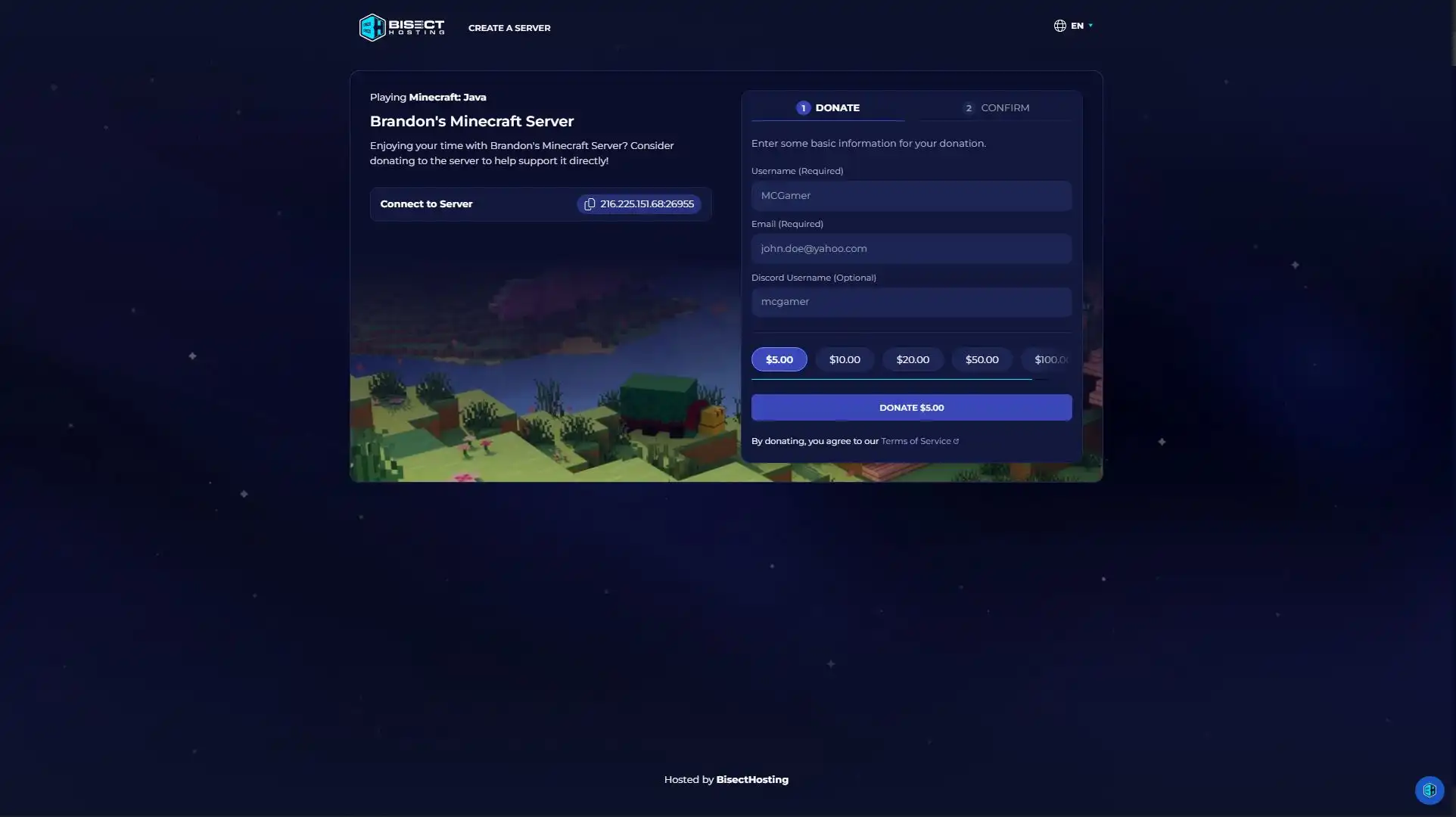
When you share a link to your server donations with friends, it will bring them to a page where they can choose a donation amount. There are no fees involved in the donation process. Based on your settings, they may also be asked to share their Discord username. They can also see the IP to your server so that they can jump in after donating. Those with your server donations link can also see leaderboards and recent donations if those settings are activated. You can read over our full guides on setting up and sending donations on a BisectHosting server here:- How to Enable/Disable Donations on a BisectHosting Server
- How to Manage Donation Preferences on a BisectHosting Server
- How to Receive Donations on a BisectHosting Server
Keep in mind that you cannot change your server's used currency after you've created your BisectHosting account. All donations are converted into Account Credits. These are only for redeeming or renewing your BisectHosting dedicated server. You cannot cash out donations. The donations tab in Starbase also shows the current total of received donations in your Credit Wallet.Join our Newsletter
Subscribe for the latest updates on all things gaming!

How would you rate this blog?
Share your opinion and help us make our blogs even better!
Didn't like
Neutral
Liked

Need a game server?
Rent a game server where you and your friends can play privately with low latency and custom settings. Choose from 110+ games, invite people from around the globe, and enjoy private matches, or build your own online community with your own rules.

Relevant Blogs







GET THE INSIDE SCOOP!
Join our email for updates on our hosted games, company news and exclusive deals. Stay in the loop!