Minecraft Java Friends List Guide: How to Add Friends, Invite to World, Peer to Peer, & More
Publicado em por

Compartilhar:

Compartilhar no X

Compartilhar no Facebook

Compartilhar no Threads

Compartilhar no Bluesky

Copiar para a área de transferência

Compartilhar por e-mail
A long-desired social feature for Java Edition is finally here, complete with adding friends and peer to peer! So, today, we explore the Minecraft Java friends list, its new features, and how to connect to friends in their singleplayer worlds.
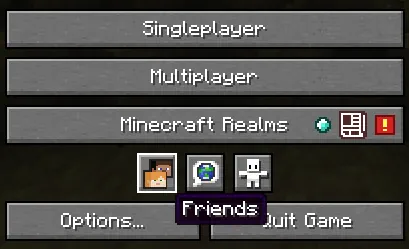 After loading into Minecraft Java Edition, a new row of three buttons can be found below “Minecraft Realms” and above “Options” and “Quit Game.” The first of the three buttons, depicting the heads of Steve and Alex, is the option to open the new Java friends list. Upon clicking it, a window will open with a “Friends” and “Requests” tab at the top.
The “Friends” tab has the option to add new friends alongside a list of those already added, showing their current online status. Meanwhile, the “Requests” tab shows any pending friend requests that have been received and offers the option to either accept or decline them.
After loading into Minecraft Java Edition, a new row of three buttons can be found below “Minecraft Realms” and above “Options” and “Quit Game.” The first of the three buttons, depicting the heads of Steve and Alex, is the option to open the new Java friends list. Upon clicking it, a window will open with a “Friends” and “Requests” tab at the top.
The “Friends” tab has the option to add new friends alongside a list of those already added, showing their current online status. Meanwhile, the “Requests” tab shows any pending friend requests that have been received and offers the option to either accept or decline them.
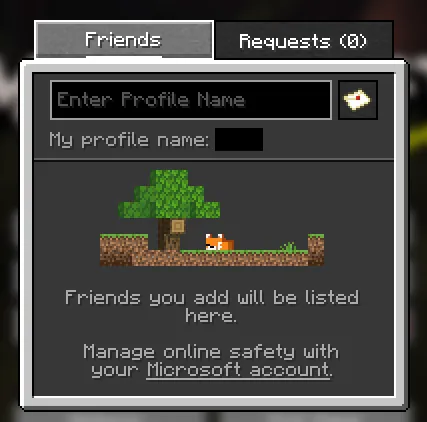 Adding a friend to your Minecraft Java friends list requires only their Minecraft Java username. Once obtained, the steps below can be followed:
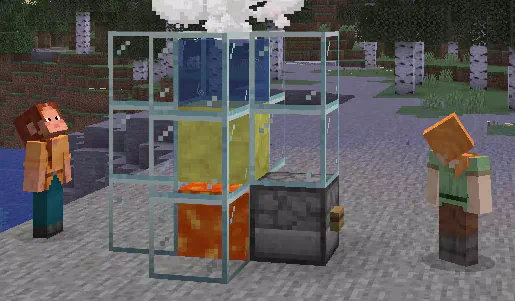 Once a friend has been added, they can be invited to your singleplayer world by opening the friends list in-game with the “O” key and selecting invite. Alternatively, a request to join a friend’s singleplayer world can be made through the friends list on the main menu or by also clicking “O” in-game. When either occurs, the singleplayer world is turned into a temporary server that functions only while the owner is online. Once they leave, no one else can continue playing the world.
Minecraft Java Friends List Overview
After loading into Minecraft Java Edition, a new row of three buttons can be found below “Minecraft Realms” and above “Options” and “Quit Game.” The first of the three buttons, depicting the heads of Steve and Alex, is the option to open the new Java friends list. Upon clicking it, a window will open with a “Friends” and “Requests” tab at the top.
The “Friends” tab has the option to add new friends alongside a list of those already added, showing their current online status. Meanwhile, the “Requests” tab shows any pending friend requests that have been received and offers the option to either accept or decline them.
Adding Friends on Minecraft Java Edition
Adding a friend to your Minecraft Java friends list requires only their Minecraft Java username. Once obtained, the steps below can be followed:
- Open Minecraft Java Edition.
- Select the “Friends” button.
- Enter your friend’s username into the text box under the “Friends” tab.
- Click the small letter icon to the text box’s right.
- Wait for a response.
Peer to Peer Connections
Once a friend has been added, they can be invited to your singleplayer world by opening the friends list in-game with the “O” key and selecting invite. Alternatively, a request to join a friend’s singleplayer world can be made through the friends list on the main menu or by also clicking “O” in-game. When either occurs, the singleplayer world is turned into a temporary server that functions only while the owner is online. Once they leave, no one else can continue playing the world.Crie seu próprio
servidor Minecraft
servidor Minecraft
Escolha um plano, selecione um jogo e jogue com seus amigos!
Assine nosso boletim informativo
Assine para receber as novidades mais recentes do mundo dos jogos!

Entre no nosso Discord
Faça parte da nossa comunidade com mais de 20.000 membros com os mesmos interesses!
Como você avaliaria este blog?
Compartilhe sua opinião e nos ajude a melhorar ainda mais nossos blogs!
Não curti
Neutro
Curti
Precisa de um servidor de jogo?
Alugue um servidor de jogos onde você e seus amigos podem jogar em privacidade, com baixa latência e configurações personalizadas. Escolha entre 110+ jogos, convide pessoas de todo o mundo e desfrute de partidas privadas ou construa sua comunidade on-line com suas próprias regras.

Blogs relevantes






FIQUE POR DENTRO!
Assine nosso boletim informativo para receber novidades sobre nossos jogos hospedados, notícias sobre a empresa e ofertas exclusivas. Fique por dentro!