Minecraft Java Friends List Guide: How to Add Friends, Invite to World, Peer to Peer, & More
Publicado el por

Compartir:

Compartir en X

Compartir en Facebook

Compartir en Threads

Compartir en Bluesky

Copiar al portapapeles

Compartir por correo electrónico
A long-desired social feature for Java Edition is finally here, complete with adding friends and peer to peer! So, today, we explore the Minecraft Java friends list, its new features, and how to connect to friends in their singleplayer worlds.
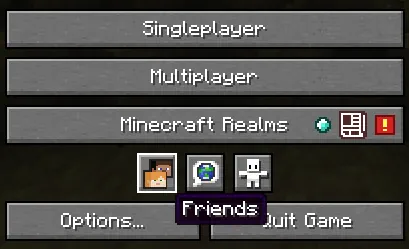 After loading into Minecraft Java Edition, a new row of three buttons can be found below “Minecraft Realms” and above “Options” and “Quit Game.” The first of the three buttons, depicting the heads of Steve and Alex, is the option to open the new Java friends list. Upon clicking it, a window will open with a “Friends” and “Requests” tab at the top.
The “Friends” tab has the option to add new friends alongside a list of those already added, showing their current online status. Meanwhile, the “Requests” tab shows any pending friend requests that have been received and offers the option to either accept or decline them.
After loading into Minecraft Java Edition, a new row of three buttons can be found below “Minecraft Realms” and above “Options” and “Quit Game.” The first of the three buttons, depicting the heads of Steve and Alex, is the option to open the new Java friends list. Upon clicking it, a window will open with a “Friends” and “Requests” tab at the top.
The “Friends” tab has the option to add new friends alongside a list of those already added, showing their current online status. Meanwhile, the “Requests” tab shows any pending friend requests that have been received and offers the option to either accept or decline them.
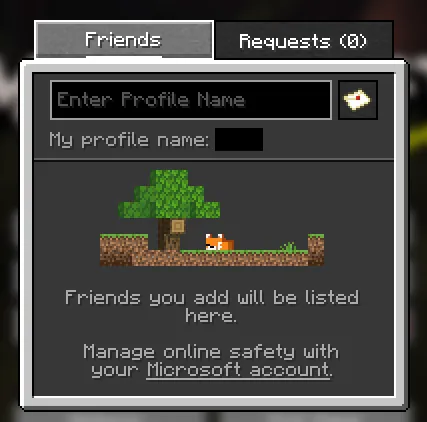 Adding a friend to your Minecraft Java friends list requires only their Minecraft Java username. Once obtained, the steps below can be followed:
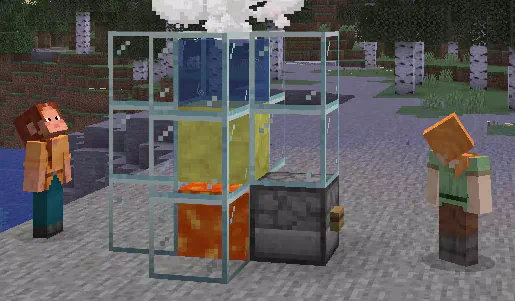 Once a friend has been added, they can be invited to your singleplayer world by opening the friends list in-game with the “O” key and selecting invite. Alternatively, a request to join a friend’s singleplayer world can be made through the friends list on the main menu or by also clicking “O” in-game. When either occurs, the singleplayer world is turned into a temporary server that functions only while the owner is online. Once they leave, no one else can continue playing the world.
Minecraft Java Friends List Overview
After loading into Minecraft Java Edition, a new row of three buttons can be found below “Minecraft Realms” and above “Options” and “Quit Game.” The first of the three buttons, depicting the heads of Steve and Alex, is the option to open the new Java friends list. Upon clicking it, a window will open with a “Friends” and “Requests” tab at the top.
The “Friends” tab has the option to add new friends alongside a list of those already added, showing their current online status. Meanwhile, the “Requests” tab shows any pending friend requests that have been received and offers the option to either accept or decline them.
Adding Friends on Minecraft Java Edition
Adding a friend to your Minecraft Java friends list requires only their Minecraft Java username. Once obtained, the steps below can be followed:
- Open Minecraft Java Edition.
- Select the “Friends” button.
- Enter your friend’s username into the text box under the “Friends” tab.
- Click the small letter icon to the text box’s right.
- Wait for a response.
Peer to Peer Connections
Once a friend has been added, they can be invited to your singleplayer world by opening the friends list in-game with the “O” key and selecting invite. Alternatively, a request to join a friend’s singleplayer world can be made through the friends list on the main menu or by also clicking “O” in-game. When either occurs, the singleplayer world is turned into a temporary server that functions only while the owner is online. Once they leave, no one else can continue playing the world.Crea tu propio
servidor de Minecraft
servidor de Minecraft
¡Elige un plan, escoge un juego y juega con tus amigos!
Suscríbete a nuestro boletín
¡Suscríbete para recibir las últimas novedades sobre todo lo relacionado con videojuegos!

Únete a nuestro Discord
¡Forma parte de nuestra comunidad de más de 20 000 miembros con los mismos intereses!
¿Cómo calificarías este blog?
¡Comparte tu opinión y ayúdanos a mejorar aún más nuestros blogs!
No me gustó
Neutral
Me gustó
¿Necesitas un servidor de juegos?
Alquila un servidor de juego donde tú y tus amigos podáis jugar en privado con baja latencia y ajustes personalizados. Elige entre 110+ juegos, invita a gente de todo el mundo y disfruta de partidas privadas, o crea tu propia comunidad en línea con tus propias reglas.

Blogs relevantes





¡ENTÉRATE DE TODO!
Suscríbete a nuestro boletín para recibir las novedades sobre nuestros juegos alojados, noticias de la empresa y ofertas exclusivas. ¡Mantente al tanto de todo!