How to Import Hytale Prefabs
Publicado em por

Compartilhar:

Compartilhar no X

Compartilhar no Facebook

Compartilhar no Threads

Compartilhar no Bluesky

Copiar para a área de transferência

Compartilhar por e-mail
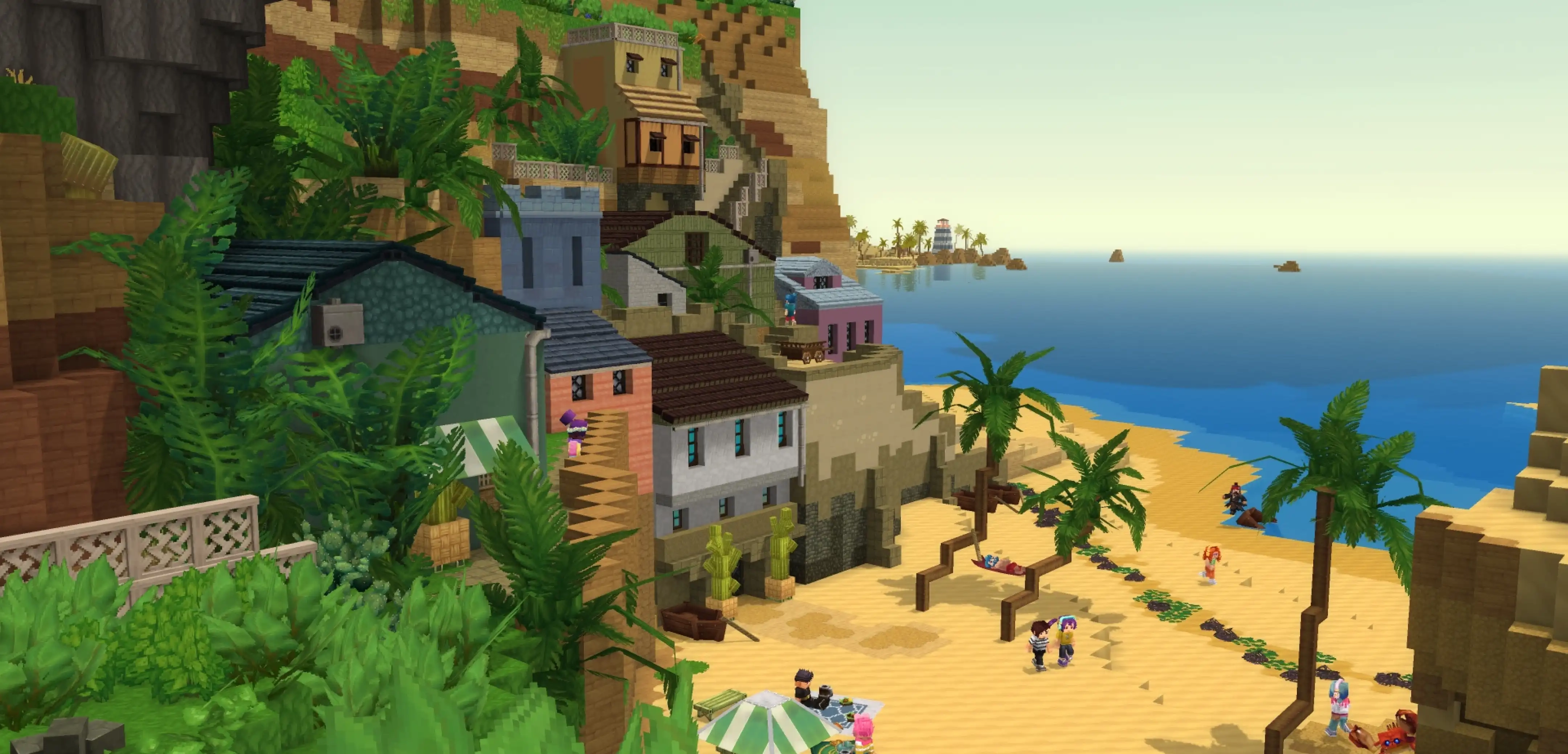
Prefabs are a nifty tool that allow builds to come with you, no matter the server or world. All it takes is a file and navigating some menus to place it and begin anew! So, today, we answer how to import Hytale prefabs, both created in-game and found online, for your solo world or multiplayer server.
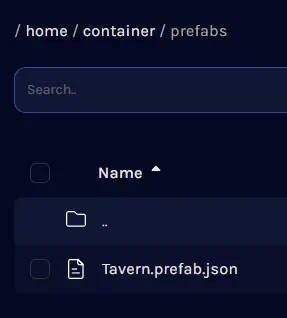 After downloading a prefab.json file from a trusted source such as CurseForge, the next step is adding it to the Hytale files so it can be loaded and placed in-game. Separate instructions for single-player worlds and servers can be found below.
 The uploaded prefab, or one created in-game, can be imported and placed in the world with a few clicks and some menu navigation. The only difficult part is that the name of the desired prefab file must be remembered, so we recommend double-checking the name before proceeding.
Where to Place Prefabs Found Online
After downloading a prefab.json file from a trusted source such as CurseForge, the next step is adding it to the Hytale files so it can be loaded and placed in-game. Separate instructions for single-player worlds and servers can be found below.
Singleplayer Worlds
- Open the Hytale Launcher.
- Click the small gear on the top left.
- Select “Open Directory”.
- Enter the “UserData” folder.
- Enter the “Saves” folder.
- Open the folder of your desired world.
- Create a folder inside called “prefabs” in all lowercase. If a prefabs folder already exists, this step can be skipped.
- Enter the “prefabs” folder.
- Move or paste the prefab.json file inside the “prefabs” folder.
Servers
- Open the server files. With BisectHosting, this can be done via the file manager on the game server panel. If the “logs” and “universe” folders can be seen, you are in the right place!
- Create a folder called “prefabs” in all lowercase. If a prefabs folder already exists, this step can be skipped.
- Open the “prefabs” folder.
- Upload the prefab.json file into the “prefabs” folder.
- Restart the server.
How to Import Hytale Prefabs
The uploaded prefab, or one created in-game, can be imported and placed in the world with a few clicks and some menu navigation. The only difficult part is that the name of the desired prefab file must be remembered, so we recommend double-checking the name before proceeding.
- Open a creative world or enter creative mode.
- Open your inventory.
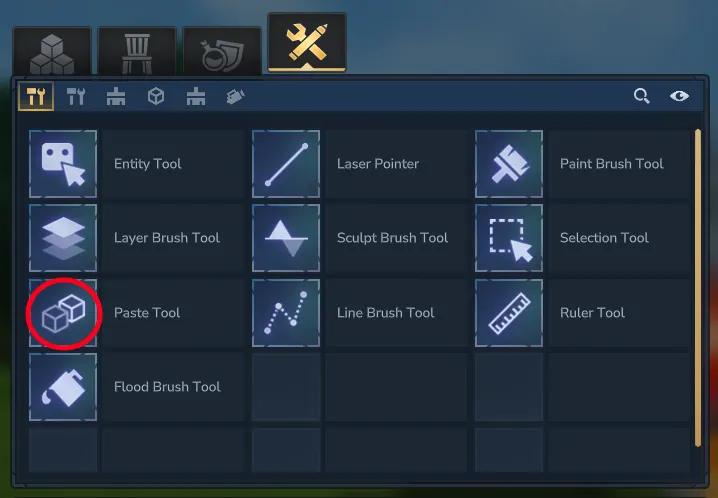
- Select the creative tools tab at the top. It should appear as a wrench crossed with a pencil.
- Click the “Paste Tool” and add it to your hotbar.
- Ready the paste tool in hand and click “E”.
- Select the desired prefab file. If not visible, try the other file destinations in the drop-down menu.
- Find a location for the prefab and left-click to place.
Crie seu próprio
servidor Hytale
servidor Hytale
Escolha um plano, selecione um jogo e jogue com seus amigos!
Assine nosso boletim informativo
Assine para receber as novidades mais recentes do mundo dos jogos!

Entre no nosso Discord
Faça parte da nossa comunidade com mais de 20.000 membros com os mesmos interesses!
Como você avaliaria este blog?
Compartilhe sua opinião e nos ajude a melhorar ainda mais nossos blogs!
Não curti
Neutro
Curti

Precisa de um servidor de jogo?
Alugue um servidor de jogos onde você e seus amigos podem jogar em privacidade, com baixa latência e configurações personalizadas. Escolha entre 110+ jogos, convide pessoas de todo o mundo e desfrute de partidas privadas ou construa sua comunidade on-line com suas próprias regras.

Blogs relevantes







FIQUE POR DENTRO!
Assine nosso boletim informativo para receber novidades sobre nossos jogos hospedados, notícias sobre a empresa e ofertas exclusivas. Fique por dentro!