How to Import Hytale Prefabs
Publicado el por

Compartir:

Compartir en X

Compartir en Facebook

Compartir en Threads

Compartir en Bluesky

Copiar al portapapeles

Compartir por correo electrónico
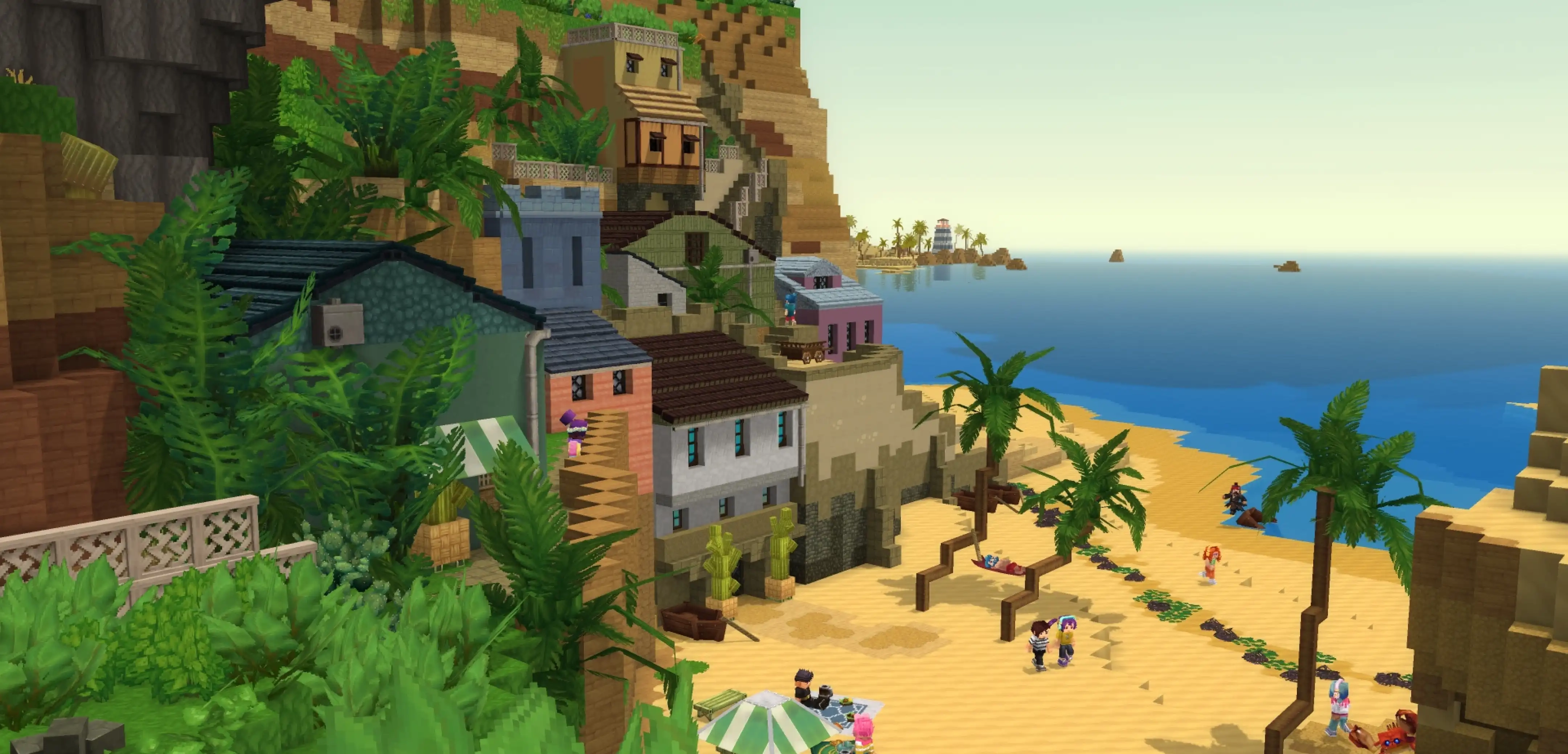
Prefabs are a nifty tool that allow builds to come with you, no matter the server or world. All it takes is a file and navigating some menus to place it and begin anew! So, today, we answer how to import Hytale prefabs, both created in-game and found online, for your solo world or multiplayer server.
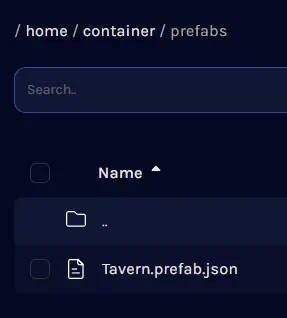 After downloading a prefab.json file from a trusted source such as CurseForge, the next step is adding it to the Hytale files so it can be loaded and placed in-game. Separate instructions for single-player worlds and servers can be found below.
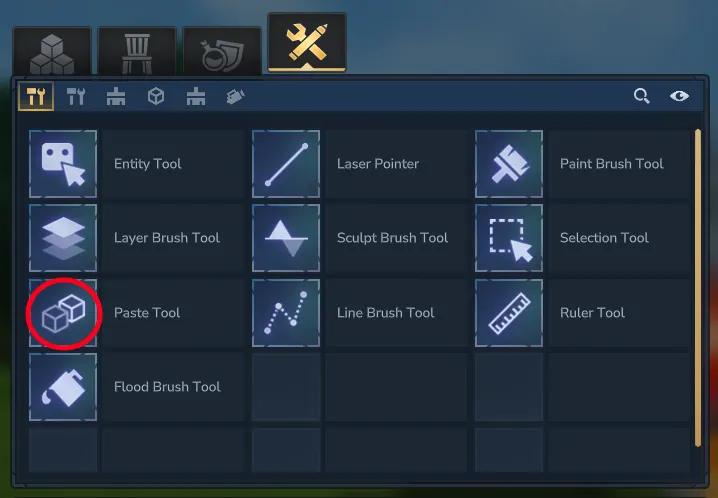 The uploaded prefab, or one created in-game, can be imported and placed in the world with a few clicks and some menu navigation. The only difficult part is that the name of the desired prefab file must be remembered, so we recommend double-checking the name before proceeding.
Where to Place Prefabs Found Online
After downloading a prefab.json file from a trusted source such as CurseForge, the next step is adding it to the Hytale files so it can be loaded and placed in-game. Separate instructions for single-player worlds and servers can be found below.
Singleplayer Worlds
- Open the Hytale Launcher.
- Click the small gear on the top left.
- Select “Open Directory”.
- Enter the “UserData” folder.
- Enter the “Saves” folder.
- Open the folder of your desired world.
- Create a folder inside called “prefabs” in all lowercase. If a prefabs folder already exists, this step can be skipped.
- Enter the “prefabs” folder.
- Move or paste the prefab.json file inside the “prefabs” folder.
Servers
- Open the server files. With BisectHosting, this can be done via the file manager on the game server panel. If the “logs” and “universe” folders can be seen, you are in the right place!
- Create a folder called “prefabs” in all lowercase. If a prefabs folder already exists, this step can be skipped.
- Open the “prefabs” folder.
- Upload the prefab.json file into the “prefabs” folder.
- Restart the server.
How to Import Hytale Prefabs
The uploaded prefab, or one created in-game, can be imported and placed in the world with a few clicks and some menu navigation. The only difficult part is that the name of the desired prefab file must be remembered, so we recommend double-checking the name before proceeding.
- Open a creative world or enter creative mode.
- Open your inventory.
- Select the creative tools tab at the top. It should appear as a wrench crossed with a pencil.
- Click the “Paste Tool” and add it to your hotbar.
- Ready the paste tool in hand and click “E”.
- Select the desired prefab file. If not visible, try the other file destinations in the drop-down menu.
- Find a location for the prefab and left-click to place.
Crea tu propio
servidor de Hytale
servidor de Hytale
¡Elige un plan, escoge un juego y juega con tus amigos!
Suscríbete a nuestro boletín
¡Suscríbete para recibir las últimas novedades sobre todo lo relacionado con videojuegos!

Únete a nuestro Discord
¡Forma parte de nuestra comunidad de más de 20 000 miembros con los mismos intereses!
¿Cómo calificarías este blog?
¡Comparte tu opinión y ayúdanos a mejorar aún más nuestros blogs!
No me gustó
Neutral
Me gustó

¿Necesitas un servidor de juegos?
Alquila un servidor de juego donde tú y tus amigos podáis jugar en privado con baja latencia y ajustes personalizados. Elige entre 110+ juegos, invita a gente de todo el mundo y disfruta de partidas privadas, o crea tu propia comunidad en línea con tus propias reglas.

Blogs relevantes







¡ENTÉRATE DE TODO!
Suscríbete a nuestro boletín para recibir las novedades sobre nuestros juegos alojados, noticias de la empresa y ofertas exclusivas. ¡Mantente al tanto de todo!