

Stardew Valley Console Commands Guide: How to Use, Money Cheats, & More
Veröffentlicht am von

Teilen:

Auf X teilen

Auf Facebook teilen

Auf Threads teilen

Auf Bluesky teilen

In die Zwischenablage kopieren

Per E-Mail teilen
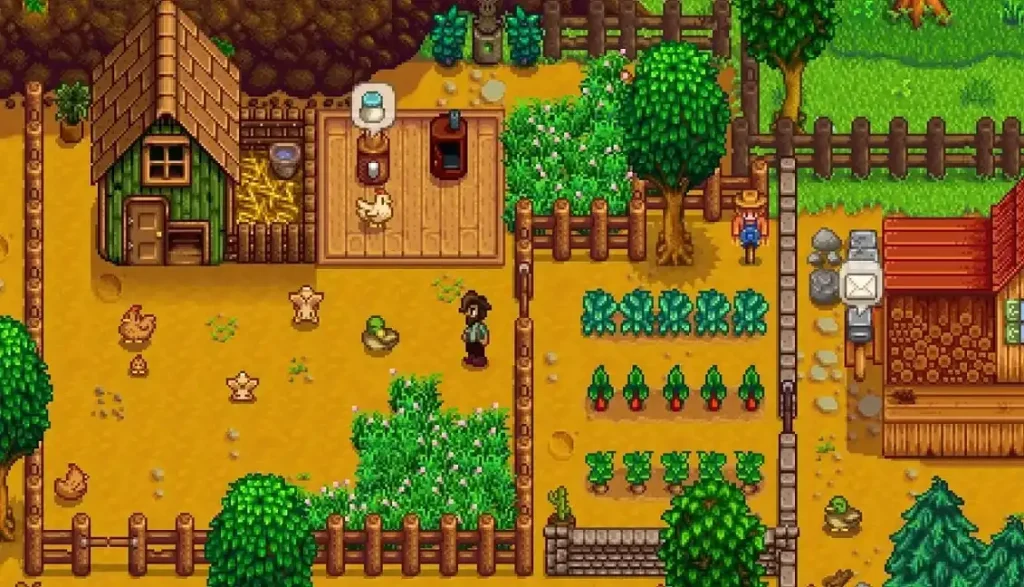
A farmer’s plate is always full in more ways than one, especially if you’re in Stardew Valley. Caring for livestock, cultivating plants, and building relationships with Pelican Town’s villagers can become overwhelming. Sometimes, Stardew Valley players may need extra help completing goals, and that aid comes in the form of console commands.
 Vanilla Stardew Valley doesn’t have a built-in command console, and, by extension, it doesn’t have admin commands by default. Instead, players must download and install SMAPI, Stardew Valley’s official mod loader.
Once installed, navigate to the location of the Stardew Valley app in the gaming platform you’re using. Then, run the app named “StardewModdingAPI” (without the quotes).
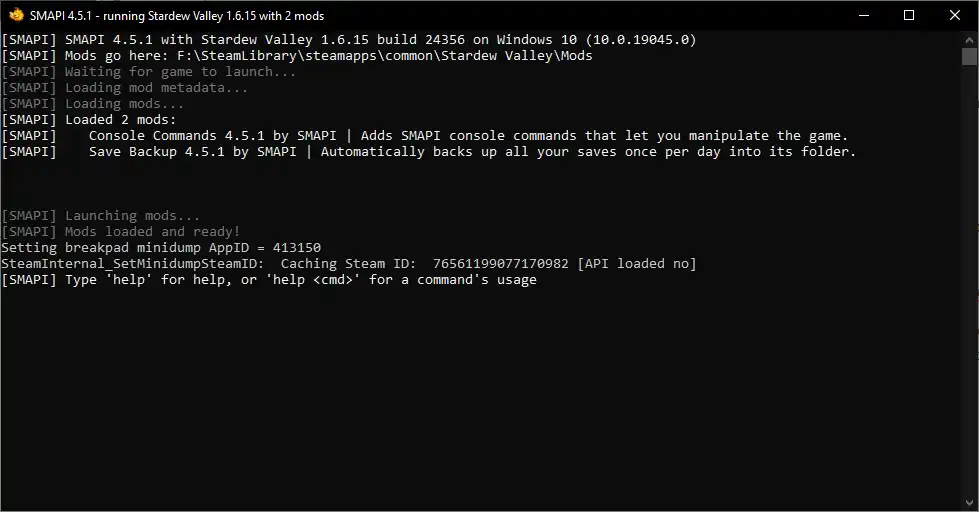
A command console should appear. Next, wait for the game to load and play it normally. The difference here is that you can switch to the command console at any time to input admin commands. Note that console commands in Stardew Valley are executed in real time. So, consider backing up your save file before taking any drastic steps to avoid regrettable, permanent actions.
If you’re having some trouble with the installation, you can check out our guide on how to install SMAPI on a Stardew Valley client below:
Vanilla Stardew Valley doesn’t have a built-in command console, and, by extension, it doesn’t have admin commands by default. Instead, players must download and install SMAPI, Stardew Valley’s official mod loader.
Once installed, navigate to the location of the Stardew Valley app in the gaming platform you’re using. Then, run the app named “StardewModdingAPI” (without the quotes).
A command console should appear. Next, wait for the game to load and play it normally. The difference here is that you can switch to the command console at any time to input admin commands. Note that console commands in Stardew Valley are executed in real time. So, consider backing up your save file before taking any drastic steps to avoid regrettable, permanent actions.
If you’re having some trouble with the installation, you can check out our guide on how to install SMAPI on a Stardew Valley client below:


 The following console commands for Stardew Valley don’t include debugs that have a higher-than-normal risk of crashing and even corrupting the current save file. Also, some of these admin commands are often labeled as cheats, since they directly provide players with significant advantages that might otherwise require substantial farming and grinding. So, these console commands are for educational purposes only, and shouldn’t derail some individuals from their preferred playstyles.
How to Use Console Commands in Stardew Valley
Vanilla Stardew Valley doesn’t have a built-in command console, and, by extension, it doesn’t have admin commands by default. Instead, players must download and install SMAPI, Stardew Valley’s official mod loader.
Once installed, navigate to the location of the Stardew Valley app in the gaming platform you’re using. Then, run the app named “StardewModdingAPI” (without the quotes).
A command console should appear. Next, wait for the game to load and play it normally. The difference here is that you can switch to the command console at any time to input admin commands. Note that console commands in Stardew Valley are executed in real time. So, consider backing up your save file before taking any drastic steps to avoid regrettable, permanent actions.
If you’re having some trouble with the installation, you can check out our guide on how to install SMAPI on a Stardew Valley client below:
All Console Commands in Stardew Valley
The following console commands for Stardew Valley don’t include debugs that have a higher-than-normal risk of crashing and even corrupting the current save file. Also, some of these admin commands are often labeled as cheats, since they directly provide players with significant advantages that might otherwise require substantial farming and grinding. So, these console commands are for educational purposes only, and shouldn’t derail some individuals from their preferred playstyles.
Item & Money Commands
- list_items: Shows a list of every item in the game with the words mentioned in the syntax. Syntax: list_items <item name> Example: list_items Iridium
- player_add name: Adds an item to the player’s inventory. This command prioritizes the item’s name. Syntax: player_add “<item name>” <item quantity> <item quality> Example: player_add name "Stir Fry" 10 4 Note: Item quality values are as follows: 0 (Normal), 1 (Silver), 2 (Gold), and 4 (Iridium)
- player_add: Adds an item to the player’s inventory. This command prioritizes the item’s ID. Syntax: player_add <item ID> <item quantity> <item quality> Example: player_add (O)128 10 4 – spawns 10x Pufferfish with Iridium quality
- player_setmoney: Changes the player’s total amount of money held. Syntax: player_setmoney <amount> Example: player_setmoney 100000
Player Commands
- player_changecolor: Changes the color of the player’s hair, eyes, or pants. Syntax: player_changecolor <feature> <color(in RGB format)> Example: player_changecolor eyes 255,0,0
- player_changestyle: Changes the player’s hair, shirt, skin, accessory, shoe, swimsuit, or gender. Syntax: player_changestyle <target> <style ID> Example: player_changestyle hair 1
- player_sethealth: Sets the player’s current health to the set value. Syntax: player_sethealth <amount> Example: player_sethealth 200
- player_setimmunity: Sets the player’s total immunity. Syntax: player_setimmunity <amount> Example: player_setimmunity 10 WARNING: This change is permanent. Restore immunity by unequipping items that provide immunity before entering player_setimmunity 0 at the command console.
- player_setmaxhealth: Sets the player’s maximum health to the set value. Syntax: player_setmaxhealth <amount> Example: player_setmaxhealth 500 WARNING: This change is permanent.
- player_setmaxstamina: Sets the player’s maximum stamina to the set value. Syntax: player_setmaxstamina <amount> Example: player_setmaxstamina 300 WARNING: This change is permanent.
- player_setname: Changes the name of the player or their farm. Syntax: player_setname <target> <name> Example: player_setname player John or player_setname farm “Vintage”
- player_setstamina: Sets the player’s current stamina to the set value. Syntax: player_setstamina <amount> Example: player_setstamina 200
World Commands
- hurry_all: Warp all NPCs in Stardew Valley to their scheduled positions. Syntax: hurry_all Example: hurry_all
- set_farm_type list: Shows a list of all farm types. Usable with the set_farm_type command. Syntax: set_farm_type list Example: set_farm_type list
- set_farm_type: Sets the current farm layout with the type indicated in the command. Syntax: set_farm_type <value> Example: set_farm_type 1 Note: As of Update 1.6, the values attached for each farm layout are as follows: 0 (Standard), 1 (Riverlands), 2 (forest), 3 (Hilltop), 4 (Combat), 5 (Four Corners), 6 (Beach), and 7 (Meadowlands).
- world_clear: Removes all provided entities from the location indicated in the command. Syntax: world_clear <location> <entity type> Example: world_clear current grass
- world_downminelevel: Teleports the player one level down the Mines. Teleports the player to the first level of the Mines if the character is somewhere else. Syntax: world_downminelevel Example: world_downminelevel
- world_freezetime: Freezes or resumes the world’s time. Syntax: world_freezetime <action> Example: world_freezetime 1 (freezes time) or world_freezetime 0 (resumes time)
- world_setday: Sets the current day of the month while retaining the season. Syntax: world_setday <day> Example: world_setday 15
- world_setminelevel: Teleports the player to the level in the Mines, Skull Cavern, or Quarry Mine indicated in the command. Syntax: world_setminelevel <mine level> Example: world_setminelevel 80 Note: The player must already be in their preferred dungeon to make this command work.
- world_setseason: Sets the world’s current season to the one indicated in the command. Syntax: world_setseason <season> Example: world_setseason spring
- world_settime: Sets the current time of day. This command uses the game’s 26-hour format. Syntax: world_settime <time> Example: world_settime 1530
- world_setyear: Sets the world’s year number with the value indicated in the command. Syntax: world_setyear <year number> Example: world_setyear 2
Other Console Commands
- harmony_summary: Lists the Harmony patches added by SMAPI and other mods. Syntax: harmony_summary <search string> Example: harmony_summary MeleeWeapon
- help: Displays documentation for Stardew Valley console commands. Syntax: help <command name> Example: help hurry_all
- log_context: Enables logging more contextual information, such as buttons pressed, menus changed, etc. Syntax: log_context Example: log_context
- reload_i18n: Reloads translation files for all mods. Syntax: reload_i18n Example: reload_i18n
- set_verbose: Toggles whether more detailed information is written to the SMAPI log file (and console in developer mode). Syntax: set_verbose <toggle string: true or 1, or false or 0> <mod ID> Example: set_verbose 1 SMAPI Pathoschild.ContentPatcher Note: Remove <mod ID> from the command to enable verbose logs for SMPAI and all mods.
- show_data_files: Opens the folder containing the save and log files. Syntax: show_data_files Example: show_data_files
- show_game_files: Opens the game’s folder. Syntax: show_game_files Example: show_game_files
Erstelle deinen eigenen
Stardew Valley-Server
Stardew Valley-Server
Wähle einen Tarif, such dir ein Spiel aus und spiele mit deinen Freunden!
Abonniere unseren Newsletter
Abonniere für die neuesten Updates rund ums Gaming!

Tritt unserem Discord bei
Werde Teil unserer Community von über 20.000 gleichgesinnten Mitgliedern!
Wie würdest du diesen Blog bewerten?
Teile deine Meinung und hilf uns, unsere Blogs noch besser zu machen!
Hat mir nicht gefallen
Neutral
Hat mir gefallen

Brauchst du einen Spielserver?
Miete einen Spielserver, auf dem du und deine Freunde privat mit niedriger Latenz und benutzerdefinierten Einstellungen spielen könnt. Wähle aus 110+ Spielen, lade Leute aus der ganzen Welt ein und genieße private Matches oder baue deine eigene Online-Community mit deinen eigenen Regeln auf.

Relevante Blogs







HOL DIR DIE INSIDER-INFOS!
Melde dich für unsere E-Mails an, um Updates zu unseren gehosteten Spielen, Unternehmensnachrichten und exklusiven Angeboten zu erhalten. Bleib auf dem Laufenden!