
Soulmask: How to Fix Connection to Host Lost Error
Veröffentlicht am von

Teilen:

Auf X teilen

Auf Facebook teilen

Auf Threads teilen

Auf Bluesky teilen

In die Zwischenablage kopieren

Per E-Mail teilen
With the release of the Soulmask Shifting Sands Update, few disruptions often feel as abrupt, or even as maddening, as the appearance of the Connection to Host Lost error message. This sudden problem severs players from their tribes and co-op teammates. So, restore that link with the possible solutions to this connection issue as you continue reading this guide.
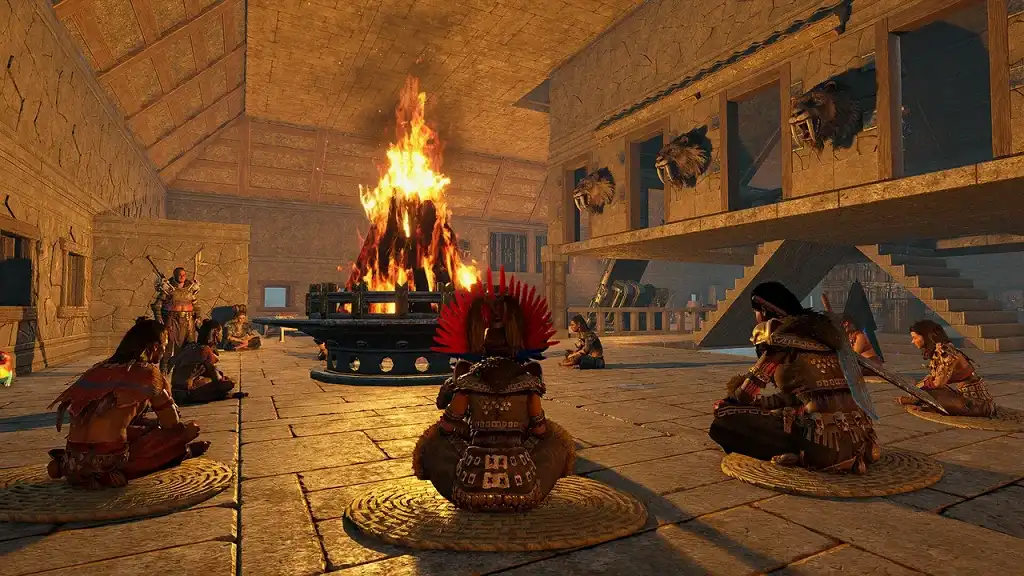 First, it’s important to note that the possible fixes for the Connection to Host Lost error message in Soulmask, highlighted below, aren’t concrete solutions. After all, each player may encounter a different cause of this issue, which often requires a different resolution. Nonetheless, use the information gathered here to help you get back into your chosen Soulmask server.
How to Fix the Connection to Host Lost Error
First, it’s important to note that the possible fixes for the Connection to Host Lost error message in Soulmask, highlighted below, aren’t concrete solutions. After all, each player may encounter a different cause of this issue, which often requires a different resolution. Nonetheless, use the information gathered here to help you get back into your chosen Soulmask server.
General Troubleshooting
Oftentimes, applying general troubleshooting methods is sufficient to resolve the Connection to Host Lost error in Soulmask. Remember, this issue typically occurs when the communication link between the game client and the server is severed or interrupted, usually caused by three main problems:- A problem with the local network or PC
- An overloaded or poorly configured game server
- An issue with the host Soulmask server
- Restarting the gaming PC and the Soulmask server (if you’re the host)
- Inspecting if there’s a problem with the Internet access
- Checking if the server is down or overloaded
- Verifying the server information, such as its UP address, port, and password
Open Ports
Warning: This possible solution to the Connection to Host Lost Error in Soulmask requires logging into a router’s UI. If you can, back up its settings, and don’t modify anything other than those you need to change. Otherwise, significant alterations may severely harm the Internet connection, outweighing any benefits. With that, another reason this Soulmask error occurs is a network configuration issue due to a lack of open ports. Think of ports as specific doors leading into your computer. Opening or forwarding these entryways helps create clear, stable paths to Soulmask servers. So, here’s a step-by-step guide on how to open ports on your PC for a stable connection with a Soulmask server:- 1. Press the Windows Start menu button at the bottom-left of the screen, type “cmd” (without the quotes), and press Enter.
- 2. Alternatively, initiate the Run command (press Windows Key + R), type “cmd” (without the quotes), and press Enter.
- 3. Type “ipconfig” (without the quotes) in the command prompt window, and press Enter.
- 4. Take note of the string of numbers listed under the IPv4 Address.
- 5. Open a web browser and navigate to your router’s UI at its IP address (often 192.168.1.1 or 192.168.0.1).
- 6. Input your router’s username and password to enter its Settings menu.
- 7. Find the Port Forwarding Settings, and add as many of the following details as possible: Rule Name: Soulmask Game Port Range / External Port: 8777 Internal Port: 8777 Protocol: UDP Internal IP Address: The IPv4 Address documented from the command prompt input Rule Name: Soulmask Query Port Range / External Port: 27015 Internal Port: 27015 Protocol: UDP Internal IP Address: The IPv4 Address documented from the command prompt input
- 8. Save the Port Forwarding Settings, and reboot the router.
- 9. Launch Soulmask to verify if the connection problem persists.
Fix Port Conflicts
If the ports are open and this particular connection error persists, it’s possible that the Soulmask client can’t establish or maintain a stable connection because of a port conflict. Think of it as a network jam where another program or computer in the same network is using the port that Soulmask needs. Begin by checking if the required ports for a user to connect to a Soulmask server are in use. Do so by opening the command prompt as an administrator. Then, copy and paste the following commands:- netstat -aon | findstr :8777
- netstat -aon | findstr :27015
- 1. Navigate to the Soulmask dedicated server folder on your PC. By default, it should be at the following path: C:\steamcmd\steamapps\common\Soulmask Dedicated Server For Windows.
- 2. Locate the StartServer.bat file, and create a backup of it.
- 3. Right-click on the StartServer.bat file, and select Edit from the context menu.
- 4. Select the Notepad app from the list if it doesn’t open automatically.
- 5. Add the “-Port=” parameter (without the quotes) to the command line. It should now look like the following: start SoulmaskServer.exe -Port=8777.
- 6. Replace port 8777 with a new number, such as 8778, 8779, or 27016, to avoid further conflicts.
- 7. Save the file and close Notepad.
- 8. Relaunch Soulmask and attempt to connect to the dedicated server to check if the error persists.
Ensure Correct Startup Parameters
Sometimes, misconfiguration can cause a Soulmask server to prevent users from accessing it. Ensuring the server’s startup parameters are crucial to allow players to enter its world. Below is a quick guide on how to ensure that the Soulmask server’s startup parameters are accurate:- 1. Navigate to the Soulmask dedicated server folder on your PC. By default, it should be at the following path: C:\steamcmd\steamapps\common\Soulmask Dedicated Server For Windows.
- 2. Locate the StartServer.bat file, and create a backup of it.
- 3. Right-click on the StartServer.bat file, and select Edit from the context menu.
- 4. Select the Notepad app from the list if it doesn’t open automatically.
- 5. Look for a command that starts the server, which may look like the following line: call StartServer.bat.
- 6. Modify the line with the parameters used to access the server. Here’s an example: call StartServer.bat -SteamServerName="My Soulmask Server" -MaxPlayers=50 -PSW="Password12345" -adminpsw="GMPassword123" -pve -Port=8777 -QueryPort=27015 –log
- 8. Save the file and close Notepad.
- 9. Relaunch Soulmask and attempt to connect to the dedicated server to check if this connection error persists.
Create a Firewall Exception
It’s also possible that a user’s Windows PC blocks connections to a Soulmask server for security reasons. If so, creating a firewall exception to allow port connections to complete may remove the Connection to Host Lost error. This possible fix starts by locating the Soulmask game files on your computer. By default, the game’s installation path is the following: C:\Program Files (x86)\Steam\steamapps\common\Soulmask. Once found, follow these steps to create the exception and whitelist the Soulmask client in the firewall:- 1. Press the Windows key on your keyboard, or click on the Windows Start menu button on the bottom-left of the screen.
- 2. Type “Windows Security” (without the quotes), and press Enter.
- 3. Navigate to “Firewall & Network Protection,” and then select “Allow an app through firewall.”
- 4. Click the “Change settings” button, and then choose “Allow another app.”
- 5. Navigate to the Soulmask.exe file, and add it to the list.
- 6. Verify that Soulmask.exe is now whitelisted, and click OK to save.
- 7. Attempt to reconnect to the Soulmask dedicated server to check if the Connection to Host Lost error continues to appear.
Erstelle deinen eigenen
Soulmask-Server
Soulmask-Server
Wähle einen Tarif, such dir ein Spiel aus und spiele mit deinen Freunden!
Abonniere unseren Newsletter
Abonniere für die neuesten Updates rund ums Gaming!

Tritt unserem Discord bei
Werde Teil unserer Community von über 20.000 gleichgesinnten Mitgliedern!
Wie würdest du diesen Blog bewerten?
Teile deine Meinung und hilf uns, unsere Blogs noch besser zu machen!
Hat mir nicht gefallen
Neutral
Hat mir gefallen

Brauchst du einen Spielserver?
Miete einen Spielserver, auf dem du und deine Freunde privat mit niedriger Latenz und benutzerdefinierten Einstellungen spielen könnt. Wähle aus 110+ Spielen, lade Leute aus der ganzen Welt ein und genieße private Matches oder baue deine eigene Online-Community mit deinen eigenen Regeln auf.

Relevante Blogs




HOL DIR DIE INSIDER-INFOS!
Melde dich für unsere E-Mails an, um Updates zu unseren gehosteten Spielen, Unternehmensnachrichten und exklusiven Angeboten zu erhalten. Bleib auf dem Laufenden!