How to Import Hytale Prefabs
Veröffentlicht am von

Teilen:

Auf X teilen

Auf Facebook teilen

Auf Threads teilen

Auf Bluesky teilen

In die Zwischenablage kopieren

Per E-Mail teilen
Prefabs are a nifty tool that allow builds to come with you, no matter the server or world. All it takes is a file and navigating some menus to place it and begin anew! So, today, we answer how to import Hytale prefabs, both created in-game and found online, for your solo world or multiplayer server.
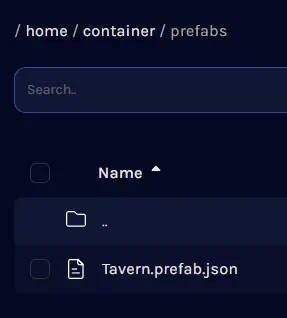 After downloading a prefab.json file from a trusted source such as CurseForge, the next step is adding it to the Hytale files so it can be loaded and placed in-game. Separate instructions for single-player worlds and servers can be found below.
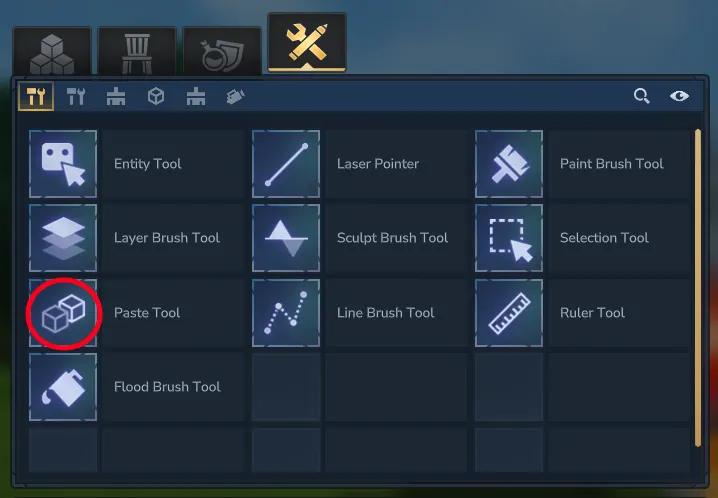 The uploaded prefab, or one created in-game, can be imported and placed in the world with a few clicks and some menu navigation. The only difficult part is that the name of the desired prefab file must be remembered, so we recommend double-checking the name before proceeding.
Where to Place Prefabs Found Online
After downloading a prefab.json file from a trusted source such as CurseForge, the next step is adding it to the Hytale files so it can be loaded and placed in-game. Separate instructions for single-player worlds and servers can be found below.
Singleplayer Worlds
- Open the Hytale Launcher.
- Click the small gear on the top left.
- Select “Open Directory”.
- Enter the “UserData” folder.
- Enter the “Saves” folder.
- Open the folder of your desired world.
- Create a folder inside called “prefabs” in all lowercase. If a prefabs folder already exists, this step can be skipped.
- Enter the “prefabs” folder.
- Move or paste the prefab.json file inside the “prefabs” folder.
Servers
- Open the server files. With BisectHosting, this can be done via the file manager on the game server panel. If the “logs” and “universe” folders can be seen, you are in the right place!
- Create a folder called “prefabs” in all lowercase. If a prefabs folder already exists, this step can be skipped.
- Open the “prefabs” folder.
- Upload the prefab.json file into the “prefabs” folder.
- Restart the server.
How to Import Hytale Prefabs
The uploaded prefab, or one created in-game, can be imported and placed in the world with a few clicks and some menu navigation. The only difficult part is that the name of the desired prefab file must be remembered, so we recommend double-checking the name before proceeding.
- Open a creative world or enter creative mode.
- Open your inventory.
- Select the creative tools tab at the top. It should appear as a wrench crossed with a pencil.
- Click the “Paste Tool” and add it to your hotbar.
- Ready the paste tool in hand and click “E”.
- Select the desired prefab file. If not visible, try the other file destinations in the drop-down menu.
- Find a location for the prefab and left-click to place.
Erstelle deinen eigenen
Hytale-Server
Hytale-Server
Wähle einen Tarif, such dir ein Spiel aus und spiele mit deinen Freunden!
Abonniere unseren Newsletter
Abonniere für die neuesten Updates rund ums Gaming!

Tritt unserem Discord bei
Werde Teil unserer Community von über 20.000 gleichgesinnten Mitgliedern!
Wie würdest du diesen Blog bewerten?
Teile deine Meinung und hilf uns, unsere Blogs noch besser zu machen!
Hat mir nicht gefallen
Neutral
Hat mir gefallen

Brauchst du einen Spielserver?
Miete einen Spielserver, auf dem du und deine Freunde privat mit niedriger Latenz und benutzerdefinierten Einstellungen spielen könnt. Wähle aus 110+ Spielen, lade Leute aus der ganzen Welt ein und genieße private Matches oder baue deine eigene Online-Community mit deinen eigenen Regeln auf.

Relevante Blogs







HOL DIR DIE INSIDER-INFOS!
Melde dich für unsere E-Mails an, um Updates zu unseren gehosteten Spielen, Unternehmensnachrichten und exklusiven Angeboten zu erhalten. Bleib auf dem Laufenden!