Rust Console Commands Guide: Every Admin Command & How to Use Them
发布于 ,作者

分享:

分享至 X

分享至 Facebook

分享至 Threads

分享至 Bluesky

复制到剪贴板

通过电子邮件分享
Those who wield the power of console commands in Rust become the server’s architect of reality. These include powerful commands, such as changing time, controlling the weather, teleporting players, and even becoming invincible through god mode. So, keep reading as we go over how to use console commands in Rust, including all available command options and their effects.
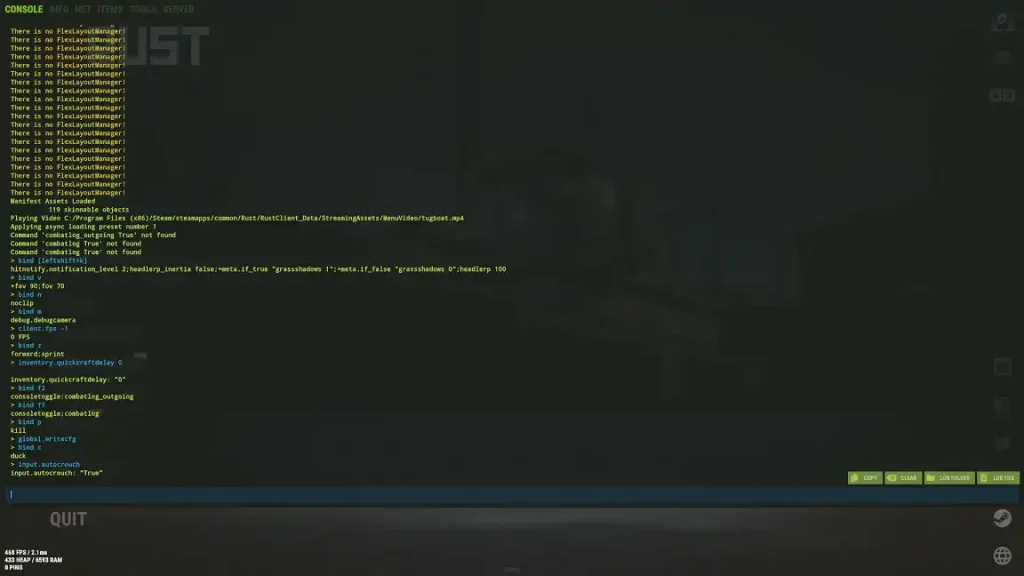 Assuming the player is an administrator of the Rust server, pressing F1 (by default) opens the console, which accepts various commands. The command console should appear on both official and community servers, provided the function is accessible.
Once opened, type the desired command into the console and press Enter. Ensure the commands use correct spelling, spacing, and punctuation to work as intended.
Assuming the player is an administrator of the Rust server, pressing F1 (by default) opens the console, which accepts various commands. The command console should appear on both official and community servers, provided the function is accessible.
Once opened, type the desired command into the console and press Enter. Ensure the commands use correct spelling, spacing, and punctuation to work as intended.
How to Use Console Commands in Rust
Assuming the player is an administrator of the Rust server, pressing F1 (by default) opens the console, which accepts various commands. The command console should appear on both official and community servers, provided the function is accessible.
Once opened, type the desired command into the console and press Enter. Ensure the commands use correct spelling, spacing, and punctuation to work as intended.
All Rust Console Commands
Remember, the user must have the necessary permissions to use console commands in Rust. Request access to these commands from the server’s administrator if they’re not working as anticipated.Player Console Commands
- Kill: Immediately kills the user.
- Respawn: Respawns the character. Works like an unstuck command.
- Connect [IP:Port]: Connect to the specified server.
- Disconnect: Disconnect from the current Rust server.
- Seed: Displays the current map seed.
- CombatLog: Displays recent damage information.
- Clear: Clears the command console.
- Copy: Copies the content in the command console.
- Quit: Force-quit the game and return the user to the desktop.
- perf 1: Displays real-time FPS and system performance stats.
- mutelist: Displays all muted players.
- netgraph.enabled true/false: Displays network stats (e.g., ping, FPS, and packet loss)
- world.rendermap: Creates a high-resolution PNG file of the current map.
- cinematic_view 1: Hides the HUD.
- global.time: Displays the current in-game time.
- report [player name] [reason]: Reports a player with the provided reason.
- version: Displays the game’s current version.
Server Management Console Commands
- server.save: Saves the Rust server’s current state.
- server.stop: Stops the current Rust server.
- server.start: Starts the Rust server.
- server.writecfg: Save server changes to the config file.
- servers.seed: Set or display the Rust server seed.
- servers.saveinterval [seconds]: Sets the server’s autosave interval.
- server.hostname: Changes the server’s hostname.
- server.maxplayers: Sets the maximum number of players allowed in the Rust server.
- server.globalchat true/false: Toggles global chat.
- server.description: Sets the Rust server’s description.
- server.url: Sets the Rust server’s website URL.
Server Admin Console Commands
- ban: Bans a player using that user’s name.
- banid: Bans a player using that user’s Steam ID.
- unban: Unbans a player.
- kick: Kicks a player from the current Rust server.
- kickall: Kicks all players from the current Rust server.
- moderatorid: Grants moderator access to the specified user.
- ownerid: Grants administrator access to the specified user.
- noclip: Enables flight and the ability to clip through objects.
- god true/false: Toggles invincibility mode.
- ent who: Identifies the user who placed a specific entity.
- ent unlock: Unlocks the targeted entity.
- ent lock: Locks the targeted entity.
- ent kill: Destroys the targeted entity.
Player Teleport Console Commands
- teleport: Teleports the user to the specified player’s position.
- teleportpos: Teleports the user to the specified coordinates.
- teleport2me: Teleports another player to the user’s position.
- teleportany: Teleports the user to a specified entity.
- teleportlos: Teleports the user to the nearest visible object.
- teleport2marker: Teleports the user to the specified map marker.
Time & Weather Console Commands
- weather.rain: Toggles rain intensity.
- weather.fog: Toggles fog intensity.
- weather.clouds: Toggles cloud coverage.
- weather.wind: Toggles wind intensity.
- env.time: Sets the time of day.
- env.timescale: Sets time progression speed.
FPS Management Console Commands
- perf 1: Displays real-time FPS and system performance stats.
- graphics.shadowdistance 0: Disables shadows.
- graphics.drawdistance [value]: Sets render distance.
- grass.on false: Disables grass rendering.
- grass.displacement false: Disables grass displacement effects.
- gfx.ssaa false: Disables screen anti-aliasing.
- gfx.bloom false: Disables bloom effects.
- gfx.grain false: Disables film grain effects.
- gfx.shafts false: Disables sun shafts.
- gc.buffer [value]: Sets the garbage collection buffer size.
- graphics.quality [value]: Sets the overall graphics quality.
- gc.collect: Manually clears unused memory.
PvP Console Commands
- bind X "graphics.fov 70; graphics.fov 90": Toggles between zoomed-in and default FOV.
- graphics.vm_horizontal_flip true: Switches between left- and right-hand mode.
- client.lookatradius 20: Expands interaction range.
- graphics.vm_fov_scale false: Maintains weapon size regardless of FOV.
- legs.enablelegs 0: Hides the character’s legs while in first-person view.
- global.hideinteracttextwhileads true: Hides interaction prompts while aiming.
Graphics & Performance Console Commands
- fps.limit: Sets the maximum FPS.
- gfx.ssao true/false: Toggles ambient occlusion.
- streamermode 0/1: Toggles streamer mode.
- gui.hide / gui.show: Toggles the GUI.
- grass.on true/false: Toggles grass rendering.
- debug.debugcamera: Toggles free camera mode.
Entity & Crafting Console Commands
- entity.spawn: Spawns the specified entity at the mouse cursor’s position.
- craft.add: Adds the specified item to the crafting queue.
- inventory.give: Gives the specified item and its amount to the indicated player.
- craft.cancel: Cancels the current crafting operation.
- inventory.giveall: Gives the specified item and its amount to all players in the Rust server.
- inventory.givebp: Gives the user a specific blueprint.
- entity.spawnat: Spawns an entity at the specified map coordinates.
- entity.spawnhere: Spawns an entity at a set distance from the user.
Rust Server Status & Debugging Console Commands
- status: Displays all players and the status of the current Rust server.
- users: Shows detailed user information.
- find: Search for a specific console command.
- entity.find_entity: Locate an entity by its name.
- global.queue: Displays the current Rust server’s queue.
- global.queuejoin: Forces the specified player to join the queue.
- global.queueleave: Removes the specified player from the queue.
- global.bans: Displays a list of all banned players from the Rust server.

您对这篇博客有何评价?
分享您的看法,帮助我们将博客做得更好!
不喜欢
一般
喜欢

需要游戏服务器吗?
租用一台游戏服务器,您可以和朋友们在极低延迟和自定义设置下私密游玩。从 110+ 款游戏中挑选您的最爱,邀请全球玩家,享受私密对战,或者按照您自己的规则建立属于您的在线社区。








获取第一手独家资讯!
订阅我们的电子邮件,获取有关我们托管游戏、公司新闻和独家优惠的最新动态。随时掌握一手资讯!