Minecraft Java Friends List Guide: How to Add Friends, Invite to World, Peer to Peer, & More
发布于 ,作者

分享:

分享至 X

分享至 Facebook

分享至 Threads

分享至 Bluesky

复制到剪贴板

通过电子邮件分享
A long-desired social feature for Java Edition is finally here, complete with adding friends and peer to peer! So, today, we explore the Minecraft Java friends list, its new features, and how to connect to friends in their singleplayer worlds.
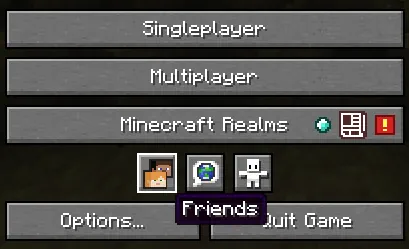 After loading into Minecraft Java Edition, a new row of three buttons can be found below “Minecraft Realms” and above “Options” and “Quit Game.” The first of the three buttons, depicting the heads of Steve and Alex, is the option to open the new Java friends list. Upon clicking it, a window will open with a “Friends” and “Requests” tab at the top.
The “Friends” tab has the option to add new friends alongside a list of those already added, showing their current online status. Meanwhile, the “Requests” tab shows any pending friend requests that have been received and offers the option to either accept or decline them.
After loading into Minecraft Java Edition, a new row of three buttons can be found below “Minecraft Realms” and above “Options” and “Quit Game.” The first of the three buttons, depicting the heads of Steve and Alex, is the option to open the new Java friends list. Upon clicking it, a window will open with a “Friends” and “Requests” tab at the top.
The “Friends” tab has the option to add new friends alongside a list of those already added, showing their current online status. Meanwhile, the “Requests” tab shows any pending friend requests that have been received and offers the option to either accept or decline them.
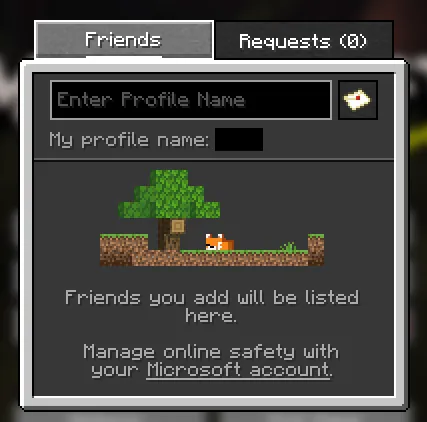 Adding a friend to your Minecraft Java friends list requires only their Minecraft Java username. Once obtained, the steps below can be followed:
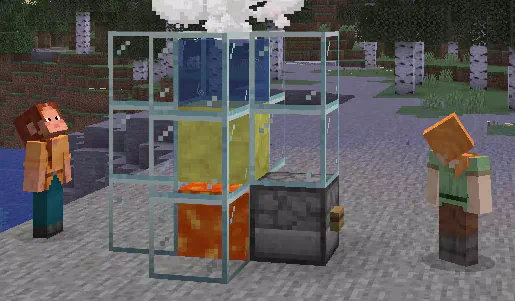 Once a friend has been added, they can be invited to your singleplayer world by opening the friends list in-game with the “O” key and selecting invite. Alternatively, a request to join a friend’s singleplayer world can be made through the friends list on the main menu or by also clicking “O” in-game. When either occurs, the singleplayer world is turned into a temporary server that functions only while the owner is online. Once they leave, no one else can continue playing the world.
Minecraft Java Friends List Overview
After loading into Minecraft Java Edition, a new row of three buttons can be found below “Minecraft Realms” and above “Options” and “Quit Game.” The first of the three buttons, depicting the heads of Steve and Alex, is the option to open the new Java friends list. Upon clicking it, a window will open with a “Friends” and “Requests” tab at the top.
The “Friends” tab has the option to add new friends alongside a list of those already added, showing their current online status. Meanwhile, the “Requests” tab shows any pending friend requests that have been received and offers the option to either accept or decline them.
Adding Friends on Minecraft Java Edition
Adding a friend to your Minecraft Java friends list requires only their Minecraft Java username. Once obtained, the steps below can be followed:
- Open Minecraft Java Edition.
- Select the “Friends” button.
- Enter your friend’s username into the text box under the “Friends” tab.
- Click the small letter icon to the text box’s right.
- Wait for a response.
Peer to Peer Connections
Once a friend has been added, they can be invited to your singleplayer world by opening the friends list in-game with the “O” key and selecting invite. Alternatively, a request to join a friend’s singleplayer world can be made through the friends list on the main menu or by also clicking “O” in-game. When either occurs, the singleplayer world is turned into a temporary server that functions only while the owner is online. Once they leave, no one else can continue playing the world.
您对这篇博客有何评价?
分享您的看法,帮助我们将博客做得更好!
不喜欢
一般
喜欢

需要游戏服务器吗?
租用一台游戏服务器,您可以和朋友们在极低延迟和自定义设置下私密游玩。从 110+ 款游戏中挑选您的最爱,邀请全球玩家,享受私密对战,或者按照您自己的规则建立属于您的在线社区。








获取第一手独家资讯!
订阅我们的电子邮件,获取有关我们托管游戏、公司新闻和独家优惠的最新动态。随时掌握一手资讯!