Hytale Controls Guide: All PC Mouse & Keyboard Keybinds
发布于 ,作者

分享:

分享至 X

分享至 Facebook

分享至 Threads

分享至 Bluesky

复制到剪贴板

通过电子邮件分享
Eager to hop into Hytale and start exploring every nook and cranny of its open world? Yes, there's plenty to see and discover, but learning the game's controls is a great place to start. With our Hytale controls guide you'll have all the know-how you need to start shaping the world however you like.
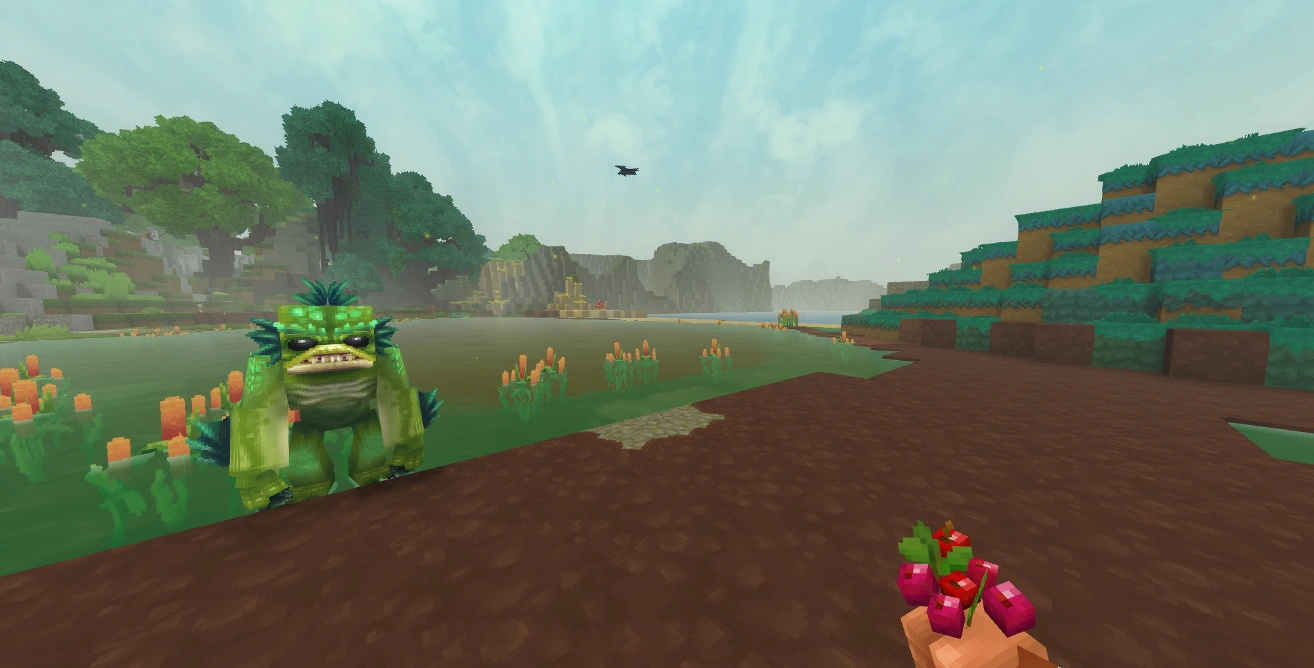 If you're a Minecraft fan, you should feel right at home in Hytale. Not only because of the long-forgotten temples and being able to trade with NPCs, but the controls are very similar as well. Placing blocks, moving through your hotbar, sprinting, walking, and smacking vile critters on the head are all available to you.
While each action has a keybind by default, you can jump into the game's settings to rebind the controls however you please. You can also alter whether or not your keybindings for crouching, sprinting, and walking need to be held or function as a toggle. Finally, keep in mind that, at this point, Hytale does not have controller support.
Here is the full list of PC keybinds for Hytale:
If you're a Minecraft fan, you should feel right at home in Hytale. Not only because of the long-forgotten temples and being able to trade with NPCs, but the controls are very similar as well. Placing blocks, moving through your hotbar, sprinting, walking, and smacking vile critters on the head are all available to you.
While each action has a keybind by default, you can jump into the game's settings to rebind the controls however you please. You can also alter whether or not your keybindings for crouching, sprinting, and walking need to be held or function as a toggle. Finally, keep in mind that, at this point, Hytale does not have controller support.
Here is the full list of PC keybinds for Hytale:
Hytale Controls Guide: All PC Keybinds (Keyboard and Mouse)
If you're a Minecraft fan, you should feel right at home in Hytale. Not only because of the long-forgotten temples and being able to trade with NPCs, but the controls are very similar as well. Placing blocks, moving through your hotbar, sprinting, walking, and smacking vile critters on the head are all available to you.
While each action has a keybind by default, you can jump into the game's settings to rebind the controls however you please. You can also alter whether or not your keybindings for crouching, sprinting, and walking need to be held or function as a toggle. Finally, keep in mind that, at this point, Hytale does not have controller support.
Here is the full list of PC keybinds for Hytale:
Movement
- Move Forwards: W
- Move Backwards: S
- Move Left: A
- Move Right: D
- Jump: Spacebar
- Crouch/Slide/Roll: Left Ctrl
- Sprint: Left Shift
- Walk: Left Alt
- Fly Up: Spacebar
- Fly Down: Left Ctrl
Actions
- Primary Action: Left Mouse
- Secondary Action: Right Mouse
- Use Ability 1: Q
- Use Ability 2: E
- Use Ability 3: R
- Interact with a Block: F
- Rotate a Block: R
- Show Utility Slot Selector: Z
- Mount/Dismount: F
- Drop Item: G
- Hotbar Slot 1: 1
- Hotbar Slot 2: 2
- Hotbar Slot 3: 3
- Hotbar Slot 4: 4
- Hotbar Slot 5: 5
- Hotbar Slot 6: 6
- Hotbar Slot 7: 7
- Hotbar Slot 8: 8
- Hotbar Slot 9: 9
- Switch Camera Mode: V
- Activate Camera Rotation: C
- Toggle Chat: Return
Creative
- Pick a Block: Middle Mouse
- Switch Game Mode: O
Menus
- Open Inventory: Tab
- Open Machinima Editor: N
- Open Map: M
- Open Creative Tools: B
- Show Player List: P
Builder Tools
- Toggle Builder Tools Legend: L
- Legend - Previous Page: J
- Legend - Next Page: K
- Undo: Z
- Redo: Y
- Add/Remove Favorite Material: Not Bound by Default
- Paint Brush Tool: Keypad 1
- Sculpt Brush Tool: Keypad 2
- Selection Tool: Keypad 3
- Paste Tool: Keypad 4
- Line Tool: Keypad 5
- Change Sculpt Brush Modifier: Left Shift
- Use Paint Mode for Brush: U
- Select Block from Set: Q
- Paste Preview: T
Miscellaneous
- Switch HUD Visibility: F8
- Toggle Fullscreen: F11
- Take Screenshot: F12
- Command: /
Debug
- Decrease Speed Multiplier: F1
- Increase Speed Multiplier: F2
- Toggle Creative Collision: F3
- Toggle Fly Camera: F4
- Toggle Fly Camera Control Target: F5
- Toggle Debug Screens: F7

您对这篇博客有何评价?
分享您的看法,帮助我们将博客做得更好!
不喜欢
一般
喜欢

需要游戏服务器吗?
租用一台游戏服务器,您可以和朋友们在极低延迟和自定义设置下私密游玩。从 110+ 款游戏中挑选您的最爱,邀请全球玩家,享受私密对战,或者按照您自己的规则建立属于您的在线社区。








获取第一手独家资讯!
订阅我们的电子邮件,获取有关我们托管游戏、公司新闻和独家优惠的最新动态。随时掌握一手资讯!