

How to Switch a Mojang Account to a Microsoft Account
tarihinde yazan:

Paylaş:

X'te Paylaş

Facebook'ta Paylaş

Threads'te Paylaş

Bluesky'da Paylaş

Panoya Kopyala

E-posta ile Paylaş
Mojang recently announced the deadline for Minecraft players to migrate their old accounts to their Microsoft accounts. Failure to switch a Mojang account to a Microsoft account will prevent access to the game’s website, launcher, and its other platforms.
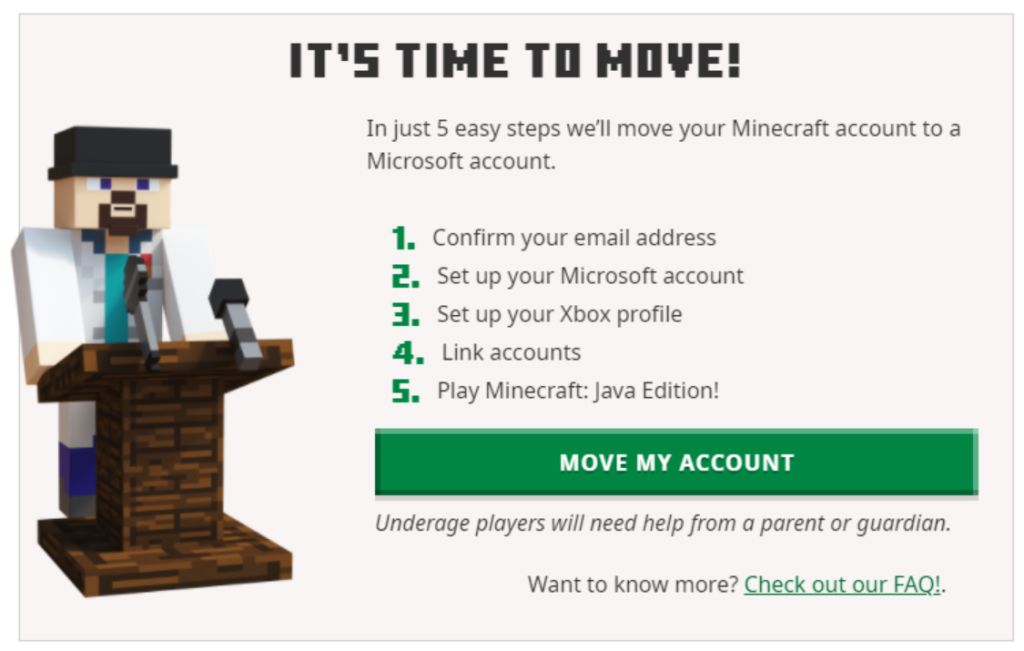 It should only take a few minutes to complete the account migration. However, developer Mojang urges players to contact their customer service or help section if problems appear while switching from the Mojang account to the Microsoft account.
Migrating A Mojang Account to a Microsoft Account
It should only take a few minutes to complete the account migration. However, developer Mojang urges players to contact their customer service or help section if problems appear while switching from the Mojang account to the Microsoft account.
How to Migrate a Mojang Account to an Existing Microsoft Account
Migrating your Mojang/old Minecraft account to your Microsoft account is a straightforward procedure. The steps are:- Login with your old account at Minecraft.net.
- Look for the “It’s your turn to move!” prompt, and click “Move my account.”
- Verify that you’re the account owner by inputting the code you received in your registered email in the box that appears on the Minecraft.net page.
- Once verified, log in with your Microsoft account on Minecraft.net.
- Create an Xbox profile and Gamertag after logging in with your Microsoft account.
- Click the “Complete Move” button.
- If done correctly, a “Move Complete!” message should appear.
How to Migrate a Mojang Account to a New Microsoft Account
Don’t worry if you don’t have a Microsoft account for the Mojang account migration. You can create one within the account transfer procedure in a seamless fashion. Follow these steps to complete this process:- Login with your old account at Minecraft.net.
- Look for the “It’s your turn to move!” prompt, and click “Move my account.”
- Verify that you’re the account owner by inputting the code you received in your registered email in the box that appears on the Minecraft.net page.
- Once verified, create a new Microsoft account using your preferred email and password.
- Next, confirm your country and date of birth (the platform prefills these fields from your Mojang account).
- Create an Xbox profile and Gamertag after logging in with your Microsoft account.
- Click the “Complete Move” button.
- If done correctly, a “Move Complete!” message should appear.
How To Migrate a Child’s Mojang Account to a Microsoft Account
The procedure to switch a child’s Mojang account to a new or existing Microsoft account is similar to the methods mentioned in previous sections. However, the difference here is that a parent or guardian must verify certain pieces of information when prompted. Follow these steps to complete the Mojang account migration to a Microsoft account for a child:- Login with your old account at Minecraft.net.
- Look for the “It’s your turn to move!” prompt, and click “Move my account.”
- Verify that you’re the account owner by inputting the code you received in your registered email in the box that appears on the Minecraft.net page.
- Once verified, log in or create a new Microsoft account for the child.
- Choosing the latter will let the platform request a username and password.
- Next, enter the country and date of birth of the child.
- Confirm that a parent or guardian is present, and indicate the adult’s email address in the appropriate field.
- The parent or guardian should then log in with their existing Microsoft account.
- Log in with the child’s Microsoft account again.
- Create an Xbox profile and Gamertag after logging in with your Microsoft account.
- Click the “Complete Move” button.
- If done correctly, a “Move Complete!” message should appear.
Kendi
Minecraft sunucunuzu oluşturun
Minecraft sunucunuzu oluşturun
Bir plan seçin, bir oyun belirleyin ve arkadaşlarınızla oynayın!
Bültenimize Katılın
Oyun dünyasındaki en son güncellemeler için abone olun!

Discord'umuza Katılın
20.000'den fazla kafa dengi üyeden oluşan topluluğumuzun bir parçası olun!
Bu blogu nasıl değerlendirirsiniz?
Fikrinizi paylaşın ve bloglarımızı daha da iyi hale getirmemize yardımcı olun!
Beğenmedim
Nötr
Beğendim

Bir oyun sunucusuna mı ihtiyacınız var?
Siz ve arkadaşlarınızın düşük gecikme süresi ve özel ayarlarla özel olarak oynayabileceğiniz bir oyun sunucusu kiralayın. 110+ oyun arasından seçim yapın, dünyanın dört bir yanından insanları davet edin ve özel maçların keyfini çıkarın veya kendi kurallarınızla kendi çevrimiçi topluluğunuzu oluşturun.

İlgili Bloglar







İLK SENİN HABERİN OLSUN!
Barındırdığımız oyunlar, şirket haberleri ve özel fırsatlar hakkında güncellemeler için e-posta listemize katılın. Haberdar olun!













