

Minecraft Java Friends List Guide: How to Add Friends, Invite to World, Peer to Peer, & More
tarihinde yazan:

Paylaş:

X'te Paylaş

Facebook'ta Paylaş

Threads'te Paylaş

Bluesky'da Paylaş

Panoya Kopyala

E-posta ile Paylaş
A long-desired social feature for Java Edition is finally here, complete with adding friends and peer to peer! So, today, we explore the Minecraft Java friends list, its new features, and how to connect to friends in their singleplayer worlds.
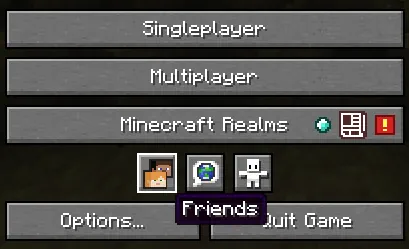 After loading into Minecraft Java Edition, a new row of three buttons can be found below “Minecraft Realms” and above “Options” and “Quit Game.” The first of the three buttons, depicting the heads of Steve and Alex, is the option to open the new Java friends list. Upon clicking it, a window will open with a “Friends” and “Requests” tab at the top.
The “Friends” tab has the option to add new friends alongside a list of those already added, showing their current online status. Meanwhile, the “Requests” tab shows any pending friend requests that have been received and offers the option to either accept or decline them.
After loading into Minecraft Java Edition, a new row of three buttons can be found below “Minecraft Realms” and above “Options” and “Quit Game.” The first of the three buttons, depicting the heads of Steve and Alex, is the option to open the new Java friends list. Upon clicking it, a window will open with a “Friends” and “Requests” tab at the top.
The “Friends” tab has the option to add new friends alongside a list of those already added, showing their current online status. Meanwhile, the “Requests” tab shows any pending friend requests that have been received and offers the option to either accept or decline them.
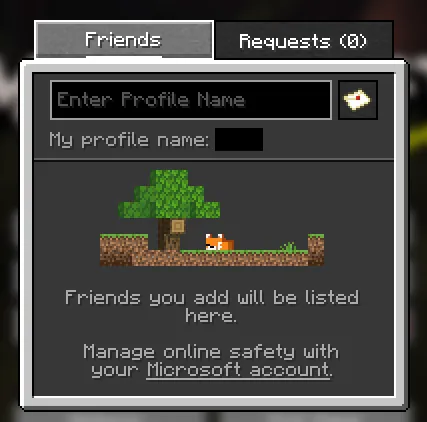 Adding a friend to your Minecraft Java friends list requires only their Minecraft Java username. Once obtained, the steps below can be followed:
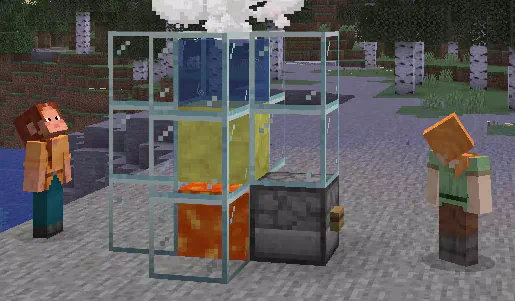 Once a friend has been added, they can be invited to your singleplayer world by opening the friends list in-game with the “O” key and selecting invite. Alternatively, a request to join a friend’s singleplayer world can be made through the friends list on the main menu or by also clicking “O” in-game. When either occurs, the singleplayer world is turned into a temporary server that functions only while the owner is online. Once they leave, no one else can continue playing the world.
Minecraft Java Friends List Overview
After loading into Minecraft Java Edition, a new row of three buttons can be found below “Minecraft Realms” and above “Options” and “Quit Game.” The first of the three buttons, depicting the heads of Steve and Alex, is the option to open the new Java friends list. Upon clicking it, a window will open with a “Friends” and “Requests” tab at the top.
The “Friends” tab has the option to add new friends alongside a list of those already added, showing their current online status. Meanwhile, the “Requests” tab shows any pending friend requests that have been received and offers the option to either accept or decline them.
Adding Friends on Minecraft Java Edition
Adding a friend to your Minecraft Java friends list requires only their Minecraft Java username. Once obtained, the steps below can be followed:
- Open Minecraft Java Edition.
- Select the “Friends” button.
- Enter your friend’s username into the text box under the “Friends” tab.
- Click the small letter icon to the text box’s right.
- Wait for a response.
Peer to Peer Connections
Once a friend has been added, they can be invited to your singleplayer world by opening the friends list in-game with the “O” key and selecting invite. Alternatively, a request to join a friend’s singleplayer world can be made through the friends list on the main menu or by also clicking “O” in-game. When either occurs, the singleplayer world is turned into a temporary server that functions only while the owner is online. Once they leave, no one else can continue playing the world.Kendi
Minecraft sunucunuzu oluşturun
Minecraft sunucunuzu oluşturun
Bir plan seçin, bir oyun belirleyin ve arkadaşlarınızla oynayın!
Bültenimize Katılın
Oyun dünyasındaki en son güncellemeler için abone olun!

Discord'umuza Katılın
20.000'den fazla kafa dengi üyeden oluşan topluluğumuzun bir parçası olun!
Bu blogu nasıl değerlendirirsiniz?
Fikrinizi paylaşın ve bloglarımızı daha da iyi hale getirmemize yardımcı olun!
Beğenmedim
Nötr
Beğendim

Bir oyun sunucusuna mı ihtiyacınız var?
Siz ve arkadaşlarınızın düşük gecikme süresi ve özel ayarlarla özel olarak oynayabileceğiniz bir oyun sunucusu kiralayın. 110+ oyun arasından seçim yapın, dünyanın dört bir yanından insanları davet edin ve özel maçların keyfini çıkarın veya kendi kurallarınızla kendi çevrimiçi topluluğunuzu oluşturun.

İlgili Bloglar







İLK SENİN HABERİN OLSUN!
Barındırdığımız oyunlar, şirket haberleri ve özel fırsatlar hakkında güncellemeler için e-posta listemize katılın. Haberdar olun!













