

How to Switch a Mojang Account to a Microsoft Account
Опубликовано автором

Поделиться:

Поделиться в X

Поделиться в Facebook

Поделиться в Threads

Поделиться в Bluesky

Скопировать в буфер обмена

Поделиться по email
Mojang recently announced the deadline for Minecraft players to migrate their old accounts to their Microsoft accounts. Failure to switch a Mojang account to a Microsoft account will prevent access to the game’s website, launcher, and its other platforms.
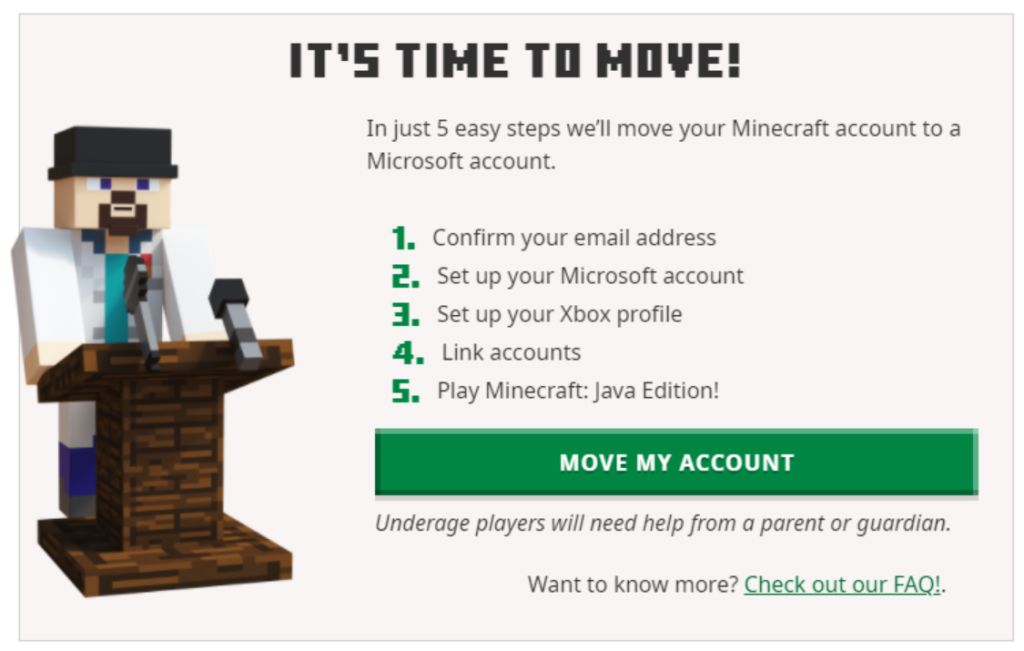 It should only take a few minutes to complete the account migration. However, developer Mojang urges players to contact their customer service or help section if problems appear while switching from the Mojang account to the Microsoft account.
Migrating A Mojang Account to a Microsoft Account
It should only take a few minutes to complete the account migration. However, developer Mojang urges players to contact their customer service or help section if problems appear while switching from the Mojang account to the Microsoft account.
How to Migrate a Mojang Account to an Existing Microsoft Account
Migrating your Mojang/old Minecraft account to your Microsoft account is a straightforward procedure. The steps are:- Login with your old account at Minecraft.net.
- Look for the “It’s your turn to move!” prompt, and click “Move my account.”
- Verify that you’re the account owner by inputting the code you received in your registered email in the box that appears on the Minecraft.net page.
- Once verified, log in with your Microsoft account on Minecraft.net.
- Create an Xbox profile and Gamertag after logging in with your Microsoft account.
- Click the “Complete Move” button.
- If done correctly, a “Move Complete!” message should appear.
How to Migrate a Mojang Account to a New Microsoft Account
Don’t worry if you don’t have a Microsoft account for the Mojang account migration. You can create one within the account transfer procedure in a seamless fashion. Follow these steps to complete this process:- Login with your old account at Minecraft.net.
- Look for the “It’s your turn to move!” prompt, and click “Move my account.”
- Verify that you’re the account owner by inputting the code you received in your registered email in the box that appears on the Minecraft.net page.
- Once verified, create a new Microsoft account using your preferred email and password.
- Next, confirm your country and date of birth (the platform prefills these fields from your Mojang account).
- Create an Xbox profile and Gamertag after logging in with your Microsoft account.
- Click the “Complete Move” button.
- If done correctly, a “Move Complete!” message should appear.
How To Migrate a Child’s Mojang Account to a Microsoft Account
The procedure to switch a child’s Mojang account to a new or existing Microsoft account is similar to the methods mentioned in previous sections. However, the difference here is that a parent or guardian must verify certain pieces of information when prompted. Follow these steps to complete the Mojang account migration to a Microsoft account for a child:- Login with your old account at Minecraft.net.
- Look for the “It’s your turn to move!” prompt, and click “Move my account.”
- Verify that you’re the account owner by inputting the code you received in your registered email in the box that appears on the Minecraft.net page.
- Once verified, log in or create a new Microsoft account for the child.
- Choosing the latter will let the platform request a username and password.
- Next, enter the country and date of birth of the child.
- Confirm that a parent or guardian is present, and indicate the adult’s email address in the appropriate field.
- The parent or guardian should then log in with their existing Microsoft account.
- Log in with the child’s Microsoft account again.
- Create an Xbox profile and Gamertag after logging in with your Microsoft account.
- Click the “Complete Move” button.
- If done correctly, a “Move Complete!” message should appear.
Создайте свой собственный
сервер Minecraft
сервер Minecraft
Выберите тариф, укажите игру и играйте с друзьями!
Подпишитесь на нашу рассылку
Подпишитесь, чтобы получать последние новости из мира игр!

Присоединяйтесь к нашему Discord
Станьте частью нашего сообщества, в котором уже более 20000 единомышленников!
Как бы вы оценили этот блог?
Поделитесь своим мнением и помогите нам сделать наши блоги еще лучше!
Не понравилось
Нейтрально
Понравилось

Нужен игровой сервер?
Арендуйте игровой сервер, где вы и ваши друзья сможете играть в закрытом режиме с низкой задержкой и собственными настройками. Выбирайте из 110+ игр, приглашайте людей со всего мира и наслаждайтесь приватными матчами или создайте свое собственное онлайн-сообщество со своими правилами.

Похожие статьи







УЗНАЙТЕ ВСЕ ПЕРВЫМИ!
Подпишитесь на нашу рассылку, чтобы получать обновления о наших играх, новости компании и эксклюзивные предложения. Будьте в курсе!













