
Necesse Controls Guide: Mouse & Keyboard, Xbox, PlayStation, & Switch
Pubblicato il da

Condividi:

Condividi su X

Condividi su Facebook

Condividi su Threads

Condividi su Bluesky

Copia negli Appunti

Condividi via email
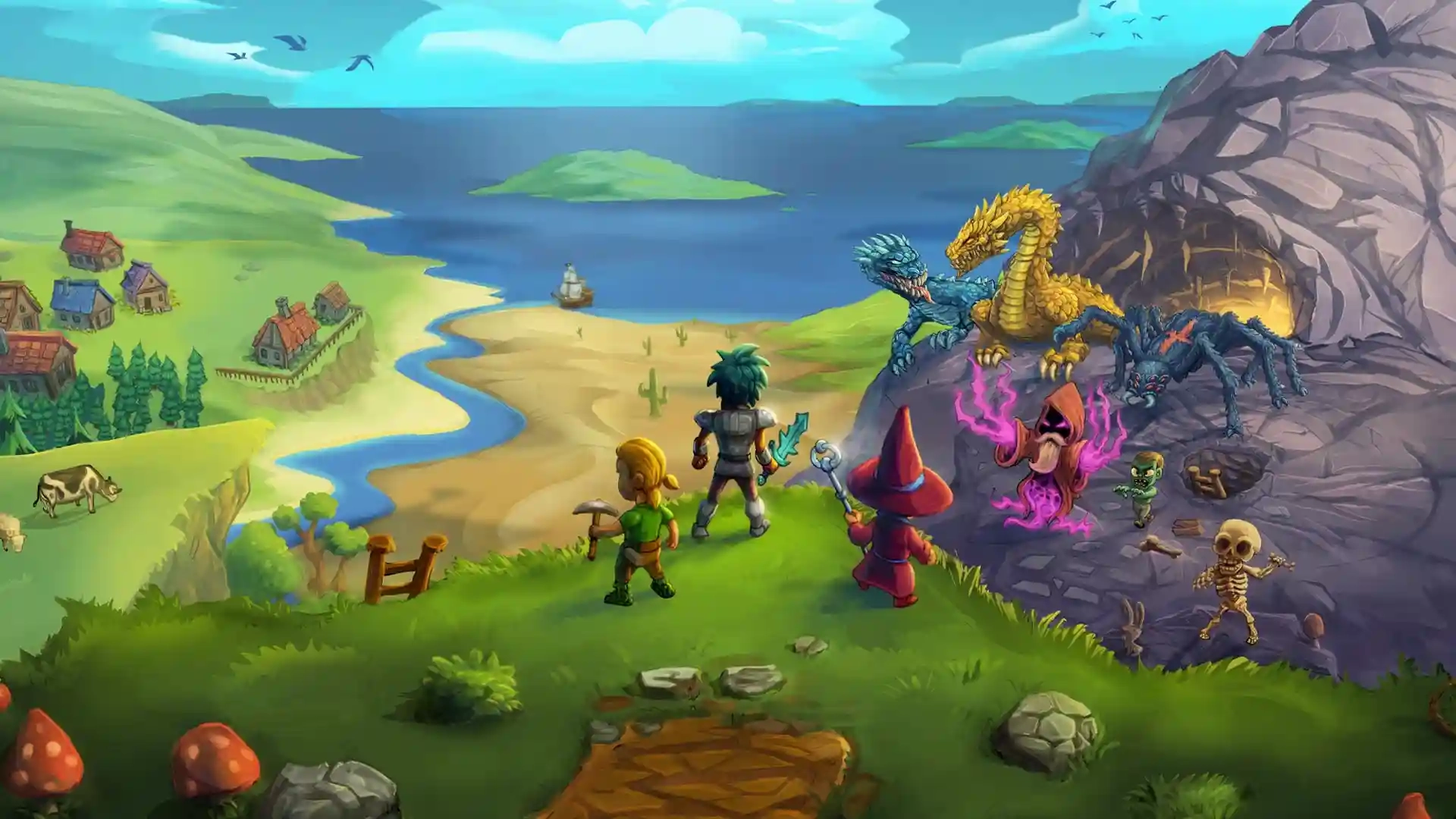
Eager to hop in and explore the procedurally-generated open world of Necesse? There's plenty to explore, build, fight, and collect, but learning the game's controls is necessary. Whether you play with a mouse and keyboard or any popular console controller, we have the Necesse controls mapped out for you.
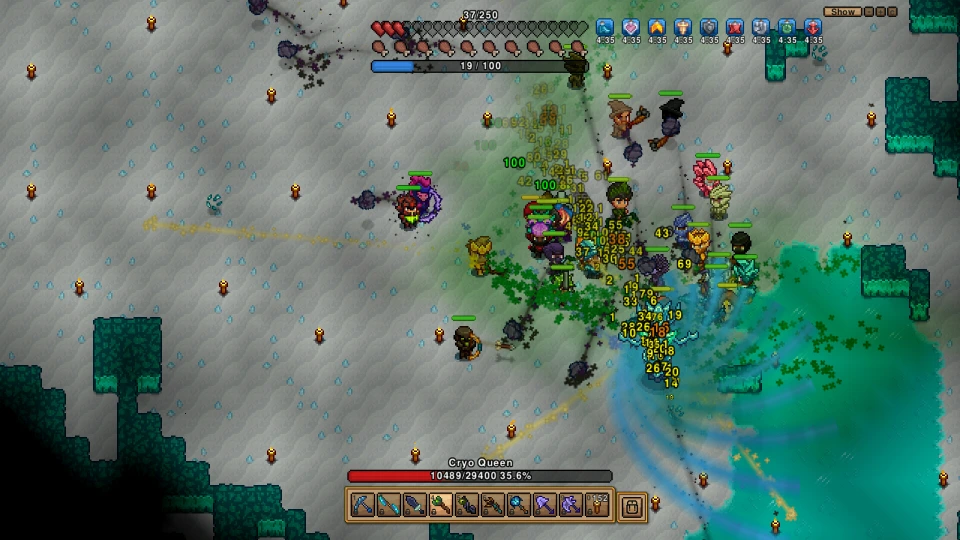 Necesse has a modest number of controls and button mappings to keep in mind. You can attack creatures, place and pick up items, drink potions, eat food, perform some emotes, and much more. One of the main things you'll be doing in Necesse is managing your inventory, and the game has plenty of control options to make that easier, including a hotbar.
Like any game, it will take a while to learn. Luckily, the control scheme in Necesse should feel familiar to fans of survival crafting games.
If you're playing with a mouse and keyboard, you'll naturally have many more control options available to you. Some actions aren't bound by default, but you can set them or change preexisting controls anytime. Simply do the following:
Necesse has a modest number of controls and button mappings to keep in mind. You can attack creatures, place and pick up items, drink potions, eat food, perform some emotes, and much more. One of the main things you'll be doing in Necesse is managing your inventory, and the game has plenty of control options to make that easier, including a hotbar.
Like any game, it will take a while to learn. Luckily, the control scheme in Necesse should feel familiar to fans of survival crafting games.
If you're playing with a mouse and keyboard, you'll naturally have many more control options available to you. Some actions aren't bound by default, but you can set them or change preexisting controls anytime. Simply do the following:
Necesse Controls - PC (Mouse & Keyboard)
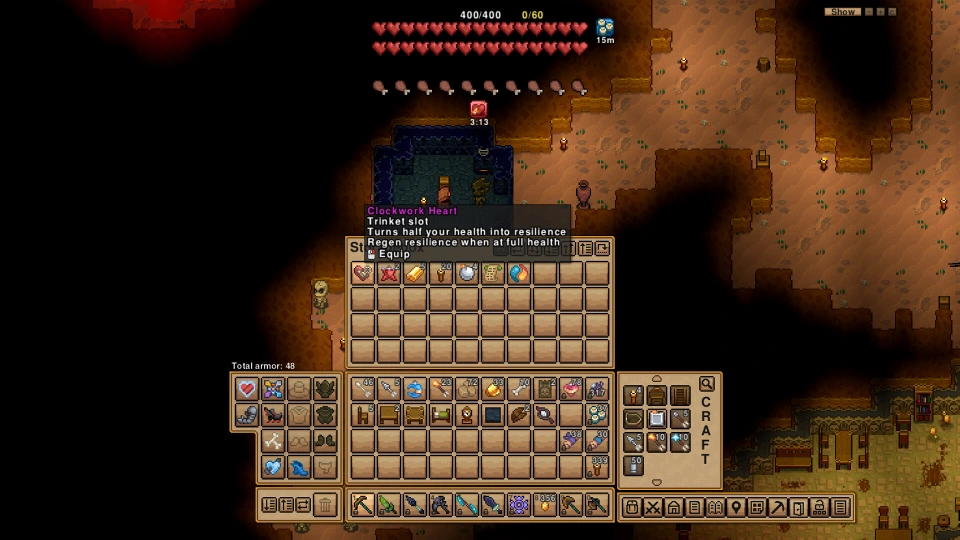
Necesse has a modest number of controls and button mappings to keep in mind. You can attack creatures, place and pick up items, drink potions, eat food, perform some emotes, and much more. One of the main things you'll be doing in Necesse is managing your inventory, and the game has plenty of control options to make that easier, including a hotbar.
Like any game, it will take a while to learn. Luckily, the control scheme in Necesse should feel familiar to fans of survival crafting games.
If you're playing with a mouse and keyboard, you'll naturally have many more control options available to you. Some actions aren't bound by default, but you can set them or change preexisting controls anytime. Simply do the following:
- Press Escape.
- Click on 'Settings.'
- Click on 'Controls.'
- Find the action you want to change, and select it.
- Click on the new button you want bound to that action.
- Ensure your preferred controller type (Xbox, PlayStation, Switch Controller) has been selected as 'Your Controller.'
- Beneath the option 'Current Button Layout,' you will see 'Official Layout for Necesse,' 'View Layout,' and 'Edit Layout.'
- Click 'Edit Layout' to change and map your controls however you like.
General
- Attack/Place/Use: Left Mouse Click
- Interact: Right Mouse Click
- Inventory: E
- Use Health Potion: Z
- Use Mana Potion: Z
- Eat Food: Not Set by Default
- Use Buff Potions: B
- Place Torch: R
- Expression Wheel: T
- Use Mount: F
- Use Armor Set Ability: V
- Use Trinket Ability: Spacebar
- Open Adventure Party: X
- Open Adventure Journal: J
- Open Settlement: C
- Toggle Smart Mining: Left Control
- Loot All: Not Set by Default
- Sort Inventory: Not Set by Default
- Quick Stack Nearby: Not Set by Default
Movement
- Move Up: W
- Move Left: A
- Move Right: D
- Move Down: S
- Move to Mouse: Not Set by Default
Miscellaneous
- Pipette: Middle Mouse Button
- Eraser: G
- Scoreboard: Tab
- Show World Map: M
- Zoom In: KP_Add
- Zoom Out: KP_Subtract
- Hide Cursor: F3
- Hide UI: F4
- Screenshot: F5
Hotbar
- Next Hotbar Slot: Scroll Down
- Previous Hotbar Slot: Scroll Up
- Hotbar Slot 1: 1
- Hotbar Slot 2: 2
- Hotbar Slot 3: 3
- Hotbar Slot 4: 4
- Hotbar Slot 5: 5
- Hotbar Slot 6: 6
- Hotbar Slot 7: 7
- Hotbar Slot 8: 8
- Hotbar Slot 9: 9
- Hotbar Slot 10: 0
Item Sets
- Item Set 1: Not Set by Default
- Item Set 2: Not Set by Default
- Item Set 3: Not Set by Default
- Item Set 4: Not Set by Default
Key Modifiers
- Toggle Slot Locked: Left Alt
- Quick Move: Left Shift
- Quick Trash: Left Control
- Quick Drop: Not Set by Default
- Craft 10: Left Shift
- Craft All: Not Set by Default
Debug
- Debug Info: F1
- Debug HUD: F2
Necesse Controls - Xbox Controller
Game Controls
- Previous Hotbar Slot: LB
- Next Hotbar Slot: RB
- Interact: LT
- Attack/Place/Use: RT
- Show World Map: Menu
- Toggle Main Menu: Start
- Character Movement: Move Left Stick
- Aim: Move Right Stick
- Place Torch: A
- Use Health Potion: B
- Use Trinket Ability: X
- Inventory: Y
- Use Mana Potion: D-Pad Up
- Use Mount: D-Pad Down
- Open Settlement: D-Pad Left
- Use Armor Set Ability: D-Pad Right
Game Controls: Menu/Inventory Controls
- Menu Previous: LB
- Interact: LT
- Menu Split/Equip/Use Item: Menu
- Menu Next: RB
- Attack/Place/Use: RT
- Toggle Main Menu: Start
- Menu Select: A
- Menu Back: B
- Menu Item Actions: X
- Inventory: Y
- Menu Up: D-Pad Up
- Menu Down: D-Pad Down
- Menu Left: D-Pad Left
- Menu Right: D-Pad Right
Desktop Controls
- Left Mouse Click: RT
- Left Mouse Click: Click Left Stick/Click Right Stick/A
Necesse Controls - PlayStation Controller
Game Controls
- Previous Hotbar Slot: L1
- Next Hotbar Slot: R1
- Interact: L2
- Attack/Place/Use: R2
- Show World Map: Touchpad
- Toggle Main Menu: Options
- Character Movement: Move Left Stick
- Aim: Move Right Stick
- Place Torch: Cross
- Use Health Potion: Circle
- Use Trinket Ability: Square
- Inventory: Triangle
- Use Mana Potion: D-Pad Up
- Use Mount: D-Pad Down
- Open Settlement: D-Pad Left
- Use Armor Set Ability: D-Pad Right
Game Controls: Menu/Inventory Controls
- Menu Previous: L1
- Interact: L2
- Menu Split/Equip/Use Item: Touchpad
- Menu Next: R1
- Attack/Place/Use: R2
- Toggle Main Menu: Options
- Menu Select: Cross
- Menu Back: Circle
- Menu Item Actions: Square
- Inventory: Triangle
- Menu Up: D-Pad Up
- Menu Down: D-Pad Down
- Menu Left: D-Pad Left
- Menu Right: D-Pad Right
Desktop Controls
- Left Mouse Click: R2
- Left Mouse Click: Click Left Stick/Click Right Stick/Cross
Necesse Controls - Switch Pro Controller
Game Controls
- Previous Hotbar Slot: L
- Next Hotbar Slot: R
- Interact: ZL
- Attack/Place/Use: ZR
- Show World Map: Minus Button
- Toggle Main Menu: Plus Button
- Character Movement: Move Left Stick
- Aim: Move Right Stick
- Place Torch: B
- Use Health Potion: A
- Use Trinket Ability: Y
- Inventory: X
- Use Mana Potion: D-Pad Up
- Use Mount: D-Pad Down
- Open Settlement: D-Pad Left
- Use Armor Set Ability: D-Pad Right
Game Controls: Menu/Inventory Controls
- Menu Previous: L
- Interact: ZL
- Menu Split/Equip/Use Item: Minus Button
- Menu Next: R
- Attack/Place/Use: ZR
- Toggle Main Menu: Plus Button
- Menu Select: B
- Menu Back: A
- Menu Item Actions: Y
- Inventory: X
- Menu Up: D-Pad Up
- Menu Down: D-Pad Down
- Menu Left: D-Pad Left
- Menu Right: D-Pad Right
Desktop Controls
- Left Mouse Click: ZR
- Left Mouse Click: Click Left Stick/Click Right Stick/B
Crea il tuo server
Necesse
Necesse
Scegli un piano, seleziona un gioco e gioca con i tuoi amici!
Iscriviti alla nostra Newsletter
Iscriviti per ricevere gli ultimi aggiornamenti sul mondo del gaming!

Unisciti al nostro Discord
Entra a far parte della nostra community con oltre 20.000 membri appassionati come te!
Come valuteresti questo blog?
Condividi la tua opinione e aiutaci a migliorare sempre di più i nostri blog!
Non mi è piaciuto
Neutrale
Mi è piaciuto

Hai bisogno di un server di gioco?
Noleggia un server di gioco dove tu e i tuoi amici potrete giocare in privato con bassa latenza e impostazioni personalizzate. Scegli tra 110+ giochi, invita persone da tutto il mondo, goditi le partite private o costruisci la tua community online con le tue regole.

Blog Pertinenti







SCOPRI LE ULTIME NOVITÀ!
Iscriviti alla nostra newsletter per ricevere aggiornamenti sui nostri giochi ospitati, novità aziendali e offerte esclusive. Rimani sempre aggiornato!













