

Minecraft Java Friends List Guide: How to Add Friends, Invite to World, Peer to Peer, & More
Pubblicato il da

Condividi:

Condividi su X

Condividi su Facebook

Condividi su Threads

Condividi su Bluesky

Copia negli Appunti

Condividi via email
A long-desired social feature for Java Edition is finally here, complete with adding friends and peer to peer! So, today, we explore the Minecraft Java friends list, its new features, and how to connect to friends in their singleplayer worlds.
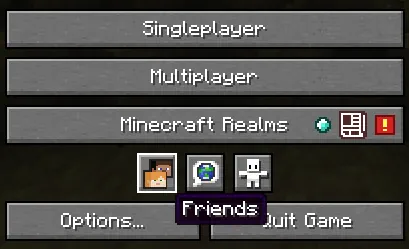 After loading into Minecraft Java Edition, a new row of three buttons can be found below “Minecraft Realms” and above “Options” and “Quit Game.” The first of the three buttons, depicting the heads of Steve and Alex, is the option to open the new Java friends list. Upon clicking it, a window will open with a “Friends” and “Requests” tab at the top.
The “Friends” tab has the option to add new friends alongside a list of those already added, showing their current online status. Meanwhile, the “Requests” tab shows any pending friend requests that have been received and offers the option to either accept or decline them.
After loading into Minecraft Java Edition, a new row of three buttons can be found below “Minecraft Realms” and above “Options” and “Quit Game.” The first of the three buttons, depicting the heads of Steve and Alex, is the option to open the new Java friends list. Upon clicking it, a window will open with a “Friends” and “Requests” tab at the top.
The “Friends” tab has the option to add new friends alongside a list of those already added, showing their current online status. Meanwhile, the “Requests” tab shows any pending friend requests that have been received and offers the option to either accept or decline them.
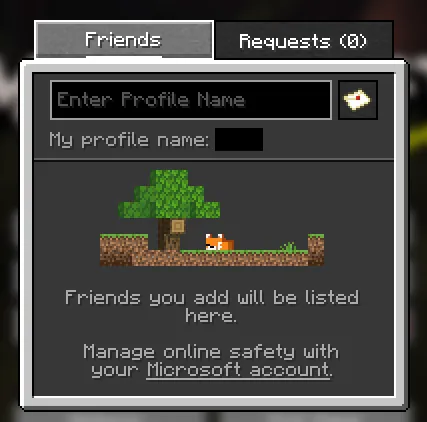 Adding a friend to your Minecraft Java friends list requires only their Minecraft Java username. Once obtained, the steps below can be followed:
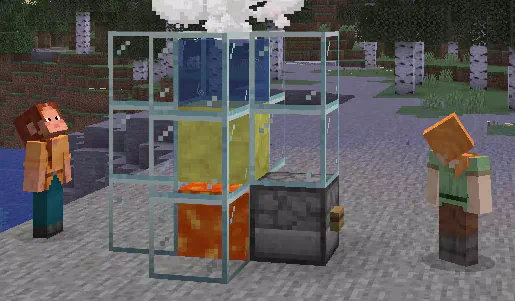 Once a friend has been added, they can be invited to your singleplayer world by opening the friends list in-game with the “O” key and selecting invite. Alternatively, a request to join a friend’s singleplayer world can be made through the friends list on the main menu or by also clicking “O” in-game. When either occurs, the singleplayer world is turned into a temporary server that functions only while the owner is online. Once they leave, no one else can continue playing the world.
Minecraft Java Friends List Overview
After loading into Minecraft Java Edition, a new row of three buttons can be found below “Minecraft Realms” and above “Options” and “Quit Game.” The first of the three buttons, depicting the heads of Steve and Alex, is the option to open the new Java friends list. Upon clicking it, a window will open with a “Friends” and “Requests” tab at the top.
The “Friends” tab has the option to add new friends alongside a list of those already added, showing their current online status. Meanwhile, the “Requests” tab shows any pending friend requests that have been received and offers the option to either accept or decline them.
Adding Friends on Minecraft Java Edition
Adding a friend to your Minecraft Java friends list requires only their Minecraft Java username. Once obtained, the steps below can be followed:
- Open Minecraft Java Edition.
- Select the “Friends” button.
- Enter your friend’s username into the text box under the “Friends” tab.
- Click the small letter icon to the text box’s right.
- Wait for a response.
Peer to Peer Connections
Once a friend has been added, they can be invited to your singleplayer world by opening the friends list in-game with the “O” key and selecting invite. Alternatively, a request to join a friend’s singleplayer world can be made through the friends list on the main menu or by also clicking “O” in-game. When either occurs, the singleplayer world is turned into a temporary server that functions only while the owner is online. Once they leave, no one else can continue playing the world.Crea il tuo server
Minecraft
Minecraft
Scegli un piano, seleziona un gioco e gioca con i tuoi amici!
Iscriviti alla nostra Newsletter
Iscriviti per ricevere gli ultimi aggiornamenti sul mondo del gaming!

Unisciti al nostro Discord
Entra a far parte della nostra community con oltre 20.000 membri appassionati come te!
Come valuteresti questo blog?
Condividi la tua opinione e aiutaci a migliorare sempre di più i nostri blog!
Non mi è piaciuto
Neutrale
Mi è piaciuto

Hai bisogno di un server di gioco?
Noleggia un server di gioco dove tu e i tuoi amici potrete giocare in privato con bassa latenza e impostazioni personalizzate. Scegli tra 110+ giochi, invita persone da tutto il mondo, goditi le partite private o costruisci la tua community online con le tue regole.

Blog Pertinenti







SCOPRI LE ULTIME NOVITÀ!
Iscriviti alla nostra newsletter per ricevere aggiornamenti sui nostri giochi ospitati, novità aziendali e offerte esclusive. Rimani sempre aggiornato!













