

How to Switch a Mojang Account to a Microsoft Account
Publié le par

Partager :

Partager sur X

Partager sur Facebook

Partager sur Threads

Partager sur Bluesky

Copier dans le presse-papiers

Partager par e-mail
Mojang recently announced the deadline for Minecraft players to migrate their old accounts to their Microsoft accounts. Failure to switch a Mojang account to a Microsoft account will prevent access to the game’s website, launcher, and its other platforms.
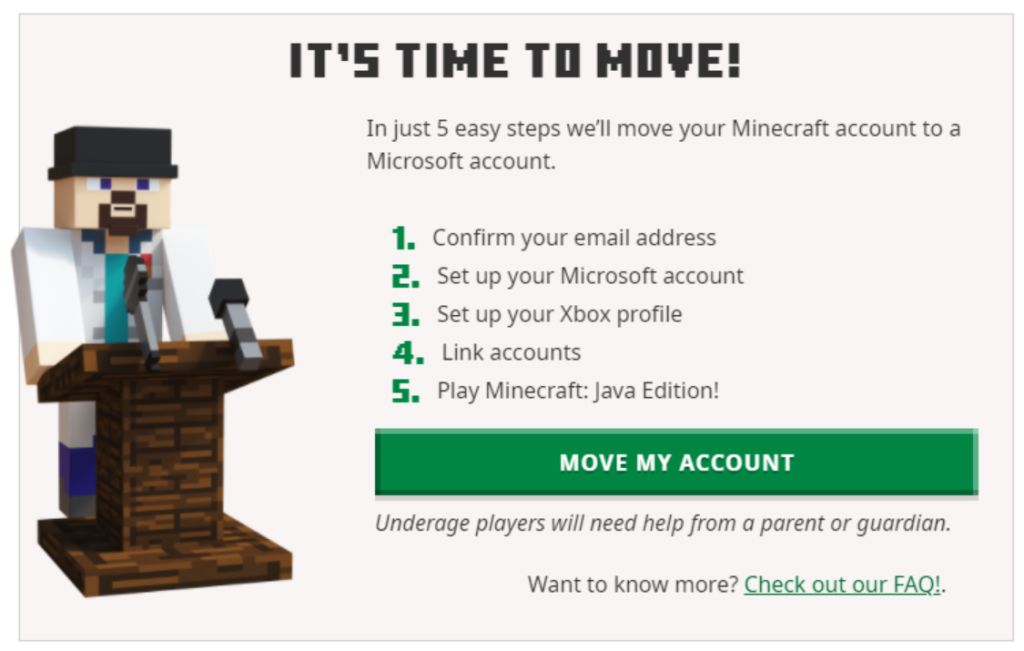 It should only take a few minutes to complete the account migration. However, developer Mojang urges players to contact their customer service or help section if problems appear while switching from the Mojang account to the Microsoft account.
Migrating A Mojang Account to a Microsoft Account
It should only take a few minutes to complete the account migration. However, developer Mojang urges players to contact their customer service or help section if problems appear while switching from the Mojang account to the Microsoft account.
How to Migrate a Mojang Account to an Existing Microsoft Account
Migrating your Mojang/old Minecraft account to your Microsoft account is a straightforward procedure. The steps are:- Login with your old account at Minecraft.net.
- Look for the “It’s your turn to move!” prompt, and click “Move my account.”
- Verify that you’re the account owner by inputting the code you received in your registered email in the box that appears on the Minecraft.net page.
- Once verified, log in with your Microsoft account on Minecraft.net.
- Create an Xbox profile and Gamertag after logging in with your Microsoft account.
- Click the “Complete Move” button.
- If done correctly, a “Move Complete!” message should appear.
How to Migrate a Mojang Account to a New Microsoft Account
Don’t worry if you don’t have a Microsoft account for the Mojang account migration. You can create one within the account transfer procedure in a seamless fashion. Follow these steps to complete this process:- Login with your old account at Minecraft.net.
- Look for the “It’s your turn to move!” prompt, and click “Move my account.”
- Verify that you’re the account owner by inputting the code you received in your registered email in the box that appears on the Minecraft.net page.
- Once verified, create a new Microsoft account using your preferred email and password.
- Next, confirm your country and date of birth (the platform prefills these fields from your Mojang account).
- Create an Xbox profile and Gamertag after logging in with your Microsoft account.
- Click the “Complete Move” button.
- If done correctly, a “Move Complete!” message should appear.
How To Migrate a Child’s Mojang Account to a Microsoft Account
The procedure to switch a child’s Mojang account to a new or existing Microsoft account is similar to the methods mentioned in previous sections. However, the difference here is that a parent or guardian must verify certain pieces of information when prompted. Follow these steps to complete the Mojang account migration to a Microsoft account for a child:- Login with your old account at Minecraft.net.
- Look for the “It’s your turn to move!” prompt, and click “Move my account.”
- Verify that you’re the account owner by inputting the code you received in your registered email in the box that appears on the Minecraft.net page.
- Once verified, log in or create a new Microsoft account for the child.
- Choosing the latter will let the platform request a username and password.
- Next, enter the country and date of birth of the child.
- Confirm that a parent or guardian is present, and indicate the adult’s email address in the appropriate field.
- The parent or guardian should then log in with their existing Microsoft account.
- Log in with the child’s Microsoft account again.
- Create an Xbox profile and Gamertag after logging in with your Microsoft account.
- Click the “Complete Move” button.
- If done correctly, a “Move Complete!” message should appear.
Créez votre propre
serveur Minecraft
serveur Minecraft
Choisissez un plan, sélectionnez un jeu et jouez avec vos amis !
Abonnez-vous à notre newsletter
Abonnez-vous pour recevoir les dernières mises à jour sur l'univers du jeu vidéo !

Rejoignez notre Discord
Rejoignez notre communauté de plus de 20 000 membres passionnés !
Comment évalueriez-vous ce blog ?
Partagez votre avis et aidez-nous à améliorer nos blogs !
Pas aimé
Neutre
Aimé

Besoin d'un serveur de jeu ?
Louez un serveur de jeu où vous et vos amis pouvez jouer en privé avec une faible latence et des paramètres personnalisés. Choisissez parmi 110+ jeux, invitez des joueurs du monde entier et profitez de parties privées, ou créez votre propre communauté en ligne avec vos propres règles.

Blogs pertinents







OBTENEZ LES DERNIÈRES INFOS !
Inscrivez-vous à nos e-mails pour obtenir des mises à jour sur nos jeux hébergés, des nouvelles de l'entreprise et des offres exclusives. Restez au courant !













