7 Days to Die 3.0 Settings Guide: Best Graphics Settings for Optimization & Performance
Publicado el por

Compartir:

Compartir en X

Compartir en Facebook

Compartir en Threads

Compartir en Bluesky

Copiar al portapapeles

Compartir por correo electrónico
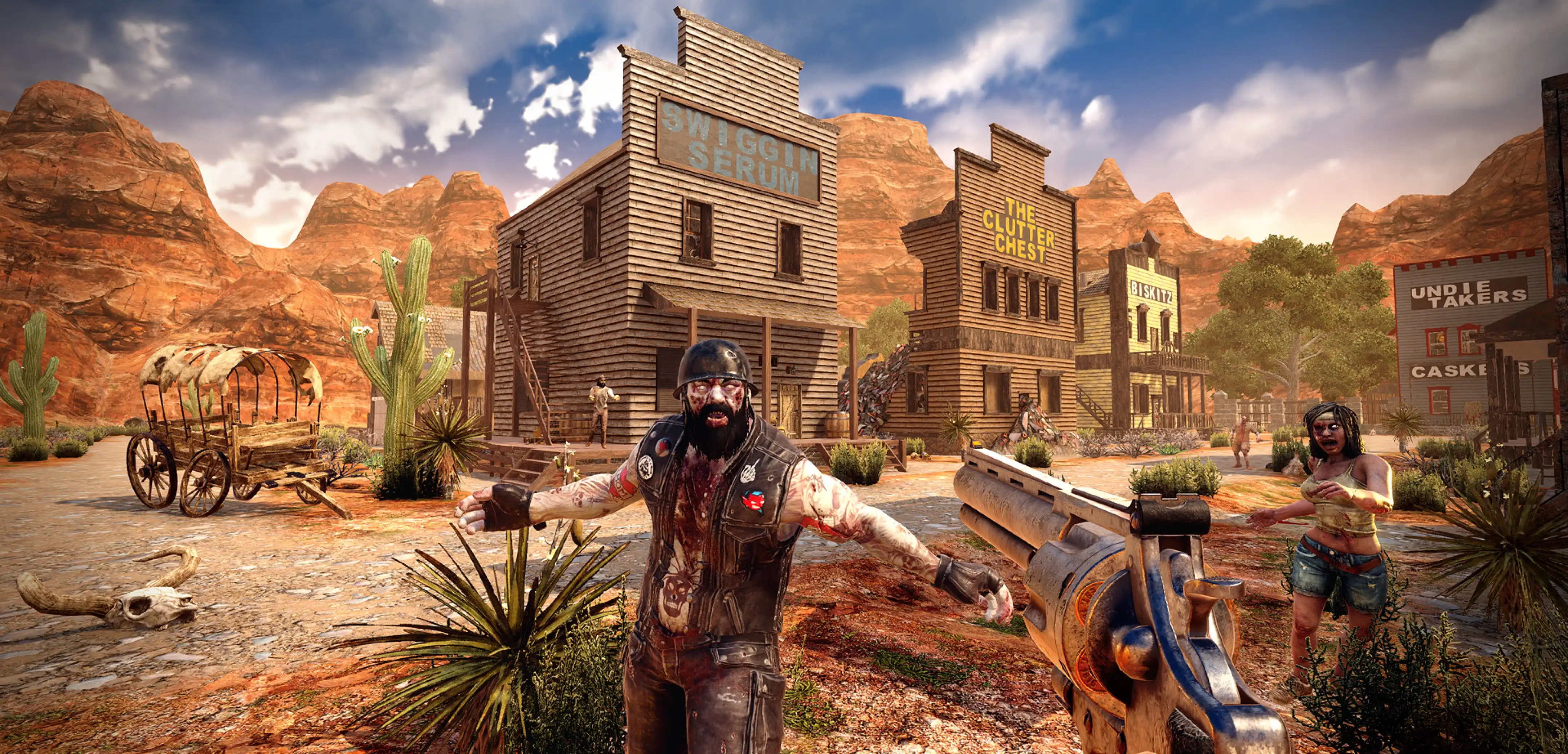
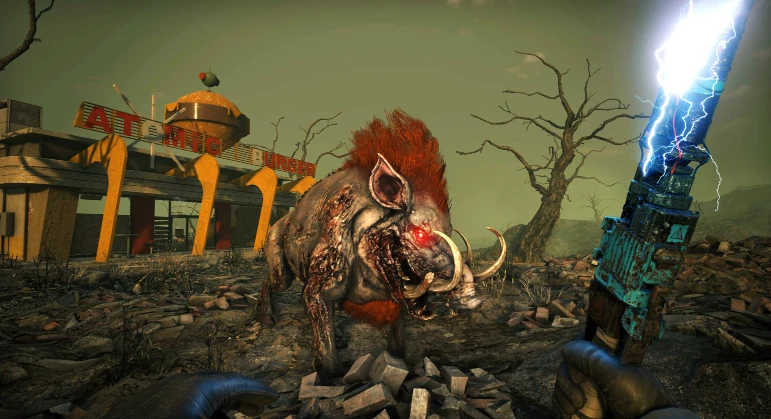
Sometimes, surviving the seventh night isn't about your weapons or base design. Instead, it might be your graphics settings holding you back. With the full launch of 7 Days to Die 3.0, you’ll want to make sure your graphics settings are up-to-date. We can give you a heads-up on the best 7 Days to Die graphics settings for performance, as well as the best gameplay features that transform the zombie-slaying experience.
 Before changing any graphics options, make sure your PC meets the game's recommended system requirements.
7 Days to Die 3.0 Minimum System Requirements
Before changing any graphics options, make sure your PC meets the game's recommended system requirements.
7 Days to Die 3.0 Minimum System Requirements
 These are the in-game settings that will have the largest overall impact on performance. You'll want to tinker with these the most, since they'll yield different results depending on your PC's specs. They can be found in the game's video settings within the Video settings in the "Quality" tab.
Here, View Distance, Object Quality, and Terrain Quality are among the biggest FPS hitters, especially in dense crowds of the undead. While these are our suggestions, make sure you pay close attention to how your game performs. Make adjustments as necessary so you can continue to find the sweet spot for your game.
These are the in-game settings that will have the largest overall impact on performance. You'll want to tinker with these the most, since they'll yield different results depending on your PC's specs. They can be found in the game's video settings within the Video settings in the "Quality" tab.
Here, View Distance, Object Quality, and Terrain Quality are among the biggest FPS hitters, especially in dense crowds of the undead. While these are our suggestions, make sure you pay close attention to how your game performs. Make adjustments as necessary so you can continue to find the sweet spot for your game.
Best Graphics Settings in 7 Days to Die 3.0
Before changing any graphics options, make sure your PC meets the game's recommended system requirements.
7 Days to Die 3.0 Minimum System Requirements
- OS: Windows 10 64-bit
- Processor: Quad-Core CPU (2.8 GHz or faster)
- Memory: 8 GB RAM
- Graphics: DirectX 11 compatible GPU with 2 GB VRAM
- DirectX: Version 11
- Storage: SSD strongly recommended
- OS: Windows 10/11 64-bit
- Processor: Modern 6-core CPU or better
- Memory: 16 GB RAM
- Graphics: NVIDIA RTX 3060 / AMD RX 6700 XT or equivalent
- DirectX: Version 12
- Storage: SSD
Display Settings
These changes can be found within the game's Video settings in the Display tab. Most of these won't affect your game's overall performance too much. However, the upscaler mode can make a difference based on your computer's specs. If you want a more balanced experience between image quality and performance, the upscaler mode is best when set to Balanced. Meanwhile, despite the fact that there is a Performance setting within the upscaler presets, turning the upscaler off entirely can help performance even further.Best Balanced Settings
- Resolution: 1920x1080
- Fullscreen: On
- Upscaler Mode: On
- Upscaler Preset: Balanced
- VSync: Half
- FPS Limit: Off
- Brightness: 50%
Best Performance Settings
- Resolution: 1920x1080
- Fullscreen: On
- Upscaler Mode: Off
- VSync: Half
- FPS Limit: 60
- Brightness: 50%
Graphics Settings
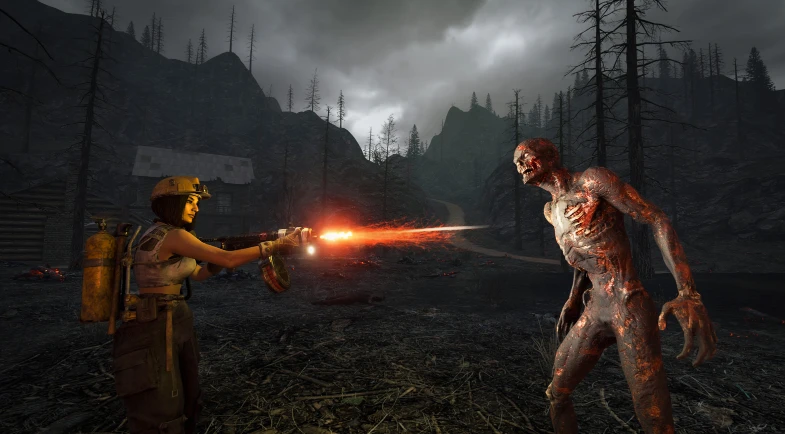
These are the in-game settings that will have the largest overall impact on performance. You'll want to tinker with these the most, since they'll yield different results depending on your PC's specs. They can be found in the game's video settings within the Video settings in the "Quality" tab.
Here, View Distance, Object Quality, and Terrain Quality are among the biggest FPS hitters, especially in dense crowds of the undead. While these are our suggestions, make sure you pay close attention to how your game performs. Make adjustments as necessary so you can continue to find the sweet spot for your game.
Best Balanced Settings
- Anti-Aliasing: Temporal
- AA Sharpening: 50%
- Texture Quality: Full
- Texture Filter: High
- Reflection Quality: Medium
- Refelected Shadows: Off
- Shadows Distance: High
- Shadows Quality: High
- Particles: 50%
- View Distance: Medium
- LOD Distance: 75%
- Terrain Quality: High
- Water Quality: High
- Grass Distance: Medium
- Object Quality: Medium
- Occlusion: On
- Bloom: On
- Motion Blur: Simple
- SSAO: On
- SS Reflections: Medium
- Sun Shafts: On
- Sign Quality: High
Best Performance Settings
- Anti-Aliasing: Low
- AA Sharpening: 0%
- Texture Quality: Quarter
- Texture Filter: Low
- Reflection Quality: Off
- Refelected Shadows: Off
- Shadows Distance: Low
- Shadows Quality: Low
- Particles: 20%
- View Distance: Low
- LOD Distance: 25%
- Terrain Quality: Low
- Water Quality: Low
- Grass Distance: Low
- Object Quality: Low
- Occlusion: On
- Bloom: Off
- Motion Blur: Off
- SSAO: Off
- SS Reflections: Low
- Sun Shafts: Off
- Sign Quality: Low
Dynamic Mesh Settings
Dynamic Mesh allows distant points of interest to render more accurately. A destroyed building, for example, will look more destroyed if your Dynamic Mesh is enabled. However, these settings can be a huge tax on your overall performance.Best Balanced Settings
- Dynamic Mesh Enabled: Yes
- Mesh Distance: 1000
- Mesh Quality: Yes
- Land Claim Only: Yes
- Land Claim Buffer: 3
- Max Region Loads: 1
- Max Mesh Processing: 3
Best Performance Settings
- Dynamic Mesh Enabled: No
Additional Performance & Optimization Tips
Graphics settings aren't the only way to improve performance in 7 Days to Die. Try some of these if your game still isn't running as well as you'd like:- Install the game on an SSD.
- Close unnecessary background applications before launching the game.
- Update graphics drivers regularly.
- Enable your monitor's refresh rate within Windows.
- Keep GPU temperatures under control to prevent thermal throttling.
- Restart the game after long play sessions if performance begins to degrade.
Crea tu propio servidor
de 7 Days to Die
de 7 Days to Die
¡Elige un plan, escoge un juego y juega con tus amigos!
Suscríbete a nuestro boletín
¡Suscríbete para recibir las últimas actualizaciones sobre todo lo relacionado con los videojuegos!

Únete a nuestro Discord
¡Sé parte de nuestra comunidad de más de 20.000 miembros con ideas afines!
¿Cómo calificarías este blog?
¡Comparte tu opinión y ayúdanos a mejorar nuestros blogs!
No me gustó
Neutral
Me gustó

¿Necesitas un servidor de juegos?
Renta un servidor de juego donde tú y tus amigos puedan jugar en privado con baja latencia y configuraciones personalizadas. Elige entre 110+ juegos, invita a gente de todo el mundo y disfruta de partidas privadas, o construye tu propia comunidad en línea con tus propias reglas.

Blogs relevantes






¡ENTÉRATE DE TODO!
Únete a nuestro correo para recibir actualizaciones sobre nuestros juegos alojados, noticias de la empresa y ofertas exclusivas. ¡Mantente al día!