Windrose Not Loading Bug Fix: 5 Possible Solutions to Infinite Loading Screens
发布于 ,作者

分享:

分享至 X

分享至 Facebook

分享至 Threads

分享至 Bluesky

复制到剪贴板

通过电子邮件分享
Windrose recently released an update that fixed various issues, including an error that prevented the game from loading. Nonetheless, some captains still encounter this problem, preventing them from marching towards the path to pirate glory. So, here are five possible solutions to try that might help fix Windrose not loading.
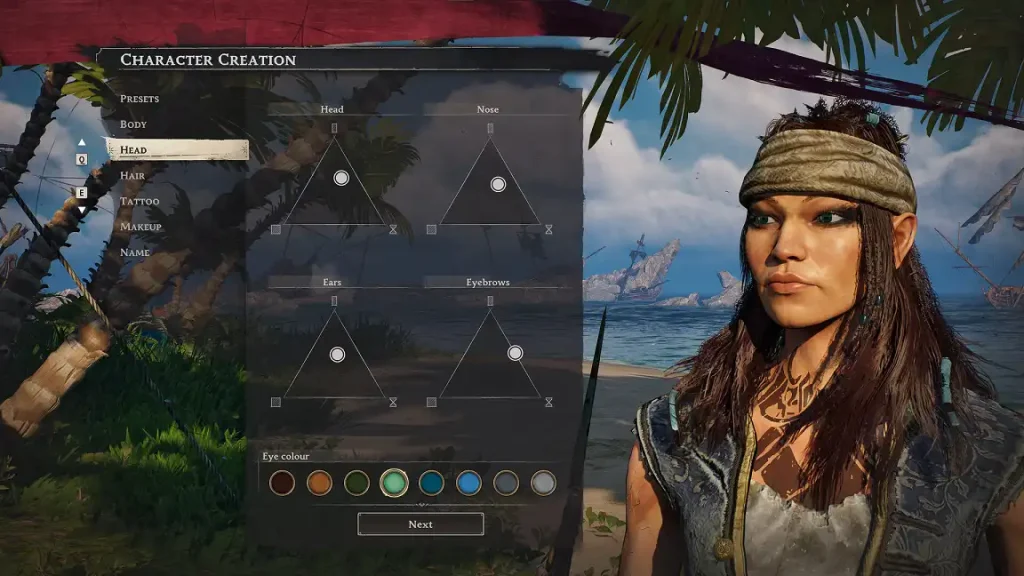 Remember, the following solutions are only potential fixes to the Windrose not loading issue. Each player may experience different reasons why the infinite loading problem appears. Nonetheless, these possible solutions can become starting troubleshooting points, allowing captains to return to their seafaring voyages sooner rather than later.
How to Fix Windrose Stuck on Loading Screen Problem
Remember, the following solutions are only potential fixes to the Windrose not loading issue. Each player may experience different reasons why the infinite loading problem appears. Nonetheless, these possible solutions can become starting troubleshooting points, allowing captains to return to their seafaring voyages sooner rather than later.
Delete Corrupted Save Files
Windrose not loading often signals a corrupted save file. This instance, often triggered by a Steam Cloud sync conflict, forces the game into an endless loop. Locating and deleting the offending files may solve this issue, allowing the game to launch without any hitches. Here’s a quick step-by-step guide on how to delete your corrupted files while restoring saved data from a cloud save:- Log into your Steam account, and navigate to the “Library” tab.
- Right-click Windrose on the left sidebar, and select “Properties” from the context menu.
- Disable Steam Cloud in the General tab of the Properties window.
- Navigate to the location of your Windrose save files, which should be in the following default path: C:\Users\<YourUsername>\AppData\Local\R5\Saved\.
- Backup the “SaveProfiles” folder, and delete or rename it.
- Return to Steam, and launch Windrose, which should allow you to load into the main menu.
- Exit the game, and reactivate Steam Cloud in the Windrose Properties window.
- Launch the game again, which should let Steam ask if you want to use the Local or Cloud Save version.
- Choose the Cloud Save version, and allow the game to load normally.
Rename Demo Files
Playing the demo version of Windrose allowed players a taste of what’s to come before downloading the game’s Early Access build. However, some files from the demo may present conflicts with the Early Access client, causing the app to be stuck in an infinite loading loop. Renaming some files might help force Windrose to create a clean profile bootstrap, allowing it to sidestep conflicts and let pirate adventure continue without friction. With that, here’s a quick rundown on which files and folders to rename to help fix the Windrose not loading error:- Navigate to the location of the Windrose client on your PC, which should be on the following default path: C:\Users\<YourUsername>\AppData\Local\R5\.
- Create a backup of the R5 folder if it has been created by the demo version of Windrose.
- Rename the original R5 folder to another name, such as “R5.old.”
- Relaunch the game to check if the problem persists.
Increase Virtual Memory
The minimum recommended memory to run Windrose properly is 16 GB RAM. Still, some players may encounter errors that prevent them from running the game efficiently, or at all, even when their PCs meet the suggested memory requirement. If the physical RAM is full, Windows tends to overflow data to the page file on disk. The game will most likely fail to load if this virtual memory is too small. So, here’s how to increase your PC’s virtual memory, which might help load the game as intended:- Open the Windows Run window by pressing Windows key + R on your keyboard.
- Type “sysdm.cpl” (without the quotes) in the field next to “Open,” and press Enter
- Navigate to the Advanced tab in the newly opened System Properties window.
- Click the “Settings” button under “Performance.”
- Click the Advanced tab in the “Performance Options” window, and click “Change…” button under “Virtual Memory.”
- If your PC has 16 GB of physical RAM, change the Virtual Memory to either 24,576 (minimum) or 49,152 (maximum).
- Confirm the changed settings, and restart your PC.
- Relaunch Windrose to check if the not loading problem persists.
Use Unstuck
Some players may experience the infinite loading issue when logging into a particular Windrose dedicated server. This issue may arise because of a corrupted local save state. If so, logging into another Windrose server and using the “Unstuck” command may purge the flawed session data. Then, log into the troublesome server after using Unstuck to check if that world loads as intended.Reinstall the Game
If all else fails, uninstall Windrose from your PC. However, create a backup of any leftover file after the uninstallation. Then, move the leftover files to another location before reinstalling the game. Doing so might create a fresh start for Windrose in your system, which might fix the not loading error. Try to launch Windrose after a clean reinstallation. If it loads you into the main menu, create a new character and a new world. Exit the game afterward and copy the files you move earlier into the location of the new installation. Relaunch Windrose, and check if the infinite loading problem disappeared.
您对这篇博客有何评价?
分享您的看法,帮助我们将博客做得更好!
不喜欢
一般
喜欢

需要游戏服务器吗?
租用一台游戏服务器,您可以和朋友们在极低延迟和自定义设置下私密游玩。从 110+ 款游戏中挑选您的最爱,邀请全球玩家,享受私密对战,或者按照您自己的规则建立属于您的在线社区。








获取第一手独家资讯!
订阅我们的电子邮件,获取有关我们托管游戏、公司新闻和独家优惠的最新动态。随时掌握一手资讯!