
CS2 Stuttering: How To Fix & Common Causes
发布于 ,作者

分享:

分享至 X

分享至 Facebook

分享至 Threads

分享至 Bluesky

复制到剪贴板

通过电子邮件分享
Counter-Strike 2 is a game about precision, so performance issues become a massive problem right off the bat. While there are still some issues to iron out with CS2, one increasingly common complaint is with stuttering issues in the game.
Here we'll look into some common causes for stuttering in CS2 and how you can fix them.
 It’s important to mention that the possible solutions to stuttering in CS2 often depend on specific problems. So, it’s best to troubleshoot your system before finding the main cause of the problem. With that, here are some possible causes of stuttering in Counter-Strike 2 and their potential fixes.
CS2 Stuttering: Common Causes & How to Fix Them
It’s important to mention that the possible solutions to stuttering in CS2 often depend on specific problems. So, it’s best to troubleshoot your system before finding the main cause of the problem. With that, here are some possible causes of stuttering in Counter-Strike 2 and their potential fixes.
Issue #1: Minimum System Requirements Not Met
Perhaps your PC isn’t up to par to play this upgraded Counter-Strike title. Here are the minimum requirements your system should be running to play CS2 with as few graphical issues as possible:Windows
- OS: Windows 10
- Processor: 4 hardware CPU threads - Intel Core i5 750 or higher
- Memory: 8 GB RAM
- Graphics: Video card must be 1 GB or more and should be a DirectX 11-compatible with support for Shader Model 5.0
- DirectX: Version 11
- Storage: 85 GB available space
SteamOS + Linux
- OS: Ubuntu 20.04
- Processor: 4 hardware CPU threads - Intel Core i5 750 or higher
- Memory: 8 GB RAM
- Graphics: AMD GCN+ or NVIDIA Kepler+ with up-to-date Vulkan drivers. Support for VK_EXT_graphics_pipeline_library highly recommended.
- Storage: 85 GB available space
- Sound Card: Highly recommended
Issue #2: CS2 Graphics Not Running Optimally
CS2 might not be running in a high-performance setting. If so, follow these steps to change the game’s graphical performance setting:- Log into Steam and navigate to the game library
- Right-click on Counter-Strike 2, and select Properties from the context menu
- Click Installed Files on the left sidebar of the Properties window, then select Browse
- Copy the location of the CS2 executable file in your system
- Click on the Windows Start menu and type “Display Settings” (without the quotes)
- Select Graphics in the Display Settings window, then click on the GPU used for CS2
- Click on Browse under Custom options for apps, and navigate to the CS2 executable file copied earlier
- Confirm the selection and set the graphics preference to High Performance
Issue #3: In-Game Graphics Settings Set Too High
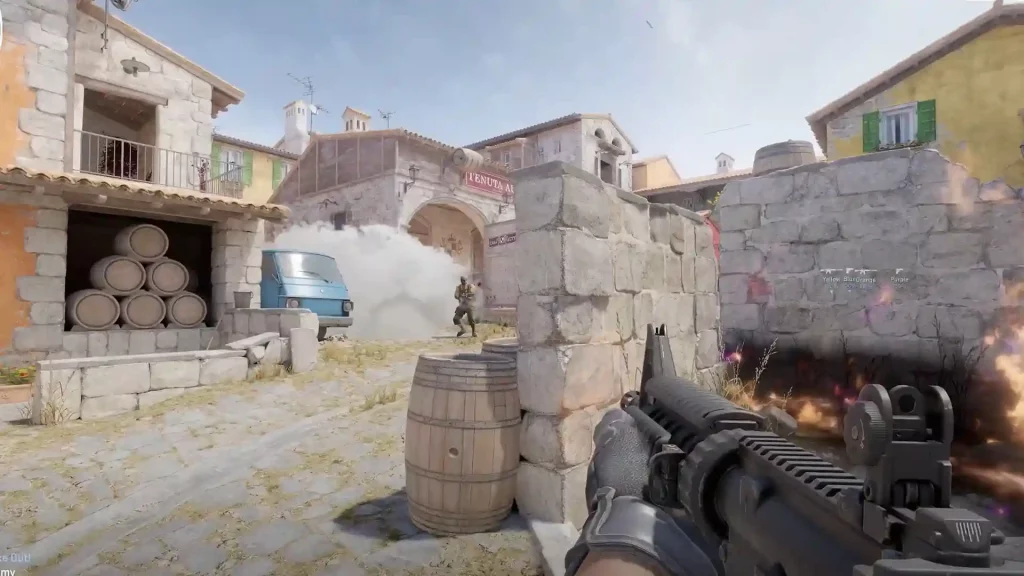
One of the main highlights of CS2 is its enhanced graphical performance, especially when looking into things like the new behavior for the smoke grenade. Although it brings joy to players to set their graphics settings higher than normal to see these upgrades, it may cause stuttering and other problems. Here are some settings you might want to change to reduce or even eliminate stuttering in CS2:- Shader Detail: Low
- Motion Blur: Disable
- Global Shadow Quality: Low or Very Low
- Multisampling Anti-Aliasing Mode: None
- FXAA Anti-Aliasing: Disable
- Wait for Vertical Sync: Disabled
- Particle Detail: Low
- Ambient Occlusion: Disabled
- High Dynamic Range: Performance
- FidelityFX Super Resolution: Disabled
Issue #4: Graphics Drivers Not Updated
Updating your system’s graphics drivers may help remove stuttering. Below are the steps to update graphics drivers based on different hardware and software:NVIDIA
- Access the taskbar and right-click on the NVIDIA GeForce icon, then select NVIDIA GeForce Experience from the context menu
- Click on the Drivers tab
- Click on the Download button beside
- Wait for the download and installation to complete
AMD
- Access the AMD Driver and Support page here
- Download the AMD Driver Auto-detect tool and install it
- Run the Auto-detect tool
- Click the Install button when it finds the update needed for your AMD graphics drivers
Issue #5: CS2 is Running in Fullscreen Mode
Sometimes, running CS2 in Fullscreen mode may cause stuttering, screen tears, and other graphical issues. Fix this by allowing the game to run in Windowed mode. Navigate to the in-game Settings menu, particularly to the Video tab. Here, look for Display Mode and change it to Windowed mode if it isn’t in that setting already. Alternatively, you can turn off fullscreen optimizations from the CS2 executable file. Right-click on that file, and select Properties from the context menu. Then, navigate to the Compatibility tab and disable fullscreen optimizations.
您对这篇博客有何评价?
分享您的看法,帮助我们将博客做得更好!
不喜欢
一般
喜欢

需要游戏服务器吗?
租用一台游戏服务器,您可以和朋友们在极低延迟和自定义设置下私密游玩。从 110+ 款游戏中挑选您的最爱,邀请全球玩家,享受私密对战,或者按照您自己的规则建立属于您的在线社区。








获取第一手独家资讯!
订阅我们的电子邮件,获取有关我们托管游戏、公司新闻和独家优惠的最新动态。随时掌握一手资讯!













