
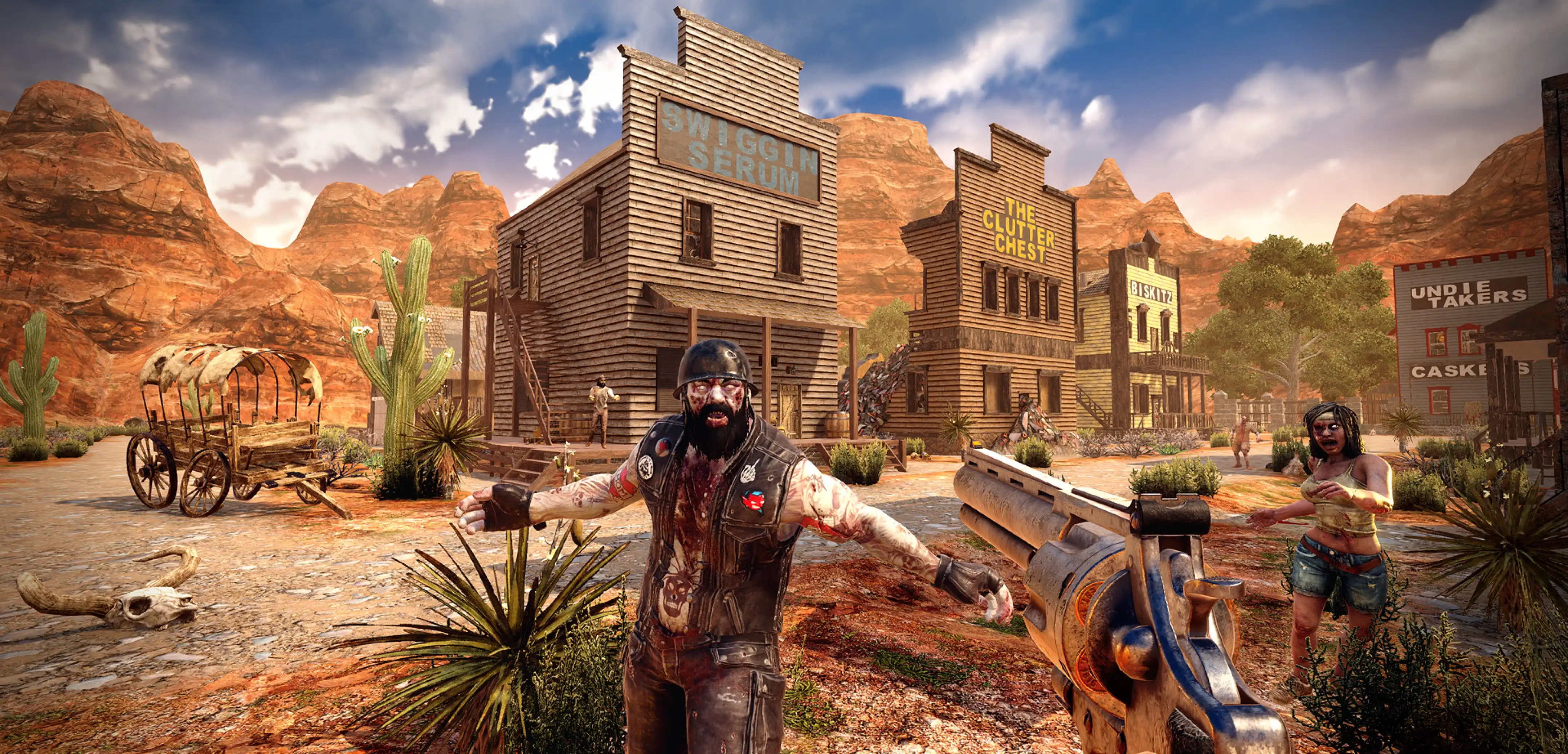
7 Days to Die Controls Guide (PC): Keyboard & Mouse, Xbox, & PlayStation Controllers
发布于 ,作者

分享:

分享至 X

分享至 Facebook

分享至 Threads

分享至 Bluesky

复制到剪贴板

通过电子邮件分享
Entering the zombie-infested realm of 7 Days to Die requires mastering its controls to promote optimal survival. Remember, quick reactions enhance combat, efficient navigation saves time, and knowledge of the controls reduces frustration. So, keep reading this 7 Days to Die Controls Guide and start becoming a master at efficient movement and menu navigation.
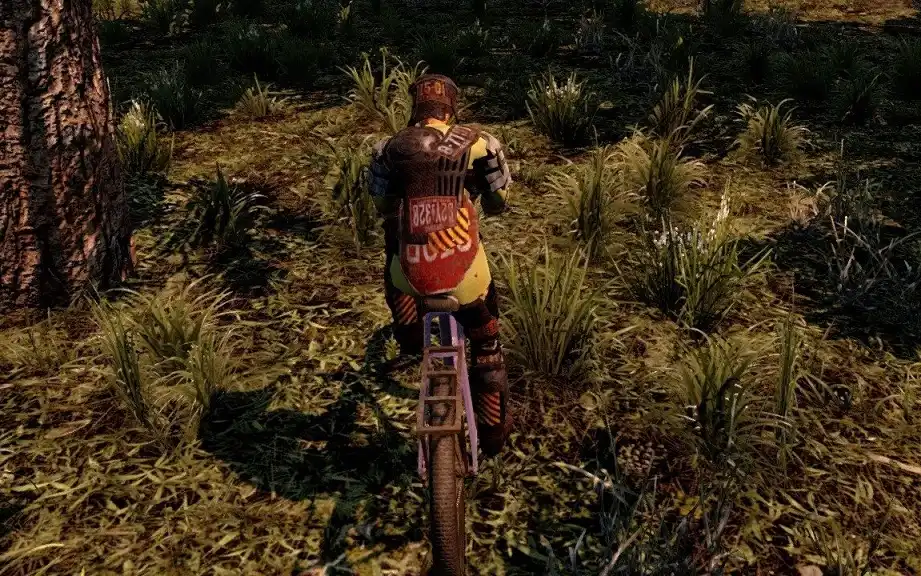 Mastering the controls in 7 Days to Die distinguishes you between a clumsy survivor and a skilled veteran. Invest time in learning the game’s controls and keybinds, as it will significantly enhance your chances of survival in the zombie-infested wasteland.
7 Days to Die Controls & Keybinds (PC)
Mastering the controls in 7 Days to Die distinguishes you between a clumsy survivor and a skilled veteran. Invest time in learning the game’s controls and keybinds, as it will significantly enhance your chances of survival in the zombie-infested wasteland.
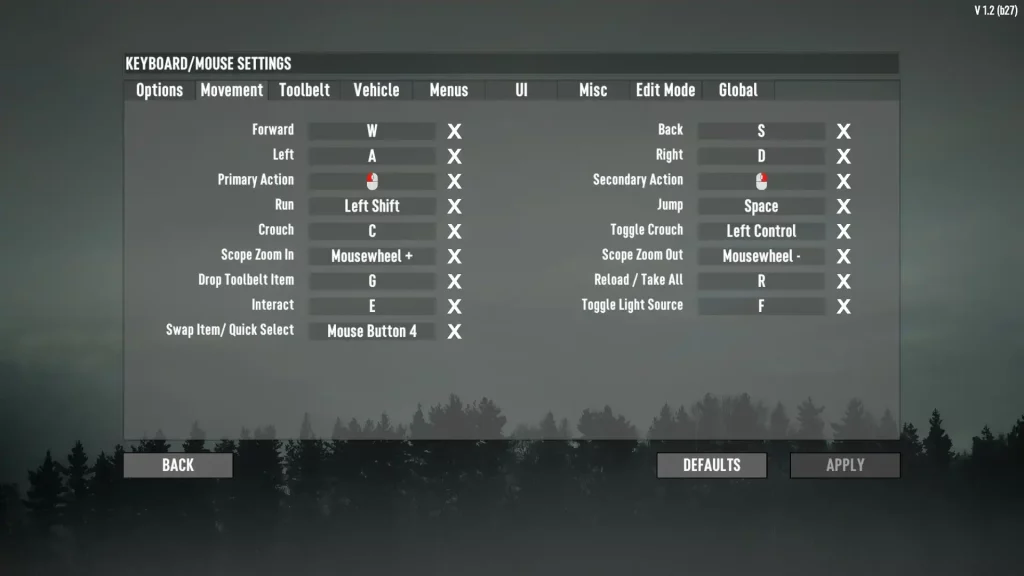
7 Days to Die Controls: Keyboard & Mouse
Movement
- Forward: W
- Back: S
- Left: A
- Right: D
- Primary Action: Left mouse button
- Secondary Action: Right mouse button
- Run: Left Shift
- Jump: Space
- Crouch: C
- Toggle Crouch: Left Control
- Scope Zoom In: Mousewheel +
- Scope Zoom Out: Mousewheel -
- Drop Toolbelt Item: G
- Reload/Take All: R
- Interact: E
- Toggle Light Source: F
- Swap Item/Quick Select: Mouse Button 4
Toolbelt
- Slot 1: 1
- Slot 2: 2
- Slot 3: 3
- Slot 4: 4
- Slot 5: 5
- Slot 6: 6
- Slot 7: 7
- Slot 8: 8
- Slot 9: 9
- Slot 10: 0
- Previous Slot: Mousewheel +
- Next Slot: Mousewheel –
Vehicle
- Forward: W
- Reverse: S
- Left: A
- Right: D
- Turbo: Left Shift
- Barke/Gyro Pitch Up: Space
- Hop/Gyro Pitch Down: C
- Honk Horn: X
- Menu: Esc
- Switch Steering Mode: Left mouse button
- Camera Zoom+: Mousewheel +
- Camera Zoom-: Mousewheel -
Menus
- Menu: Esc
- Inventory: Tab
- Character: B
- Map: M
- Skills: N
- Quests: O
- Challenges: Y
- Scoreboard: I
- Creative Menu: U
UI
- UI Primary Click: Left mouse button
- UI Secondary Click: Right mouse button
- Close Windows: Esc
- Focus Search: F
- Action Hotkey 1: A
- Action Hotkey 2: S
- Action Hotkey 3: W
- Action Hotkey 4: D
Miscellaneous
- Chat: T
- Push to Talk: V
- God Mode: Q
- Fly Mode: H
- Invisible Mode: Num Divide
- Increase God Speed: Shift + =
- Decrease God Speed: Shift + -
Edit Mode
- Change Camera: Left Alt
- Detach Camera: P
- Toggle DC Move: [
- Lock Camera: Num 1
- Selection Fill: L
- Selection Clear: J
- Selection Set: Z
- Rotate Selection: X
- Remove Selection: Backspace
- Switch Selection Move Mode: Insert
- Copy Focused Block: Middle mouse button
- Prefab: K
- Density -1: Right
- Density +1: Left
- Density -10: Up
- Density +10: Down
Global
- Console: F1
- Debug Window: F3
- Fullscreen: F4
- Switch View: F5
- Entity Spawner: F6
- Game Events: F6 + Shift
- Toggle HUD: F7
- FPS Display: F8
- Screenshot: F9
- Debug Screenshot: F11
- AI/Animation Toggle: Num Multiply
7 Days to Die Controls: Xbox Controller
On Foot
- Jump: A
- Reload: X
- Inventory: B
- Interact: Y
- Swap Item/Quick Select: Left directional button
- Primary Action: Right Trigger
- Secondary Action: Left Trigger
- Run: Click left analog stick
- Toggle Crouch: Click right analog stick
- Next Slot: Right Bumper
- Previous Slot: Left Bumper
- Toggle Light Source: Up directional button
- Scope Zoom In: Up directional button
- Scope Zoom Out: Down directional button
- Drop Toolbelt Item: Down directional button
- Push to Talk: Right directional button
Vehicle
- Forward: Right Trigger
- Reverse: Left Trigger
- Hop/Gyro Pitch Down: A
- Brake/Gyro Pitch Up: X
- Inventory: B
- Interact: Y
- Turbo: Right Bumper
- Honk Horn: Left Bumper
- Toggle Lights: Left directional button
- Switch Steering Mode: Click right analog stick
- Camera Zoom+: Up directional button
- Camera Zoom-: Down directional button
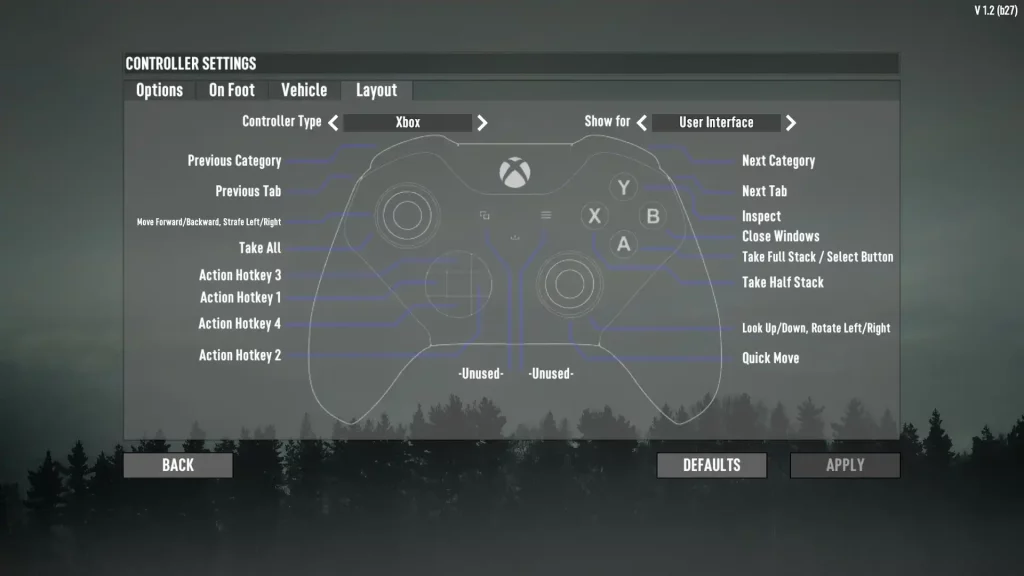
User Interface
- Previous Category: Left Trigger
- Next Category: Right Trigger
- Previous Tab: Left Bumper
- Next Tab: Right Bumper
- Move Forward/Backward, Strafe Left/Right: Left analog stick
- Take All: Click left analog stick
- Action Hotkey 1: Left directional button
- Action Hotkey 2: Right directional button
- Action Hotkey 3: Up directional button
- Action Hotkey 4: Down directional button
- Inspect: Y
- Close Window: B
- Take Full Stack: A
- Take Half Stack/Select Button: X
- Look Up/Down: Right analog stick
- Quick Move: Click right analog stick
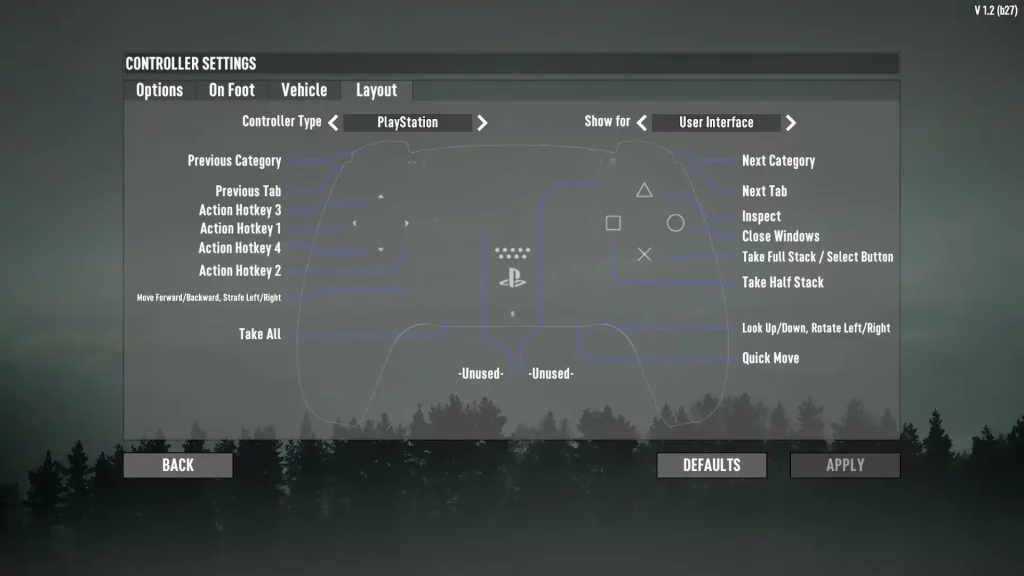
7 Days to Die Controls: PlayStation Controller
On Foot
- Jump: X
- Reload: Square
- Inventory: Circle
- Interact: Triangle
- Swap Item/Quick Select: Left directional button
- Primary Action: R2
- Secondary Action: L2
- Run: Click left analog stick
- Toggle Crouch: Click right analog stick
- Next Slot: R1
- Previous Slot: L1
- Toggle Light Source: Up directional button
- Scope Zoom In: Up directional button
- Scope Zoom Out: Down directional button
- Drop Toolbelt Item: Down directional button
- Scoreboard: Press touchpad
- Menu: Options
Vehicle
- Forward: R2
- Reverse: L2
- Hop/Gyro Pitch Down: X
- Brake/Gyro Pitch Up: Square
- Inventory: Circle
- Interact: Triangle
- Turbo: R1
- Honk Horn: L1
- Toggle Lights: Left directional button
- Switch Steering Mode: Click right analog stick
- Camera Zoom+: Up directional button
- Camera Zoom-: Down directional button
- Scoreboard: Press touchpad
- Menu: Options
User Interface
- Previous Category: L2
- Next Category: R2
- Previous Tab: L1
- Next Tab: R1
- Move Forward/Backward, Strafe Left/Right: Left analog stick
- Take All: Click left analog stick
- Action Hotkey 1: Left directional button
- Action Hotkey 2: Right directional button
- Action Hotkey 3: Up directional button
- Action Hotkey 4: Down directional button
- Inspect: Triangle
- Close Window: Circle
- Take Full Stack/Select Button: X
- Take Half Stack: Square
- Look Up/Down: Right analog stick
- Quick Move: Click right analog stick

您对这篇博客有何评价?
分享您的看法,帮助我们将博客做得更好!
不喜欢
一般
喜欢

需要游戏服务器吗?
租用一台游戏服务器,您可以和朋友们在极低延迟和自定义设置下私密游玩。从 110+ 款游戏中挑选您的最爱,邀请全球玩家,享受私密对战,或者按照您自己的规则建立属于您的在线社区。








获取第一手独家资讯!
订阅我们的电子邮件,获取有关我们托管游戏、公司新闻和独家优惠的最新动态。随时掌握一手资讯!













