
Project Zomboid Controls Guide
tarihinde yazan:

Paylaş:

X'te Paylaş

Facebook'ta Paylaş

Threads'te Paylaş

Bluesky'da Paylaş

Panoya Kopyala

E-posta ile Paylaş
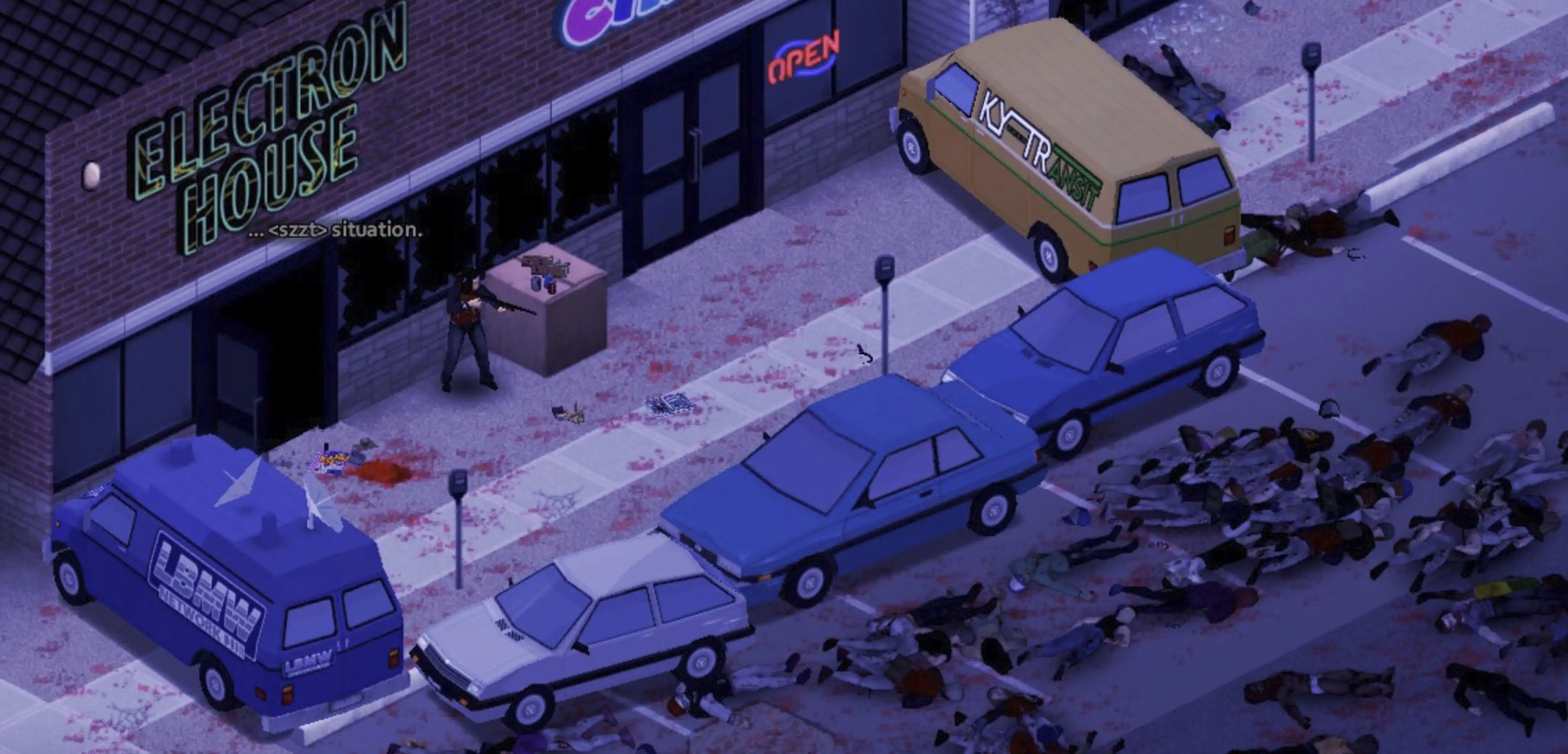
Becoming proficient with the controls in Project Zomboid is crucial for staying alive in its unforgiving, zombie-filled environment. Survivors must use the game’s available controls to make conscious decisions, such as attacking or running away, which ultimately affect their survival. So, continue reading to learn more about the controls and keybinds for Project Zomboid and become a master survivor in Knox Country.
 The following controls and keybinds for Project Zomboid follow Build 41. Some controls may change with future builds.
All Project Zomboid Controls and Keybinds
The following controls and keybinds for Project Zomboid follow Build 41. Some controls may change with future builds.
Keyboard & Mouse
Note that most Project Zomboid controls and keybinds are editable. Players can modify certain controls to help fit their preferred playstyle.Player Control
- Forward: W
- Backward: S
- Left: A
- Right: D
- Run: Left Shift
- Sprint: Left Alt
- Rotate Building: R
- Toggle Mode: Tab
- Cancel Action: Escape
- Walk To: Y
Combat
- Sneak: C
- Aim: Left Control
- Shove/Stomp: Space
- Rack Firearm: X
- Reload Weapon: R
- Manual Floor Attack: Left Alt
Vehicle
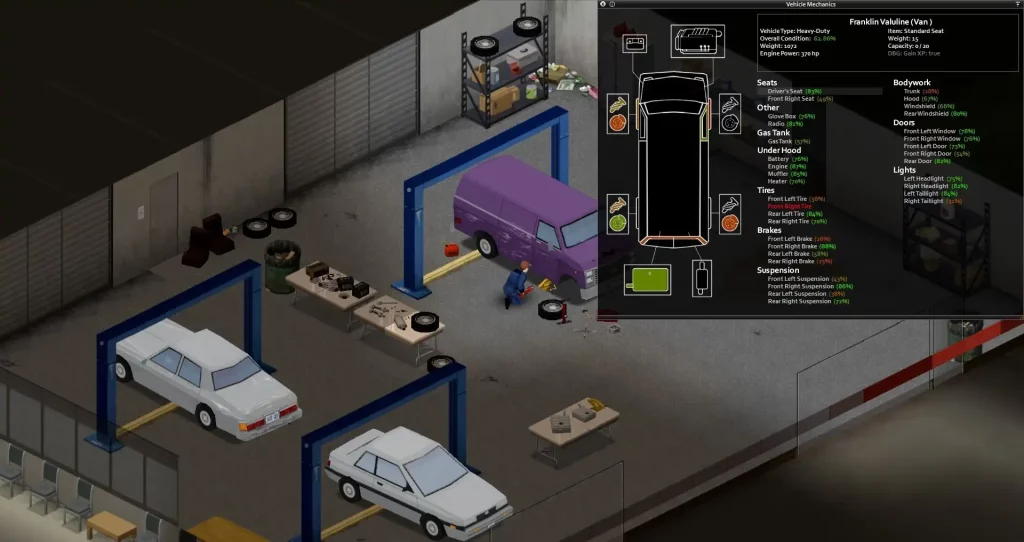
- Start Vehicle Engine: N
- Toggle Vehicle Headlights: F
- Vehicle Heater: O
- Vehicle Info: U
- Horn: Q
- Vehicle Radial Menu: V
- Switch Seat: Z
User Interface
- Toggle Crafting UI: B
- Main Menu: Escape
- Toggle Inventory: I
- Toggle Skill Panel: L
- Toggle Health Panel: H
- Toggle Moveable Panel Mode: ]
- Toggle Map: M
- Take Screenshot: F10
- Toggle Survival Guide: F1
- Display FPS: K
- Pause: F2
- Normal Speed: F3
- Fast Forward x1: F4
- Fast Forward x2: F5
- Fast Forward x3: F6
- Zoom In: =
- Zoom Out: .
Hotkeys
- Hotbar 1: 1
- Hotbar 2: 2
- Hotbar 3: 3
- Hotbar 4: 4
- Hotbar 5: 5
- Equip/Turn/Off Light Source: F
Multiplayer
- Toggle Safety: G
- Toggle Chat: T
- Alt Toggle Chat: Return
- Switch Chat Stream: Tab
Voice
- Push-to-Talk: Left Alt
NPC Interaction
- Shout: Q
- Emotes Wheel (long press): Q
Debug
- Toggle Lua Debugger: F11
- Toggle Lua Console: `
- Toggle God Mode and Invisible: N
- Toggle Models Enabled: F3
- Toggle Animation Text: F6
Search Mode
- Toggle Search Mode: End
Gamepad
It’s important to mention that the gamepad controls for Project Zomboid are displayed with the configurations of an Xbox controller. Although it’s possible to use other gamepads with other button layouts, such as the PlayStation 5 DualSense controller, the game will still display the button configurations of an Xbox controller, which may confuse some players.- Move Player: Left stick
- Toggle Walk/Run: Press Left analog stick
- Navigate Contextual Menus: Directional Pad
- Sneak/Aim, Navigate Radial Menu: Right analog stick
- Interact 1: A
- Interact 2: B
- Display Contextual Menu, Available Interactions, & Quick Loot/Drop Item: X
- Inventory: Y
- Navigate Tabs: Left and Right Bumpers
- Shove/Stomp: Left Trigger
- Fire/Attack: Right Trigger
- Display Radial Menu: View/Back
- Pause/Menu: Start
Kendi
Project Zomboid sunucunuzu oluşturun
Project Zomboid sunucunuzu oluşturun
Bir plan seçin, bir oyun belirleyin ve arkadaşlarınızla oynayın!
Bültenimize Katılın
Oyun dünyasındaki en son güncellemeler için abone olun!

Discord'umuza Katılın
20.000'den fazla kafa dengi üyeden oluşan topluluğumuzun bir parçası olun!
Bu blogu nasıl değerlendirirsiniz?
Fikrinizi paylaşın ve bloglarımızı daha da iyi hale getirmemize yardımcı olun!
Beğenmedim
Nötr
Beğendim

Bir oyun sunucusuna mı ihtiyacınız var?
Siz ve arkadaşlarınızın düşük gecikme süresi ve özel ayarlarla özel olarak oynayabileceğiniz bir oyun sunucusu kiralayın. 110+ oyun arasından seçim yapın, dünyanın dört bir yanından insanları davet edin ve özel maçların keyfini çıkarın veya kendi kurallarınızla kendi çevrimiçi topluluğunuzu oluşturun.

İlgili Bloglar







İLK SENİN HABERİN OLSUN!
Barındırdığımız oyunlar, şirket haberleri ve özel fırsatlar hakkında güncellemeler için e-posta listemize katılın. Haberdar olun!













