

Minecraft Controls Guide: All PC & Controller Keybinds (PlayStation, Xbox, & Switch)
tarihinde yazan:

Paylaş:

X'te Paylaş

Facebook'ta Paylaş

Threads'te Paylaş

Bluesky'da Paylaş

Panoya Kopyala

E-posta ile Paylaş
Minecraft has no shortage of controls, including many even veterans tend not to know! So, today, we explore all PC and controller keybinds, controls, and shortcuts in our Minecraft controls guide.
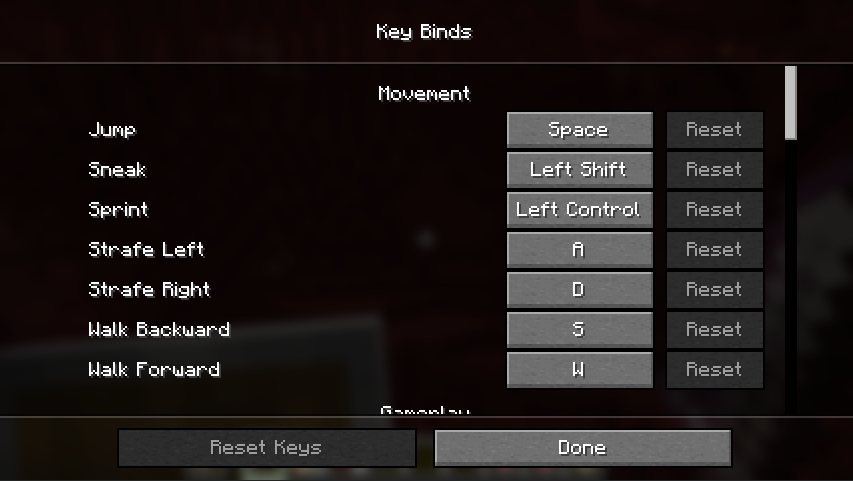 Creativity is paramount in Minecraft, and that does not stop when it comes to keybinds and controller settings! Everything we have listed below in our Minecraft controls guide is merely the default and can be changed as desired in most cases.
To locate these settings, select the “Settings” button on the main menu screen or by opening the in-game menu and selecting “Settings” from there. Once done, select controls (and then keybinds on some platforms) and begin editing as desired. Controller users may also find a selection of controls that are unbound by default. If being assigned, be sure not to overlap them with other options.
Creativity is paramount in Minecraft, and that does not stop when it comes to keybinds and controller settings! Everything we have listed below in our Minecraft controls guide is merely the default and can be changed as desired in most cases.
To locate these settings, select the “Settings” button on the main menu screen or by opening the in-game menu and selecting “Settings” from there. Once done, select controls (and then keybinds on some platforms) and begin editing as desired. Controller users may also find a selection of controls that are unbound by default. If being assigned, be sure not to overlap them with other options.
Minecraft Controls Guide: All PC & Controller Keybinds
Creativity is paramount in Minecraft, and that does not stop when it comes to keybinds and controller settings! Everything we have listed below in our Minecraft controls guide is merely the default and can be changed as desired in most cases.
To locate these settings, select the “Settings” button on the main menu screen or by opening the in-game menu and selecting “Settings” from there. Once done, select controls (and then keybinds on some platforms) and begin editing as desired. Controller users may also find a selection of controls that are unbound by default. If being assigned, be sure not to overlap them with other options.
Minecraft Java Edition (PC)
Mouse- Left Click: Attack/Destroy, Select Item, Divide Held Stack (Press & Drag), & Gather Identical Items (Double-Click)
- Right Click: Use Item/Place Block, Interact, Select Individual Item, & Split Stack
- Middle Click: Select Identical Block & Create Block/Item Copy (Creative)
- Mouse Move: Camera Control
- Mouse Wheel Scroll: Scroll Toolbar/Chat
- W: Walk & Sprint (Double-Tap)
- A: Strafe Left
- S: Walk Backwards
- D: Strafe Right
- Space: Jump & Swim Up/Fly Up (Creative)
- Left Shift: Sneak, Dismount, Fly Down (Creative), Quick Item Deposit or Retrieval, & Craft Maximum Amount
- Ctrl: Sprint & Fast Fly (Creative)
- Q: Drop One Selected Item (Ctrl+Q For Full Stack)
- E: Open/Close Inventory
- F: Swap Main-Hand/Off-Hand Items
- 1-9: Toolbar Slot Quick Select
- T: Open Chat
- Enter: Open Chat
- /: Open Chat With “/” Pre-Typed (Used for Commands)
- Tab: Show Player List & Command/Name Auto-Complete
- Esc: Open Game Menu
- C: Save Toolbar (Creative)
- X: Load Toolbar (Creative)
- L: View Advancements (Achievements)
- P: Social Interactions Screen (Block & Report Players)
- Ctrl+B: Toggle Narrator (Accessibility Feature)
- F1: Hide & Unhide HUD
- F2: Screenshot
- F3: Open/Close Debug Screen (Coordinates, FPS, Memory, etc.)
- F3+A: Reload chunks
- F3+T: Reload Textures/Sounds
- F3+C: Copy Coordinates as “/tp” Command
- F3+D: Clear Chat
- F3+V: Show Client Version Information
- F3+P: Toggle Auto-Pause When Window Is Not Focused
- F3+H: Toggle Detailed Tooltips
- F3+B: Toggle Entity Hitboxes
- F3+N: Toggle Spectator Mode
- F3+G: Toggle Chunk Borders
- F3+L: Record Performance Log (10 Seconds)
- F3+S: Dump Dynamic Textures
- F3+Esc: Pause Game
- F3+F4: Open Gamemode Changer Menu
- F4: Toggle Post-Processing Shaders
- F5: Change Camera Perspective
- F11: Toggle Fullscreen Mode
Minecraft Bedrock Edition (PC)
Mouse- Left Click: Attack/Destroy, Select Item, Divide Held Stack (Press & Drag), & Gather Identical Items (Double-Click)
- Right Click: Use Item/Place Block, Interact, Select Individual Item, & Split Stack
- Middle Click: Select Identical Block & Create Block/Item Copy (Creative)
- Mouse Move: Camera Control
- Mouse Wheel Scroll: Scroll Toolbar/Chat
- W: Walk & Sprint (Double-Tap)
- A: Strafe Left
- S: Walk Backwards
- D: Strafe Right
- Space: Jump & Swim Up/Fly Up (Creative)
- Left Shift: Sneak, Dismount, Fly Down (Creative), Quick Item Deposit or Retrieval, & Craft Maximum Amount
- Ctrl: Sprint & Fast Fly (Creative)
- Q: Drop One Selected Item (Ctrl+Q For Full Stack)
- E: Open/Close Inventory
- F: Swap Main-Hand/Off-Hand Items
- Z: Open/Close Status Effect Window
- 1-9: Toolbar Slot Quick Select
- T: Open Chat
- Enter: Open Chat
- /: Open Chat With “/” Pre-Typed (Used for Commands)
- B: Open/Close Emote Menu
- Tab: Show Player List & Command/Name Auto-Complete
- Esc: Open Game Menu
- P: Social Interactions Screen (Block & Report Players)
- Up Arrow: Cycle Highlighted Inventory Slot or Highlighted Menu Option Up
- Left Arrow: Cycle Highlighted Inventory Slot or Highlighted Menu Option Left
- Down Arrow: Cycle Highlighted Inventory Slot or Highlighted Menu Option Down
- Right Arrow: Cycle Highlighted Inventory Slot or Highlighted Menu Option Right
- [: Cycle Tabs Left
- ]: Cycle Tabs Right
- N: Open/Close Notification
- Ctrl+B: Toggle Narrator (Accessibility Feature)
- Ctrl+ALT+C: Copy Current Coordinates
- Ctrl+ALT+X: Copy Current Facing Coordinates
- ;: Lower Graphic Settings from Fancy to Simple & Toggle RTX (Windows Only)
- F1: Hide & Unhide HUD
- F2: Screenshot
- F5: Change Camera Perspective
- F8: Toggle HUD Display of Your Character
- F11: Toggle Fullscreen Mode
PlayStation Controller
- Left Analog Stick: Walk
- Right Analog Stick: Camera Control
- L1: Cycle Item Left
- R1: Cycle Item Right
- L1+R1: Screenshot
- L2: Place Block & Use Item
- R2: Attack/Destroy
- L3: Sprint
- R3: Fly Down Slowly (Creative)
- D-Pad Up: Change Camera Perspective
- D-Pad Down: Drop Item
- D-Pad Left: Open/Close Emote Menu
- D-Pad Right: Open Chat
- Cross: Jump & Swim Up/Fly Up (Creative)
- Circle: Sneak, Dismount, & Fly Down (Creative)
- Square: Craft
- Triangle: Inventory
- Touchpad: List Players, Open/Close Notification, & Open/Close Status Effect Window
- Options Button: Open Game Menu
Xbox Controller
- Left Analog Stick: Walk
- Right Analog Stick: Camera Control
- LB: Cycle Item Left
- RB: Cycle Item Right
- LB+RB: Screenshot
- LT: Place Block & Use Item
- RT: Attack/Destroy
- Left Stick Click: Sprint
- Right Stick Click: Fly Down Slowly (Creative)
- D-Pad Up: Change Camera Perspective
- D-Pad Down: Drop Item
- D-Pad Left: Open/Close Emote Menu
- D-Pad Right: Open Chat
- A: Jump & Swim Up/Fly Up (Creative)
- B: Sneak, Dismount, & Fly Down (Creative)
- X: Craft
- Y: Inventory
- View Button: List Players, Open/Close Notification, & Open/Close Status Effect Window
- Start Button: Open Game Menu
Nintendo Switch
- Left Analog Stick: Walk
- Right Analog Stick: Camera Control
- LB: Cycle Item Left
- RB: Cycle Item Right
- LB+RB: Screenshot
- ZL: Place Block & Use Item
- ZR: Attack/Destroy
- Left Stick Click: Sprint
- Right Stick Click: Fly Down Slowly (Creative)
- Control Pad Up/Up Button: Change Camera Perspective
- Control Pad Down/Down Button: Drop Item
- Control Pad Left/Left Button: Open/Close Emote Menu
- Control Pad Right/Right Button: Open Chat
- B: Jump & Swim Up/Fly Up (Creative)
- A: Sneak, Dismount, & Fly Down (Creative)
- Y: Craft
- X: Inventory
- -: List Players, Open/Close Notification, & Open/Close Status Effect Window
- +: Open Game Menu
Kendi
Minecraft sunucunuzu oluşturun
Minecraft sunucunuzu oluşturun
Bir plan seçin, bir oyun belirleyin ve arkadaşlarınızla oynayın!
Bültenimize Katılın
Oyun dünyasındaki en son güncellemeler için abone olun!

Discord'umuza Katılın
20.000'den fazla kafa dengi üyeden oluşan topluluğumuzun bir parçası olun!
Bu blogu nasıl değerlendirirsiniz?
Fikrinizi paylaşın ve bloglarımızı daha da iyi hale getirmemize yardımcı olun!
Beğenmedim
Nötr
Beğendim

Bir oyun sunucusuna mı ihtiyacınız var?
Siz ve arkadaşlarınızın düşük gecikme süresi ve özel ayarlarla özel olarak oynayabileceğiniz bir oyun sunucusu kiralayın. 110+ oyun arasından seçim yapın, dünyanın dört bir yanından insanları davet edin ve özel maçların keyfini çıkarın veya kendi kurallarınızla kendi çevrimiçi topluluğunuzu oluşturun.

İlgili Bloglar







İLK SENİN HABERİN OLSUN!
Barındırdığımız oyunlar, şirket haberleri ve özel fırsatlar hakkında güncellemeler için e-posta listemize katılın. Haberdar olun!













