

How to Allocate More RAM to Minecraft Java & Bedrock
tarihinde yazan:

Paylaş:

X'te Paylaş

Facebook'ta Paylaş

Threads'te Paylaş

Bluesky'da Paylaş

Panoya Kopyala

E-posta ile Paylaş
The Minecraft client can use quite a bit of RAM, especially when it comes to mods or DLC. But thankfully, in times like these, there are simple ways to allocate more RAM from your PC. So, today, we answer, “How to Allocate More RAM to Minecraft Java & Bedrock.”
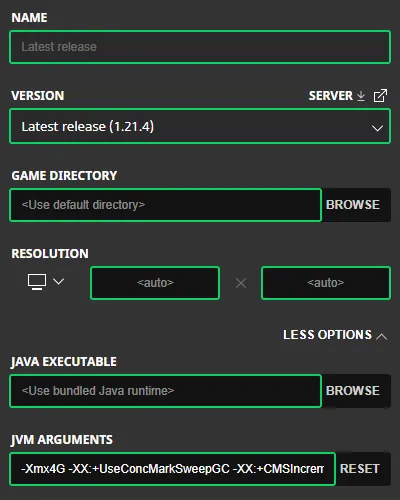 Allocating more RAM to Minecraft Java Editon is done from right inside the Minecraft Launcher. Below, we have detailed every step needed to get the task completed.
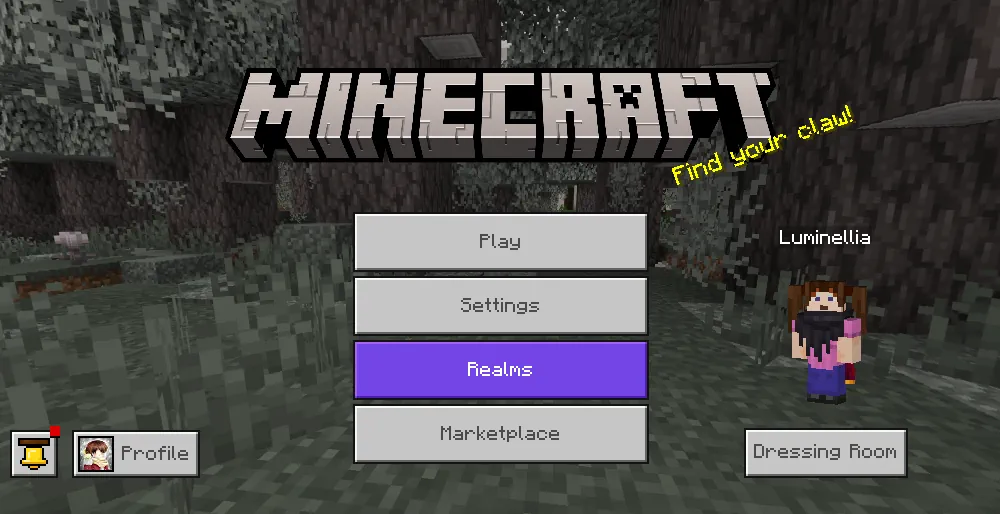 At this time, RAM can not be manually allocated to the Minecraft Bedrock Edition client. This is because Bedrock will automatically use the amount of RAM it requires. If lag is being encountered client-side in Bedrock Edition, we recommend opening the task manager by pressing the “CRTL,” “ALT,” and “DEL” buttons at the same time to check current resource usage.
From there, many useful details, such as CPU and Memory, can be viewed. If either category is red with a percentage at or near 100%, it may indicate a hardware issue or lack of RAM available on the PC.
At this time, RAM can not be manually allocated to the Minecraft Bedrock Edition client. This is because Bedrock will automatically use the amount of RAM it requires. If lag is being encountered client-side in Bedrock Edition, we recommend opening the task manager by pressing the “CRTL,” “ALT,” and “DEL” buttons at the same time to check current resource usage.
From there, many useful details, such as CPU and Memory, can be viewed. If either category is red with a percentage at or near 100%, it may indicate a hardware issue or lack of RAM available on the PC.
How to Allocate More RAM to Minecraft Java & Bedrock
Minecraft Java Edition
Allocating more RAM to Minecraft Java Editon is done from right inside the Minecraft Launcher. Below, we have detailed every step needed to get the task completed.
- Open Minecraft Java Edition
- Select the “Installations” Tab
- Locate Your Desired Installation (Latest Release is the Default)
- Hover Over the Installation, Click the Three Dots, & Select “Edit”
- Click “MORE OPTIONS”
- Locate the “JVM ARGUMENTS”
- Update the Number in “-Xmx4G” to the Desired RAM Allocation
Minecraft Bedrock Edition
At this time, RAM can not be manually allocated to the Minecraft Bedrock Edition client. This is because Bedrock will automatically use the amount of RAM it requires. If lag is being encountered client-side in Bedrock Edition, we recommend opening the task manager by pressing the “CRTL,” “ALT,” and “DEL” buttons at the same time to check current resource usage.
From there, many useful details, such as CPU and Memory, can be viewed. If either category is red with a percentage at or near 100%, it may indicate a hardware issue or lack of RAM available on the PC.Kendi
Minecraft sunucunuzu oluşturun
Minecraft sunucunuzu oluşturun
Bir plan seçin, bir oyun belirleyin ve arkadaşlarınızla oynayın!
Bültenimize Katılın
Oyun dünyasındaki en son güncellemeler için abone olun!

Discord'umuza Katılın
20.000'den fazla kafa dengi üyeden oluşan topluluğumuzun bir parçası olun!
Bu blogu nasıl değerlendirirsiniz?
Fikrinizi paylaşın ve bloglarımızı daha da iyi hale getirmemize yardımcı olun!
Beğenmedim
Nötr
Beğendim

Bir oyun sunucusuna mı ihtiyacınız var?
Siz ve arkadaşlarınızın düşük gecikme süresi ve özel ayarlarla özel olarak oynayabileceğiniz bir oyun sunucusu kiralayın. 110+ oyun arasından seçim yapın, dünyanın dört bir yanından insanları davet edin ve özel maçların keyfini çıkarın veya kendi kurallarınızla kendi çevrimiçi topluluğunuzu oluşturun.

İlgili Bloglar







İLK SENİN HABERİN OLSUN!
Barındırdığımız oyunlar, şirket haberleri ve özel fırsatlar hakkında güncellemeler için e-posta listemize katılın. Haberdar olun!













