

How to Update Minecraft Bedrock on PC
Опубликовано автором

Поделиться:

Поделиться в X

Поделиться в Facebook

Поделиться в Threads

Поделиться в Bluesky

Скопировать в буфер обмена

Поделиться по email
Minecraft Bedrock Edition should update automatically upon being opened, but in the rare instances where that is not the case, we have a few easy steps to try. Today, we answer how to update Minecraft Bedrock on PC.
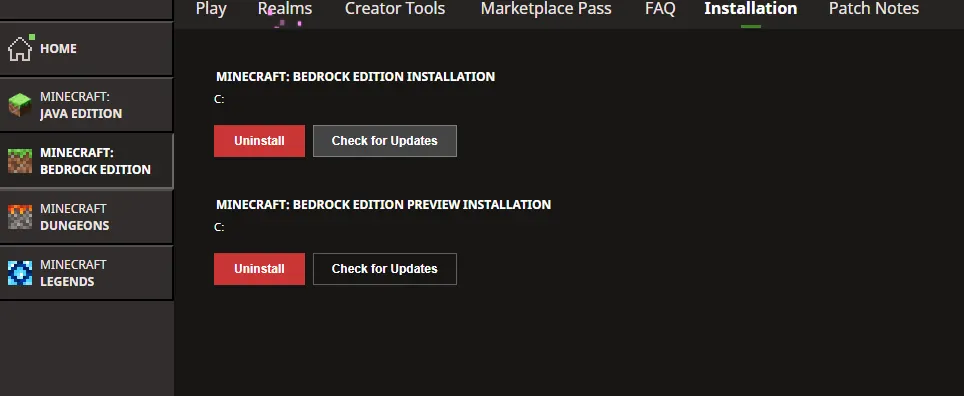 The first fix to attempt is manually checking for updates within the Minecraft launcher. This is done following the short few steps below.
 The second fix to attempt is forcing the update via the Microsoft Store. The exact steps for this will vary slightly depending on the version of Windows in use, but it is a feature on at least Windows 10 and up. Below are a general set of steps that should get you there.
 If both methods above were attempted with no luck, the update itself may simply not be out yet. Mojang has a tendency not to give out exact release times, and that can make when the update actually hits the launcher pretty random. Coming back in thirty minutes to an hour could very well resolve the problem.
Minecraft Launcher Update Check
The first fix to attempt is manually checking for updates within the Minecraft launcher. This is done following the short few steps below.
- Open the Minecraft Launcher.
- Select Minecraft Bedrock Edition in the left sidebar.
- Select the installation tab at the top of the screen.
- Click the “Check for Updates” Button.
Microsoft Store
The second fix to attempt is forcing the update via the Microsoft Store. The exact steps for this will vary slightly depending on the version of Windows in use, but it is a feature on at least Windows 10 and up. Below are a general set of steps that should get you there.
- Open the Microsoft Store.
- Click “Library” on the left sidebar. (Windows 11 Users may see an updates tab instead.)
- Find Minecraft for Windows in the list.
- Click Update.
Not Yet Out
If both methods above were attempted with no luck, the update itself may simply not be out yet. Mojang has a tendency not to give out exact release times, and that can make when the update actually hits the launcher pretty random. Coming back in thirty minutes to an hour could very well resolve the problem.Создайте свой собственный
сервер Minecraft
сервер Minecraft
Выберите тариф, укажите игру и играйте с друзьями!
Подпишитесь на нашу рассылку
Подпишитесь, чтобы получать последние новости из мира игр!

Присоединяйтесь к нашему Discord
Станьте частью нашего сообщества, в котором уже более 20000 единомышленников!
Как бы вы оценили этот блог?
Поделитесь своим мнением и помогите нам сделать наши блоги еще лучше!
Не понравилось
Нейтрально
Понравилось

Нужен игровой сервер?
Арендуйте игровой сервер, где вы и ваши друзья сможете играть в закрытом режиме с низкой задержкой и собственными настройками. Выбирайте из 110+ игр, приглашайте людей со всего мира и наслаждайтесь приватными матчами или создайте свое собственное онлайн-сообщество со своими правилами.

Похожие статьи







УЗНАЙТЕ ВСЕ ПЕРВЫМИ!
Подпишитесь на нашу рассылку, чтобы получать обновления о наших играх, новости компании и эксклюзивные предложения. Будьте в курсе!













