

How to Allocate More RAM to Minecraft Java & Bedrock
Опубликовано автором

Поделиться:

Поделиться в X

Поделиться в Facebook

Поделиться в Threads

Поделиться в Bluesky

Скопировать в буфер обмена

Поделиться по email
The Minecraft client can use quite a bit of RAM, especially when it comes to mods or DLC. But thankfully, in times like these, there are simple ways to allocate more RAM from your PC. So, today, we answer, “How to Allocate More RAM to Minecraft Java & Bedrock.”
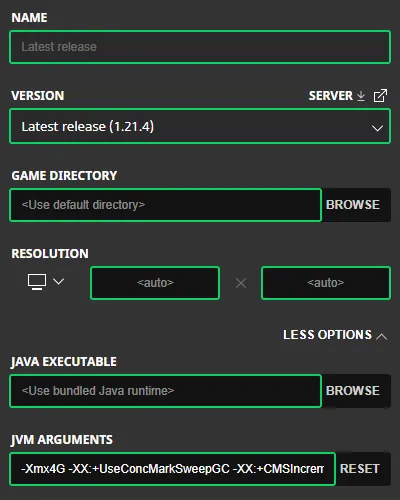 Allocating more RAM to Minecraft Java Editon is done from right inside the Minecraft Launcher. Below, we have detailed every step needed to get the task completed.
 At this time, RAM can not be manually allocated to the Minecraft Bedrock Edition client. This is because Bedrock will automatically use the amount of RAM it requires. If lag is being encountered client-side in Bedrock Edition, we recommend opening the task manager by pressing the “CRTL,” “ALT,” and “DEL” buttons at the same time to check current resource usage.
From there, many useful details, such as CPU and Memory, can be viewed. If either category is red with a percentage at or near 100%, it may indicate a hardware issue or lack of RAM available on the PC.
At this time, RAM can not be manually allocated to the Minecraft Bedrock Edition client. This is because Bedrock will automatically use the amount of RAM it requires. If lag is being encountered client-side in Bedrock Edition, we recommend opening the task manager by pressing the “CRTL,” “ALT,” and “DEL” buttons at the same time to check current resource usage.
From there, many useful details, such as CPU and Memory, can be viewed. If either category is red with a percentage at or near 100%, it may indicate a hardware issue or lack of RAM available on the PC.
How to Allocate More RAM to Minecraft Java & Bedrock
Minecraft Java Edition
Allocating more RAM to Minecraft Java Editon is done from right inside the Minecraft Launcher. Below, we have detailed every step needed to get the task completed.
- Open Minecraft Java Edition
- Select the “Installations” Tab
- Locate Your Desired Installation (Latest Release is the Default)
- Hover Over the Installation, Click the Three Dots, & Select “Edit”
- Click “MORE OPTIONS”
- Locate the “JVM ARGUMENTS”
- Update the Number in “-Xmx4G” to the Desired RAM Allocation
Minecraft Bedrock Edition
At this time, RAM can not be manually allocated to the Minecraft Bedrock Edition client. This is because Bedrock will automatically use the amount of RAM it requires. If lag is being encountered client-side in Bedrock Edition, we recommend opening the task manager by pressing the “CRTL,” “ALT,” and “DEL” buttons at the same time to check current resource usage.
From there, many useful details, such as CPU and Memory, can be viewed. If either category is red with a percentage at or near 100%, it may indicate a hardware issue or lack of RAM available on the PC.Создайте свой собственный
сервер Minecraft
сервер Minecraft
Выберите тариф, укажите игру и играйте с друзьями!
Подпишитесь на нашу рассылку
Подпишитесь, чтобы получать последние новости из мира игр!

Присоединяйтесь к нашему Discord
Станьте частью нашего сообщества, в котором уже более 20000 единомышленников!
Как бы вы оценили этот блог?
Поделитесь своим мнением и помогите нам сделать наши блоги еще лучше!
Не понравилось
Нейтрально
Понравилось

Нужен игровой сервер?
Арендуйте игровой сервер, где вы и ваши друзья сможете играть в закрытом режиме с низкой задержкой и собственными настройками. Выбирайте из 110+ игр, приглашайте людей со всего мира и наслаждайтесь приватными матчами или создайте свое собственное онлайн-сообщество со своими правилами.

Похожие статьи







УЗНАЙТЕ ВСЕ ПЕРВЫМИ!
Подпишитесь на нашу рассылку, чтобы получать обновления о наших играх, новости компании и эксклюзивные предложения. Будьте в курсе!













