

Minecraft Experience Cape Guide: How to Redeem
Opublikowano przez

Udostępnij:

Udostępnij na X

Udostępnij na Facebooku

Udostępnij na Threads

Udostępnij na Bluesky

Skopiuj do schowka

Udostępnij przez e-mail
One of the many exciting parts of Minecraft Experience is the goodies you get to bring home, including the Minecraft Experience cape, which every scanned ticket holder gets to own! So, today, we explain step by step how to redeem your Minecraft experience cape.
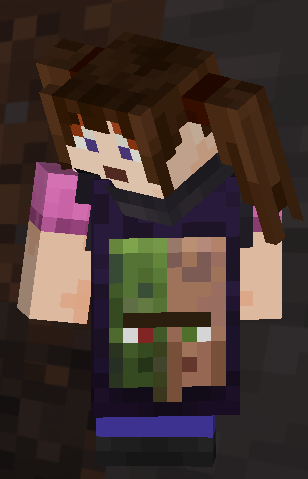 Purchasing a ticket for Minecraft Experience does not automatically provide a cape code. Instead, it is emailed only after your ticket has been scanned at the door. Once that has been done, check the email used to purchase the tickets. An email should be present from the vendor containing the 25-digit promo codes, which expire thirty days after Minecraft Experience leaves the location where you attended.
 With the code in hand, the next step is heading over to Minecraft’s official code redemption page. A link should be present within the email the codes were obtained from, but if it wasn’t, the English redemption page can be found at https://www.minecraft.net/en-us/redeem.
Once the page is open, copy your 25-digit code and paste it into the box beneath “Redemption Code” before clicking “Redeem.”
With the code in hand, the next step is heading over to Minecraft’s official code redemption page. A link should be present within the email the codes were obtained from, but if it wasn’t, the English redemption page can be found at https://www.minecraft.net/en-us/redeem.
Once the page is open, copy your 25-digit code and paste it into the box beneath “Redemption Code” before clicking “Redeem.”
 After redeeming, you will be prompted to log in to your Microsoft account. This step is very straightforward, but if multiple Microsoft accounts are owned, be sure the one associated with your Minecraft account is the one being logged into. Once logged in, proceed to step three.
 Upon successfully logging in, one final prompt will be displayed asking you to confirm the reward you would like to redeem. In this case, it should say “Minecraft Experience Cape.” If all looks correct, click “Confirm” and proceed to the next page.
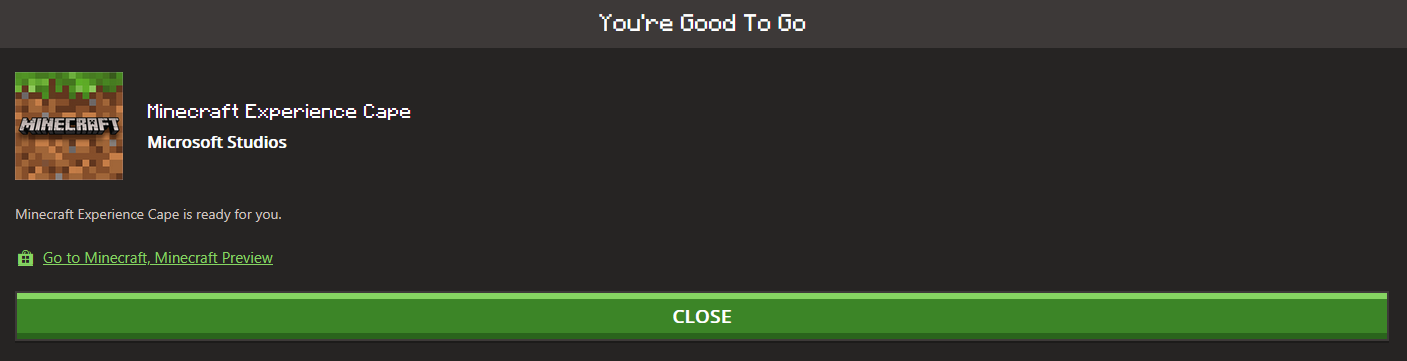 The cape should now be redeemed, complete with a confirmation on the screen. From there, Java Edition players can head over to the “All Games” tab on the left, select “Change Skin” under Java, and then equip their new cape. Meanwhile, Bedrock Edition players can find their cape in-game in the dressing room under the capes section on the left-hand side.
In either case, a short wait may occur before the cape appears as an option, but as soon as it does, all that remains is showing it off in-game.
The cape should now be redeemed, complete with a confirmation on the screen. From there, Java Edition players can head over to the “All Games” tab on the left, select “Change Skin” under Java, and then equip their new cape. Meanwhile, Bedrock Edition players can find their cape in-game in the dressing room under the capes section on the left-hand side.
In either case, a short wait may occur before the cape appears as an option, but as soon as it does, all that remains is showing it off in-game.
Obtaining a Cape Code
Purchasing a ticket for Minecraft Experience does not automatically provide a cape code. Instead, it is emailed only after your ticket has been scanned at the door. Once that has been done, check the email used to purchase the tickets. An email should be present from the vendor containing the 25-digit promo codes, which expire thirty days after Minecraft Experience leaves the location where you attended.
How to Redeem Your Minecraft Experience Cape
Step 1: Enter The Code
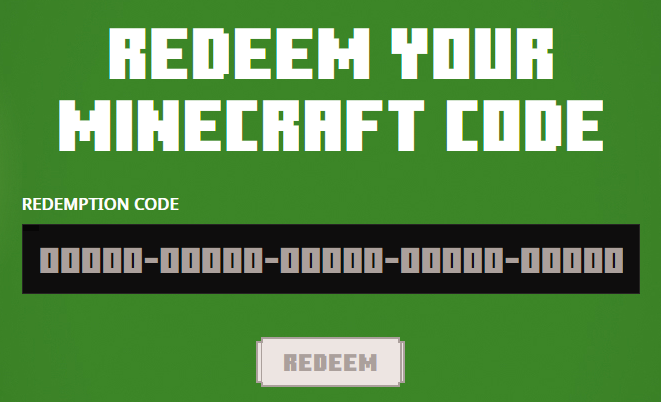
With the code in hand, the next step is heading over to Minecraft’s official code redemption page. A link should be present within the email the codes were obtained from, but if it wasn’t, the English redemption page can be found at https://www.minecraft.net/en-us/redeem.
Once the page is open, copy your 25-digit code and paste it into the box beneath “Redemption Code” before clicking “Redeem.”
Step 2: Sign In
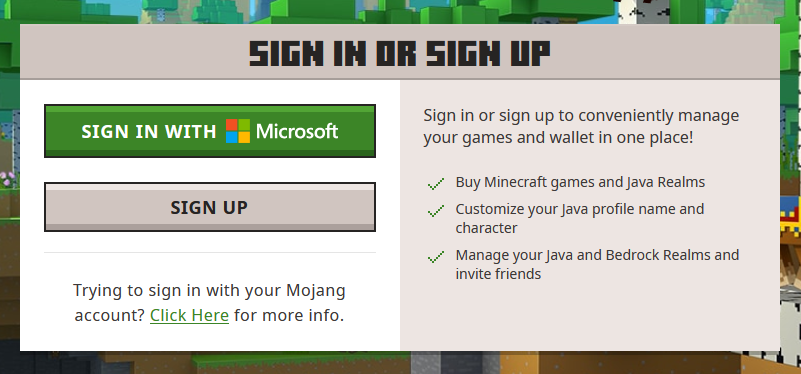
After redeeming, you will be prompted to log in to your Microsoft account. This step is very straightforward, but if multiple Microsoft accounts are owned, be sure the one associated with your Minecraft account is the one being logged into. Once logged in, proceed to step three.
Step 3: Confirm the Redemption
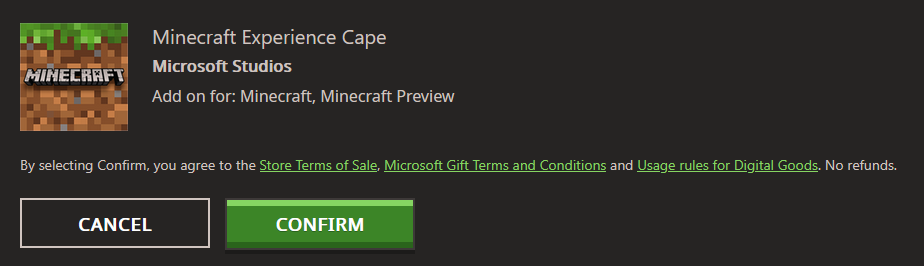
Upon successfully logging in, one final prompt will be displayed asking you to confirm the reward you would like to redeem. In this case, it should say “Minecraft Experience Cape.” If all looks correct, click “Confirm” and proceed to the next page.
Step 4: Equip the Cape
The cape should now be redeemed, complete with a confirmation on the screen. From there, Java Edition players can head over to the “All Games” tab on the left, select “Change Skin” under Java, and then equip their new cape. Meanwhile, Bedrock Edition players can find their cape in-game in the dressing room under the capes section on the left-hand side.
In either case, a short wait may occur before the cape appears as an option, but as soon as it does, all that remains is showing it off in-game.Zapisz się do newslettera
Subskrybuj, aby otrzymywać najnowsze informacje ze świata gier!

Dołącz do naszego Discorda
Zostań częścią naszej społeczności ponad 20,000 podobnie myślących członków!
Jak oceniasz ten wpis?
Podziel się swoją opinią i pomóż nam tworzyć jeszcze lepsze artykuły!
Nie podobał mi się
Neutralnie
Podobał mi się

Potrzebujesz serwera do gry?
Wynajmij serwer gier, na którym Ty i Twoi znajomi możecie grać prywatnie z niskim opóźnieniem i własnymi ustawieniami. Wybieraj spośród 110+ gier, zaproś ludzi z całego świata i ciesz się prywatnymi rozgrywkami lub zbuduj własną społeczność online z własnymi zasadami.

Powiązane wpisy







BĄDŹ NA BIEŻĄCO!
Dołącz do naszego newslettera, aby otrzymywać informacje o naszych hostowanych grach, nowościach firmowych i ekskluzywnych ofertach. Bądź na bieżąco!













