

Minecraft 1.21 Optifine in Five Easy Steps
Opublikowano przez

Udostępnij:

Udostępnij na X

Udostępnij na Facebooku

Udostępnij na Threads

Udostępnij na Bluesky

Skopiuj do schowka

Udostępnij przez e-mail
(Estimated Read Time: 3 Minutes)
Since Optifine’s initial release over ten years ago, it has gone on to help countless players across the globe achieve performances only those with higher-end computers would typically know. Now, with the recent release of Minecraft 1.21, the time has once more for updates and fresh installs. So, today, we explain step by step how to install Minecraft 1.21 Optifine.Minecraft 1.21 Optifine in Five Easy Steps
Step 1: Install Minecraft Java Edition
 The first step to installing Optifine is ensuring Minecraft Java Edition has been installed, and Minecraft 1.21 has been played at least once. Optifine cannot be properly installed if either of those requirements has not been done before. Upon completion, close Minecraft and proceed to step 2.
Step 2: Install Java

Step 3: Download Optifine
 With Minecraft 1.21 and Java installed, it is time to head to the official Optifine website to download Optifine for Minecraft 1.21. The official Optifine website, found here, is safe to download from, but be wary of its ads, especially if you find yourself on an ad webpage.
Should the downloaded jar file not include Optifine in its name alongside the version, delete the file and immediately run a virus scan. Be very careful to only select the official download button.
With Minecraft 1.21 and Java installed, it is time to head to the official Optifine website to download Optifine for Minecraft 1.21. The official Optifine website, found here, is safe to download from, but be wary of its ads, especially if you find yourself on an ad webpage.
Should the downloaded jar file not include Optifine in its name alongside the version, delete the file and immediately run a virus scan. Be very careful to only select the official download button.
Step 4: Open Optfine with Java
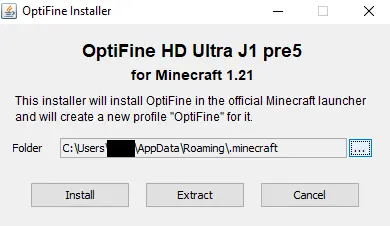 Once Optifine has been safely downloaded, move the file to your desktop, right-click it, and select “Open With…” Java should be a selectable option that can then be given a click. This will open the Optifine installer, which should have three options. Assuming the directory hasn’t been changed, simply click install, wait for the successful installation window to appear, and then open the game.
Step 5: Select the Optifine Minecraft Profile.
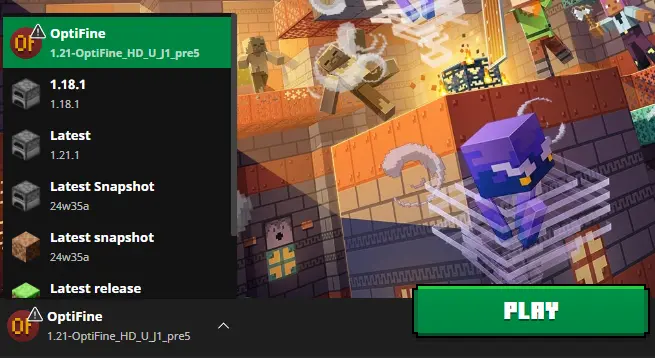 Finally, within the Minecraft launcher, a new Java Edition profile should be in the dropdown menu to the left of “Play” titled Optifine. Select it, click play, and then hop into the game. With that, the installation is complete!
Zapisz się do newslettera
Subskrybuj, aby otrzymywać najnowsze informacje ze świata gier!

Dołącz do naszego Discorda
Zostań częścią naszej społeczności ponad 20,000 podobnie myślących członków!
Jak oceniasz ten wpis?
Podziel się swoją opinią i pomóż nam tworzyć jeszcze lepsze artykuły!
Nie podobał mi się
Neutralnie
Podobał mi się

Potrzebujesz serwera do gry?
Wynajmij serwer gier, na którym Ty i Twoi znajomi możecie grać prywatnie z niskim opóźnieniem i własnymi ustawieniami. Wybieraj spośród 110+ gier, zaproś ludzi z całego świata i ciesz się prywatnymi rozgrywkami lub zbuduj własną społeczność online z własnymi zasadami.

Powiązane wpisy







BĄDŹ NA BIEŻĄCO!
Dołącz do naszego newslettera, aby otrzymywać informacje o naszych hostowanych grach, nowościach firmowych i ekskluzywnych ofertach. Bądź na bieżąco!













