
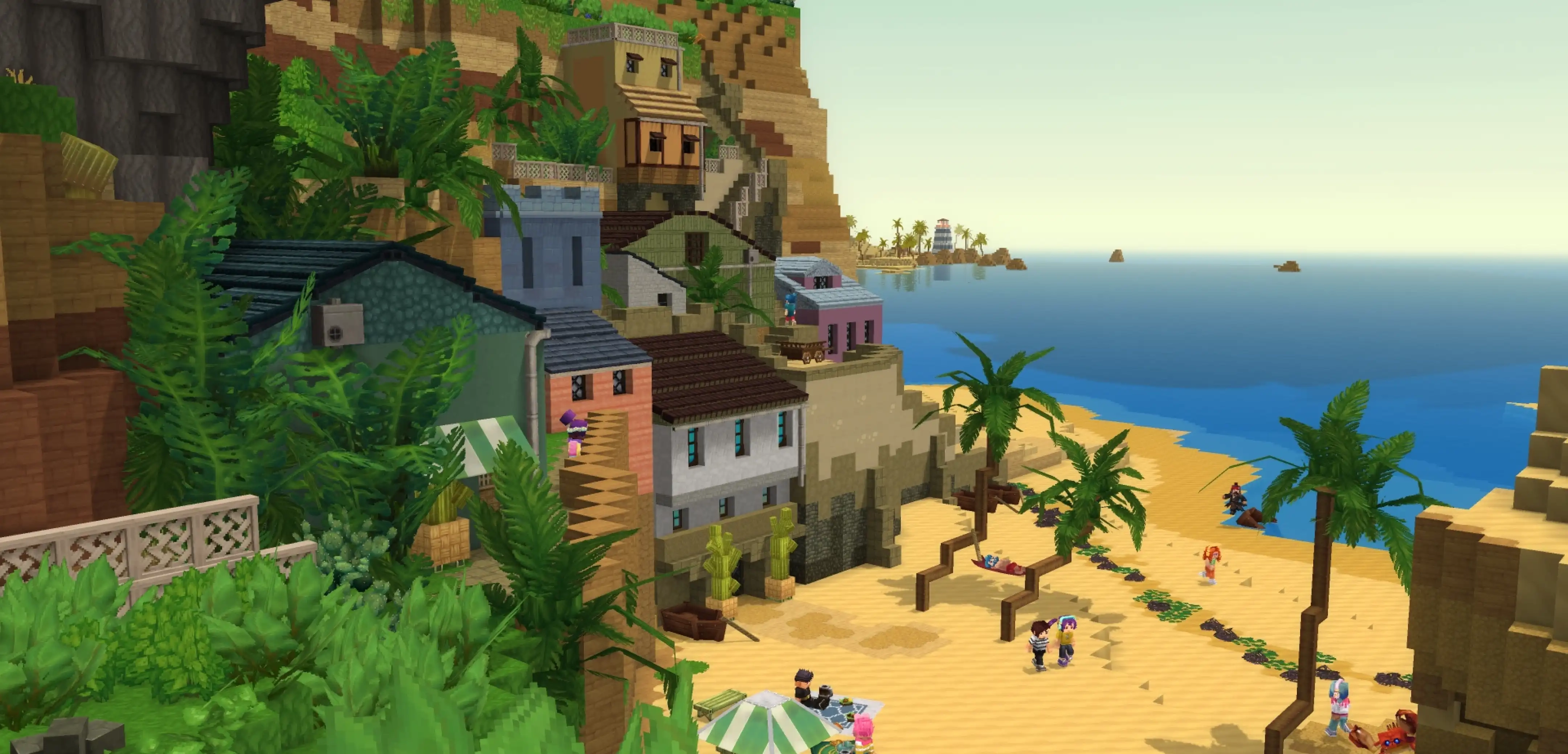
How to Add Friends in Hytale: Benefits, Discord Integration, & More
Opublikowano przez

Udostępnij:

Udostępnij na X

Udostępnij na Facebooku

Udostępnij na Threads

Udostępnij na Bluesky

Skopiuj do schowka

Udostępnij przez e-mail
As of update five, friends in Hytale are never more than a few clicks away. So, today, we answer how to add friends in Hytale, why it’s worth the time, and what social features are available, such as appearing offline.
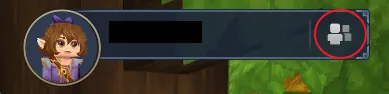 Step 1. Adding friends in Hytale is as easy as can be! The first step is heading to the main menu and selecting the small button depicting a person on the top right of the screen.
 Step 2. Upon clicking the button, a friends list with four buttons at the bottom will open up. From there, click the button depicting a person with a plus sign.
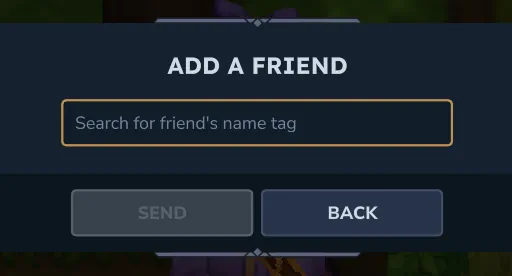 Step 3. When the button has been clicked, a text box will appear requesting the desired friend’s username. It is the same name that is seen in-game. However, if accidentally forgotten, any player can see their own name in the top-right of the main menu. Enter the provided name, and the friend request is complete!
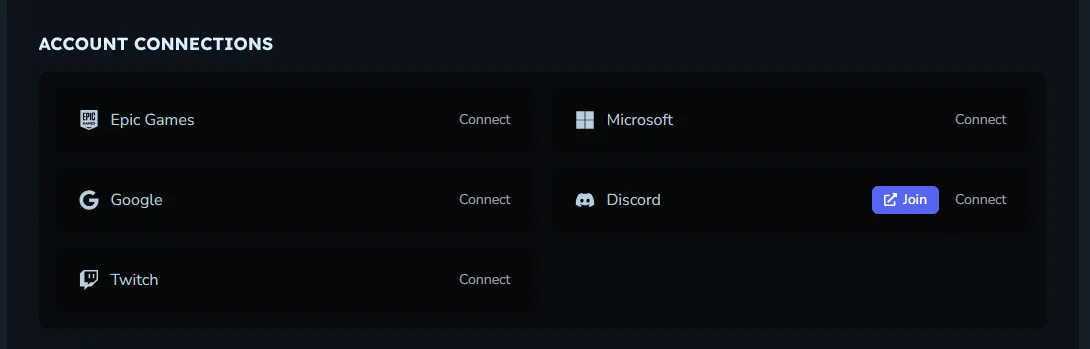 Another option for adding friends is Discord integration. To enable this, head over to the Hytale website and log in to the account management area. The option to connect a Hytale account to Discord is found near the bottom of the account management page. Select “Connect” to begin the security verifications.
Once complete, return to the Hytale client, select “Settings”, and turn on “Discord Integration” under the social tab. This should automatically make Discord friends who have also integrated visible in the friends list.
Another option for adding friends is Discord integration. To enable this, head over to the Hytale website and log in to the account management area. The option to connect a Hytale account to Discord is found near the bottom of the account management page. Select “Connect” to begin the security verifications.
Once complete, return to the Hytale client, select “Settings”, and turn on “Discord Integration” under the social tab. This should automatically make Discord friends who have also integrated visible in the friends list.
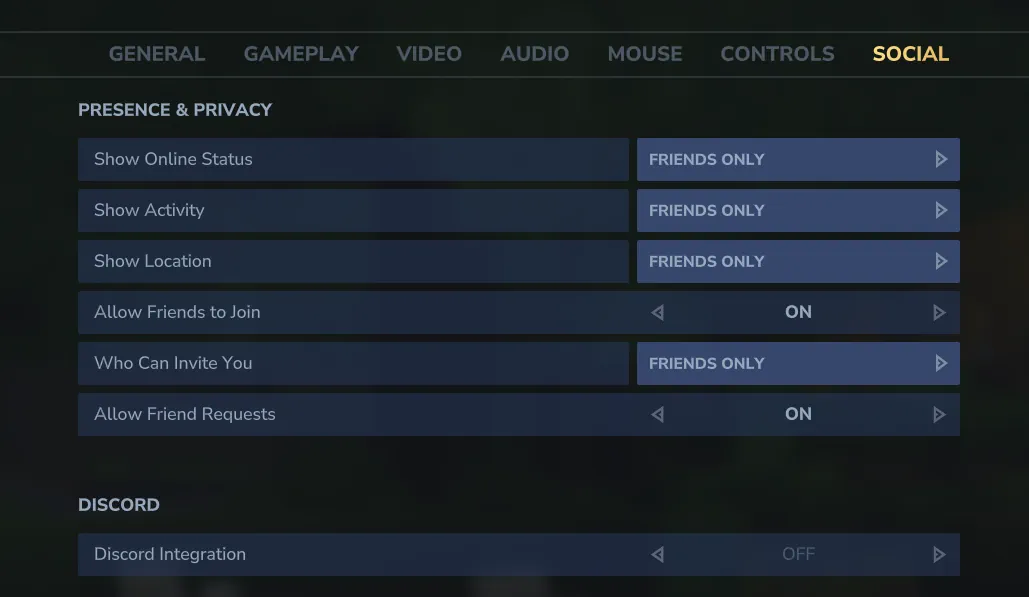 The addition of the friends list also means a few convenient social features! Below we have listed all those available as of Update 5.
How to Add Friends in Hytale
Step 1. Adding friends in Hytale is as easy as can be! The first step is heading to the main menu and selecting the small button depicting a person on the top right of the screen.
Step 2. Upon clicking the button, a friends list with four buttons at the bottom will open up. From there, click the button depicting a person with a plus sign.
Step 3. When the button has been clicked, a text box will appear requesting the desired friend’s username. It is the same name that is seen in-game. However, if accidentally forgotten, any player can see their own name in the top-right of the main menu. Enter the provided name, and the friend request is complete!
Discord Integration
Another option for adding friends is Discord integration. To enable this, head over to the Hytale website and log in to the account management area. The option to connect a Hytale account to Discord is found near the bottom of the account management page. Select “Connect” to begin the security verifications.
Once complete, return to the Hytale client, select “Settings”, and turn on “Discord Integration” under the social tab. This should automatically make Discord friends who have also integrated visible in the friends list.
Social Features
The addition of the friends list also means a few convenient social features! Below we have listed all those available as of Update 5.
Joining Worlds
Friends can join game sessions directly through the friends list or use it to invite online friends to their worlds.Appear Offline
Within the friends list, clicking the green online symbol changes the account to “Appear Offline.” This prevents friends from seeing the account as online and playing the game even if it is.Block
Players encountered in-game can now be blocked. This mutes their text and voice chat in-game. The list of blocked players can be found and managed via the friends list on the main menu.Zapisz się do newslettera
Subskrybuj, aby otrzymywać najnowsze informacje ze świata gier!

Dołącz do naszego Discorda
Zostań częścią naszej społeczności ponad 20,000 podobnie myślących członków!
Jak oceniasz ten wpis?
Podziel się swoją opinią i pomóż nam tworzyć jeszcze lepsze artykuły!
Nie podobał mi się
Neutralnie
Podobał mi się

Potrzebujesz serwera do gry?
Wynajmij serwer gier, na którym Ty i Twoi znajomi możecie grać prywatnie z niskim opóźnieniem i własnymi ustawieniami. Wybieraj spośród 110+ gier, zaproś ludzi z całego świata i ciesz się prywatnymi rozgrywkami lub zbuduj własną społeczność online z własnymi zasadami.

Powiązane wpisy







BĄDŹ NA BIEŻĄCO!
Dołącz do naszego newslettera, aby otrzymywać informacje o naszych hostowanych grach, nowościach firmowych i ekskluzywnych ofertach. Bądź na bieżąco!













