

How to Allocate More RAM to Minecraft Java & Bedrock
Opublikowano przez

Udostępnij:

Udostępnij na X

Udostępnij na Facebooku

Udostępnij na Threads

Udostępnij na Bluesky

Skopiuj do schowka

Udostępnij przez e-mail
The Minecraft client can use quite a bit of RAM, especially when it comes to mods or DLC. But thankfully, in times like these, there are simple ways to allocate more RAM from your PC. So, today, we answer, “How to Allocate More RAM to Minecraft Java & Bedrock.”
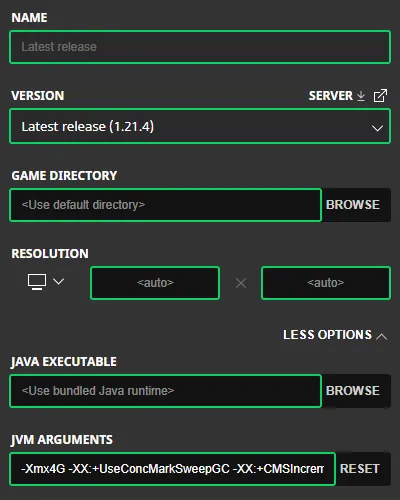 Allocating more RAM to Minecraft Java Editon is done from right inside the Minecraft Launcher. Below, we have detailed every step needed to get the task completed.
 At this time, RAM can not be manually allocated to the Minecraft Bedrock Edition client. This is because Bedrock will automatically use the amount of RAM it requires. If lag is being encountered client-side in Bedrock Edition, we recommend opening the task manager by pressing the “CRTL,” “ALT,” and “DEL” buttons at the same time to check current resource usage.
From there, many useful details, such as CPU and Memory, can be viewed. If either category is red with a percentage at or near 100%, it may indicate a hardware issue or lack of RAM available on the PC.
At this time, RAM can not be manually allocated to the Minecraft Bedrock Edition client. This is because Bedrock will automatically use the amount of RAM it requires. If lag is being encountered client-side in Bedrock Edition, we recommend opening the task manager by pressing the “CRTL,” “ALT,” and “DEL” buttons at the same time to check current resource usage.
From there, many useful details, such as CPU and Memory, can be viewed. If either category is red with a percentage at or near 100%, it may indicate a hardware issue or lack of RAM available on the PC.
How to Allocate More RAM to Minecraft Java & Bedrock
Minecraft Java Edition
Allocating more RAM to Minecraft Java Editon is done from right inside the Minecraft Launcher. Below, we have detailed every step needed to get the task completed.
- Open Minecraft Java Edition
- Select the “Installations” Tab
- Locate Your Desired Installation (Latest Release is the Default)
- Hover Over the Installation, Click the Three Dots, & Select “Edit”
- Click “MORE OPTIONS”
- Locate the “JVM ARGUMENTS”
- Update the Number in “-Xmx4G” to the Desired RAM Allocation
Minecraft Bedrock Edition
At this time, RAM can not be manually allocated to the Minecraft Bedrock Edition client. This is because Bedrock will automatically use the amount of RAM it requires. If lag is being encountered client-side in Bedrock Edition, we recommend opening the task manager by pressing the “CRTL,” “ALT,” and “DEL” buttons at the same time to check current resource usage.
From there, many useful details, such as CPU and Memory, can be viewed. If either category is red with a percentage at or near 100%, it may indicate a hardware issue or lack of RAM available on the PC.Zapisz się do newslettera
Subskrybuj, aby otrzymywać najnowsze informacje ze świata gier!

Dołącz do naszego Discorda
Zostań częścią naszej społeczności ponad 20,000 podobnie myślących członków!
Jak oceniasz ten wpis?
Podziel się swoją opinią i pomóż nam tworzyć jeszcze lepsze artykuły!
Nie podobał mi się
Neutralnie
Podobał mi się

Potrzebujesz serwera do gry?
Wynajmij serwer gier, na którym Ty i Twoi znajomi możecie grać prywatnie z niskim opóźnieniem i własnymi ustawieniami. Wybieraj spośród 110+ gier, zaproś ludzi z całego świata i ciesz się prywatnymi rozgrywkami lub zbuduj własną społeczność online z własnymi zasadami.

Powiązane wpisy







BĄDŹ NA BIEŻĄCO!
Dołącz do naszego newslettera, aby otrzymywać informacje o naszych hostowanych grach, nowościach firmowych i ekskluzywnych ofertach. Bądź na bieżąco!













