
Enshrouded Controls Guide (PC & Console): All Keybinds for Controller, Mouse, & Keyboard
Opublikowano przez

Udostępnij:

Udostępnij na X

Udostępnij na Facebooku

Udostępnij na Threads

Udostępnij na Bluesky

Skopiuj do schowka

Udostępnij przez e-mail
(Estimated Read Time: 5 Minutes)
As the world falls to the shroud, a new hero awakens. One born from the blood of the ancients. However, first steps after so long are never easy. So, today, we explore the muscles, or “controls,” that will lead to victory in our Enshrouded controls guide.Enshrouded Controls and Keybinds
 As of writing this article, Enshrouded has not yet been released on Xbox Series X/S or PlayStation 5. However, the game still comes with full controller support for when it is eventually released on these platforms down the line. This leaves the mouse and keyboard, an Xbox controller, or a PlayStation controller all viable options for enjoying the game at this time.
Mouse and Keyboard Controls
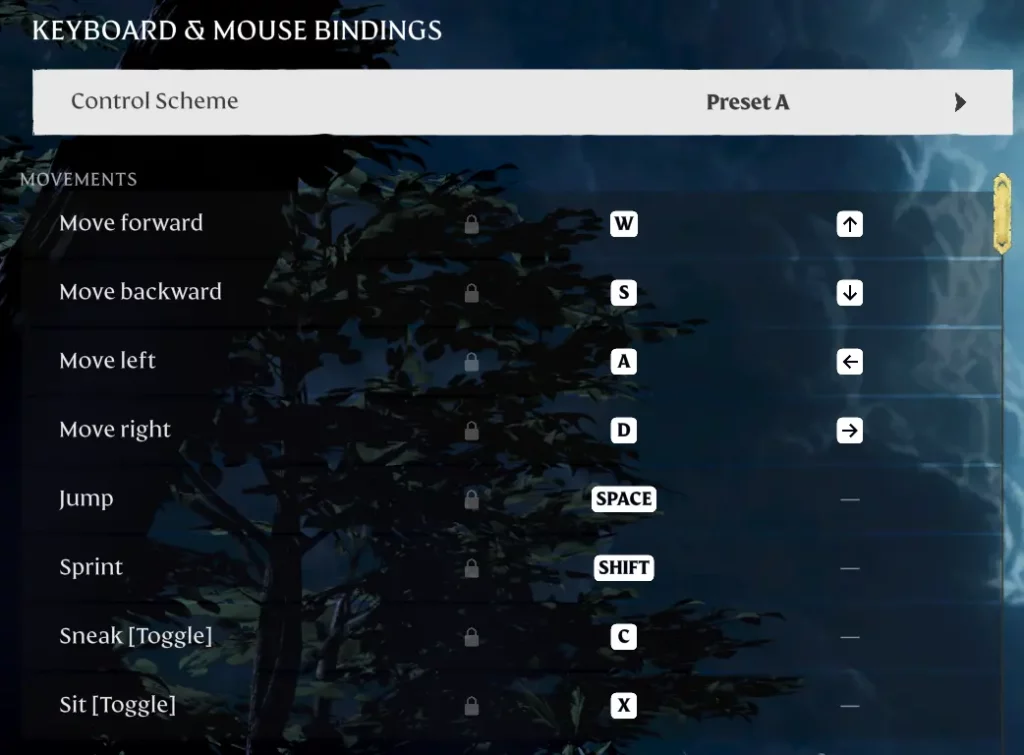
Movement
- Move Forward: W
- Move Backward: S
- Move Left: A
- Move Right: D
- Jump: Space
- Sprint: Shift
- Sneak [Toggle]: C
- Sit [Toggle]: X
Basic Actions
- Contextual Action: E
- Respawn [Hold]: E
- Cancel: Right Click
- Show Tutorial: F1
Camera
- Zoom In: Page Up / Z + Scroll Wheel Up
- Zoom Out: Page Down / Z + Scroll Wheel Down
Action Bar
- Action Bar Switch [Release]: ALT
- Action Bar Previous Slot: Scroll Wheel Up
- Action Bar Next Slot: Scroll Wheel Down
- Quick Item Wheel: Unbound by Default
- Action Bar Slot 1: 1
- Action Bar Slot 2: 2
- Action Bar Slot 3: 3
- Action Bar Slot 4: 4
- Action Bar Slot 5: 5
- Action Bar Slot 6: 6
- Action Bar Slot 7: 7
- Action Bar Slot 8: 8
Combat
- Use Item: Left Click
- Block and Parry: Right Click
- Evade: CTRL
- Lock on Target [Toggle]: TAB
- Cycle Locked on Target (Left): R
- Cycle Locked on Target (Right): F
- Ready Ranged Weapon: Q
- Fire Ranged Weapon: Unbound by Default
- Previous Ammo: Scroll Wheel Up
- Next Ammo: Scroll Wheel Down
Buildings
- Quick Builder Menu: Tab
- Undo Build Action: Y
- Use Snapping [Toggle]: X
- Change Category: ALT + Scroll Wheel Up
- Change Category: ALT + Scroll Wheel Down
- Change Construction Material: CTRL + Scroll Wheel Up
- Change Construction Material: CTRL + Scroll Wheel Down
- Rotate: R + Scroll Wheel Down
- Rotate Back: R + Scroll Wheel Up
- Rotate 90 Degrees [Tap]: R
- Rotate -90 Degrees: Unbound by Default
- Shift Forward: Q + Scroll Wheel Up
- Shift Backward: Q + Scroll Wheel Down
User Interface
- System Menu: ESC
- Inventory: I
- Inventory – Crafting: V
- Inventory – Backpack: B
- Inventory – Character: N
- Inventory – World: M
- Inventory – Skills: H
- Inventory – Journal: J
- Open Notification: K
Controller Controls
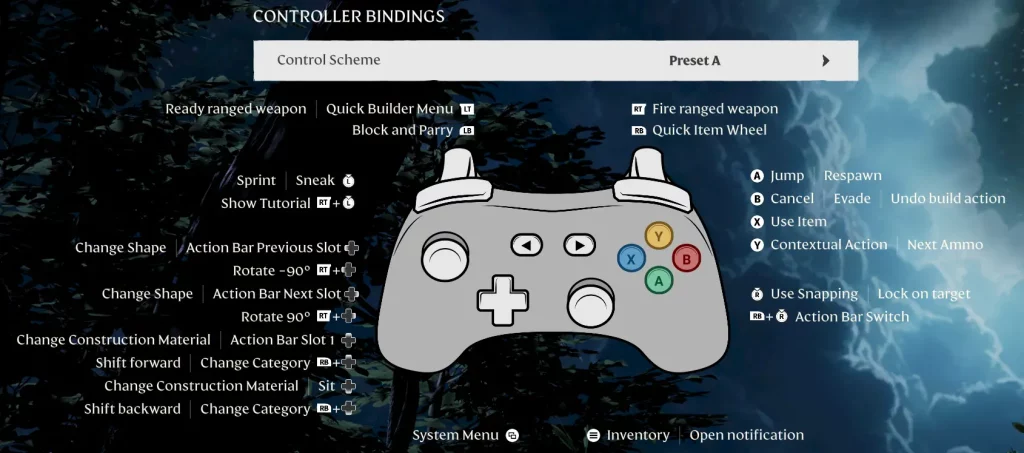
Left Analog Stick
- Movement: Left Analog Stick
- Sprint | Sneak: Left Analog Stick [Press]
- Show Tutorial: Right Trigger + Left Analog Stick [Press]
Right Analog Stick
- Camera: Right Analog Stick
- Use Snapping | Lock on Target: Right Analog Stick [Press]
- Action Bar Switch: Right Bumper + Right Analog Stick [Press]
Triggers & Bumpers
- Quick Builder Menu: Left Trigger
- Block and Parry: Left Bumper
- Fire Ranged Weapon: Right Trigger
- Quick Item Wheel: Right Bumper
Directional Buttons
- Change Shape | Action Bar Previous Slot: Left Directional Button
- Rotate -90 Degrees: Right Trigger + Left Directional Button
- Change Shape | Action Bar Next Slot: Right Directional Button
- Rotate 90 Degrees: Right Trigger + Right Directional Button
- Change Construction Material | Action Bar Slot 1: Up Directional Button
- Shift Forward | Change Category: Right Bumper + Up Directional Button
- Change Construction Material | Sit: Down Directional Button
- Shift Backward | Change Category: Right Bumper + Down Directional Button
Letter / Shape Buttons
- Jump | Respawn: A / X (PS)
- Cancel | Evade | Undo Build Action: B / Circle
- Use Item: X (Xbox) / Square
- Contextual Action | Next Ammo: Y / Triangle
Middle Buttons
- System Menu: View Button
- Inventory: Menu Button
Zapisz się do newslettera
Subskrybuj, aby otrzymywać najnowsze informacje ze świata gier!

Dołącz do naszego Discorda
Zostań częścią naszej społeczności ponad 20,000 podobnie myślących członków!
Jak oceniasz ten wpis?
Podziel się swoją opinią i pomóż nam tworzyć jeszcze lepsze artykuły!
Nie podobał mi się
Neutralnie
Podobał mi się

Potrzebujesz serwera do gry?
Wynajmij serwer gier, na którym Ty i Twoi znajomi możecie grać prywatnie z niskim opóźnieniem i własnymi ustawieniami. Wybieraj spośród 110+ gier, zaproś ludzi z całego świata i ciesz się prywatnymi rozgrywkami lub zbuduj własną społeczność online z własnymi zasadami.

Powiązane wpisy







BĄDŹ NA BIEŻĄCO!
Dołącz do naszego newslettera, aby otrzymywać informacje o naszych hostowanych grach, nowościach firmowych i ekskluzywnych ofertach. Bądź na bieżąco!













