

Minecraft Experience Cape Guide: How to Redeem
Pubblicato il da

Condividi:

Condividi su X

Condividi su Facebook

Condividi su Threads

Condividi su Bluesky

Copia negli Appunti

Condividi via email
One of the many exciting parts of Minecraft Experience is the goodies you get to bring home, including the Minecraft Experience cape, which every scanned ticket holder gets to own! So, today, we explain step by step how to redeem your Minecraft experience cape.
 Purchasing a ticket for Minecraft Experience does not automatically provide a cape code. Instead, it is emailed only after your ticket has been scanned at the door. Once that has been done, check the email used to purchase the tickets. An email should be present from the vendor containing the 25-digit promo codes, which expire thirty days after Minecraft Experience leaves the location where you attended.
 With the code in hand, the next step is heading over to Minecraft’s official code redemption page. A link should be present within the email the codes were obtained from, but if it wasn’t, the English redemption page can be found at https://www.minecraft.net/en-us/redeem.
Once the page is open, copy your 25-digit code and paste it into the box beneath “Redemption Code” before clicking “Redeem.”
With the code in hand, the next step is heading over to Minecraft’s official code redemption page. A link should be present within the email the codes were obtained from, but if it wasn’t, the English redemption page can be found at https://www.minecraft.net/en-us/redeem.
Once the page is open, copy your 25-digit code and paste it into the box beneath “Redemption Code” before clicking “Redeem.”
 After redeeming, you will be prompted to log in to your Microsoft account. This step is very straightforward, but if multiple Microsoft accounts are owned, be sure the one associated with your Minecraft account is the one being logged into. Once logged in, proceed to step three.
 Upon successfully logging in, one final prompt will be displayed asking you to confirm the reward you would like to redeem. In this case, it should say “Minecraft Experience Cape.” If all looks correct, click “Confirm” and proceed to the next page.
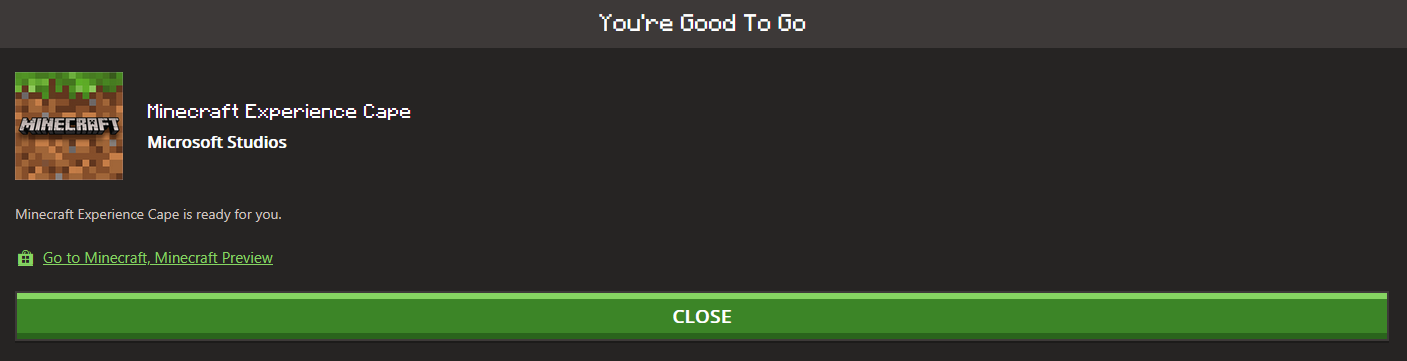 The cape should now be redeemed, complete with a confirmation on the screen. From there, Java Edition players can head over to the “All Games” tab on the left, select “Change Skin” under Java, and then equip their new cape. Meanwhile, Bedrock Edition players can find their cape in-game in the dressing room under the capes section on the left-hand side.
In either case, a short wait may occur before the cape appears as an option, but as soon as it does, all that remains is showing it off in-game.
The cape should now be redeemed, complete with a confirmation on the screen. From there, Java Edition players can head over to the “All Games” tab on the left, select “Change Skin” under Java, and then equip their new cape. Meanwhile, Bedrock Edition players can find their cape in-game in the dressing room under the capes section on the left-hand side.
In either case, a short wait may occur before the cape appears as an option, but as soon as it does, all that remains is showing it off in-game.
Obtaining a Cape Code
Purchasing a ticket for Minecraft Experience does not automatically provide a cape code. Instead, it is emailed only after your ticket has been scanned at the door. Once that has been done, check the email used to purchase the tickets. An email should be present from the vendor containing the 25-digit promo codes, which expire thirty days after Minecraft Experience leaves the location where you attended.
How to Redeem Your Minecraft Experience Cape
Step 1: Enter The Code
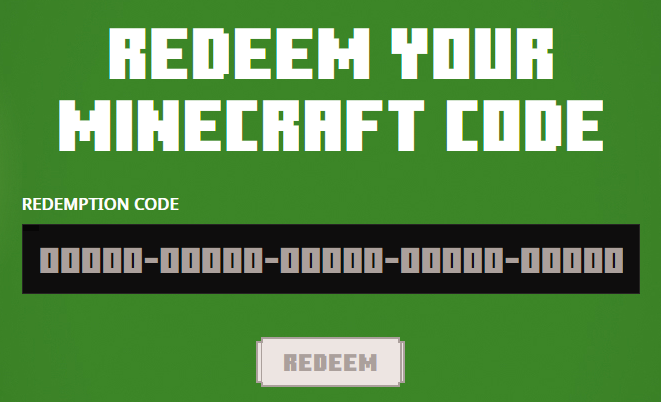
With the code in hand, the next step is heading over to Minecraft’s official code redemption page. A link should be present within the email the codes were obtained from, but if it wasn’t, the English redemption page can be found at https://www.minecraft.net/en-us/redeem.
Once the page is open, copy your 25-digit code and paste it into the box beneath “Redemption Code” before clicking “Redeem.”
Step 2: Sign In
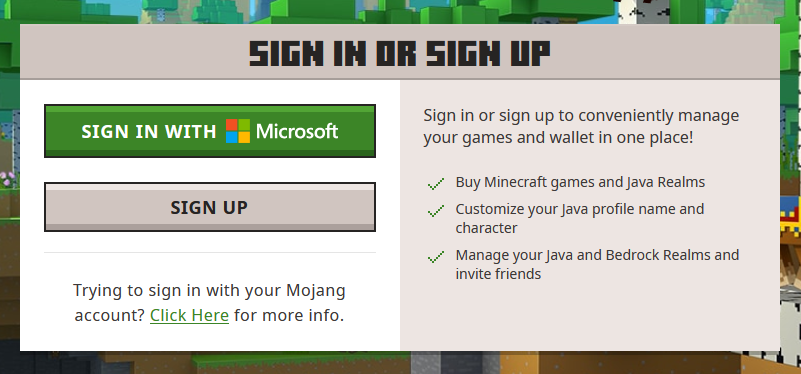
After redeeming, you will be prompted to log in to your Microsoft account. This step is very straightforward, but if multiple Microsoft accounts are owned, be sure the one associated with your Minecraft account is the one being logged into. Once logged in, proceed to step three.
Step 3: Confirm the Redemption
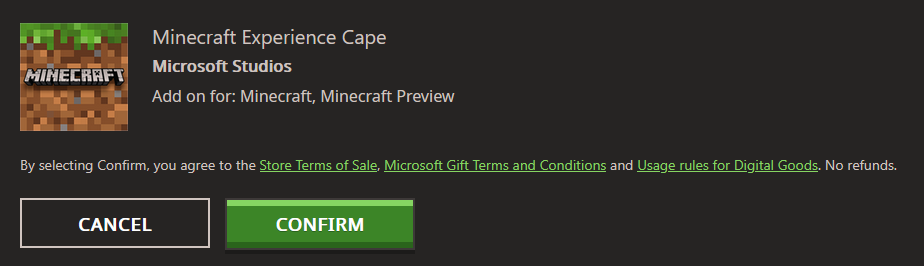
Upon successfully logging in, one final prompt will be displayed asking you to confirm the reward you would like to redeem. In this case, it should say “Minecraft Experience Cape.” If all looks correct, click “Confirm” and proceed to the next page.
Step 4: Equip the Cape
The cape should now be redeemed, complete with a confirmation on the screen. From there, Java Edition players can head over to the “All Games” tab on the left, select “Change Skin” under Java, and then equip their new cape. Meanwhile, Bedrock Edition players can find their cape in-game in the dressing room under the capes section on the left-hand side.
In either case, a short wait may occur before the cape appears as an option, but as soon as it does, all that remains is showing it off in-game.Crea il tuo server
Minecraft
Minecraft
Scegli un piano, seleziona un gioco e gioca con i tuoi amici!
Iscriviti alla nostra Newsletter
Iscriviti per ricevere gli ultimi aggiornamenti sul mondo del gaming!

Unisciti al nostro Discord
Entra a far parte della nostra community con oltre 20.000 membri appassionati come te!
Come valuteresti questo blog?
Condividi la tua opinione e aiutaci a migliorare sempre di più i nostri blog!
Non mi è piaciuto
Neutrale
Mi è piaciuto

Hai bisogno di un server di gioco?
Noleggia un server di gioco dove tu e i tuoi amici potrete giocare in privato con bassa latenza e impostazioni personalizzate. Scegli tra 110+ giochi, invita persone da tutto il mondo, goditi le partite private o costruisci la tua community online con le tue regole.

Blog Pertinenti







SCOPRI LE ULTIME NOVITÀ!
Iscriviti alla nostra newsletter per ricevere aggiornamenti sui nostri giochi ospitati, novità aziendali e offerte esclusive. Rimani sempre aggiornato!













