

Minecraft Controls Guide: All PC & Controller Keybinds (PlayStation, Xbox, & Switch)
Pubblicato il da

Condividi:

Condividi su X

Condividi su Facebook

Condividi su Threads

Condividi su Bluesky

Copia negli Appunti

Condividi via email
Minecraft has no shortage of controls, including many even veterans tend not to know! So, today, we explore all PC and controller keybinds, controls, and shortcuts in our Minecraft controls guide.
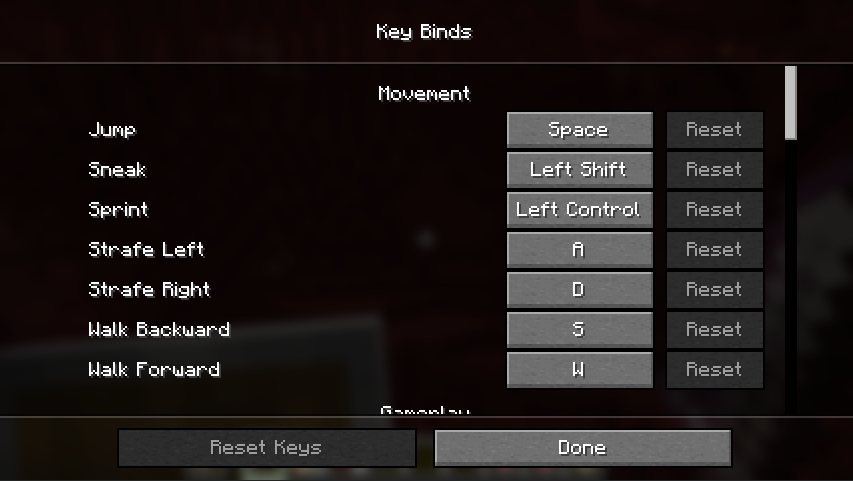 Creativity is paramount in Minecraft, and that does not stop when it comes to keybinds and controller settings! Everything we have listed below in our Minecraft controls guide is merely the default and can be changed as desired in most cases.
To locate these settings, select the “Settings” button on the main menu screen or by opening the in-game menu and selecting “Settings” from there. Once done, select controls (and then keybinds on some platforms) and begin editing as desired. Controller users may also find a selection of controls that are unbound by default. If being assigned, be sure not to overlap them with other options.
Creativity is paramount in Minecraft, and that does not stop when it comes to keybinds and controller settings! Everything we have listed below in our Minecraft controls guide is merely the default and can be changed as desired in most cases.
To locate these settings, select the “Settings” button on the main menu screen or by opening the in-game menu and selecting “Settings” from there. Once done, select controls (and then keybinds on some platforms) and begin editing as desired. Controller users may also find a selection of controls that are unbound by default. If being assigned, be sure not to overlap them with other options.
Minecraft Controls Guide: All PC & Controller Keybinds
Creativity is paramount in Minecraft, and that does not stop when it comes to keybinds and controller settings! Everything we have listed below in our Minecraft controls guide is merely the default and can be changed as desired in most cases.
To locate these settings, select the “Settings” button on the main menu screen or by opening the in-game menu and selecting “Settings” from there. Once done, select controls (and then keybinds on some platforms) and begin editing as desired. Controller users may also find a selection of controls that are unbound by default. If being assigned, be sure not to overlap them with other options.
Minecraft Java Edition (PC)
Mouse- Left Click: Attack/Destroy, Select Item, Divide Held Stack (Press & Drag), & Gather Identical Items (Double-Click)
- Right Click: Use Item/Place Block, Interact, Select Individual Item, & Split Stack
- Middle Click: Select Identical Block & Create Block/Item Copy (Creative)
- Mouse Move: Camera Control
- Mouse Wheel Scroll: Scroll Toolbar/Chat
- W: Walk & Sprint (Double-Tap)
- A: Strafe Left
- S: Walk Backwards
- D: Strafe Right
- Space: Jump & Swim Up/Fly Up (Creative)
- Left Shift: Sneak, Dismount, Fly Down (Creative), Quick Item Deposit or Retrieval, & Craft Maximum Amount
- Ctrl: Sprint & Fast Fly (Creative)
- Q: Drop One Selected Item (Ctrl+Q For Full Stack)
- E: Open/Close Inventory
- F: Swap Main-Hand/Off-Hand Items
- 1-9: Toolbar Slot Quick Select
- T: Open Chat
- Enter: Open Chat
- /: Open Chat With “/” Pre-Typed (Used for Commands)
- Tab: Show Player List & Command/Name Auto-Complete
- Esc: Open Game Menu
- C: Save Toolbar (Creative)
- X: Load Toolbar (Creative)
- L: View Advancements (Achievements)
- P: Social Interactions Screen (Block & Report Players)
- Ctrl+B: Toggle Narrator (Accessibility Feature)
- F1: Hide & Unhide HUD
- F2: Screenshot
- F3: Open/Close Debug Screen (Coordinates, FPS, Memory, etc.)
- F3+A: Reload chunks
- F3+T: Reload Textures/Sounds
- F3+C: Copy Coordinates as “/tp” Command
- F3+D: Clear Chat
- F3+V: Show Client Version Information
- F3+P: Toggle Auto-Pause When Window Is Not Focused
- F3+H: Toggle Detailed Tooltips
- F3+B: Toggle Entity Hitboxes
- F3+N: Toggle Spectator Mode
- F3+G: Toggle Chunk Borders
- F3+L: Record Performance Log (10 Seconds)
- F3+S: Dump Dynamic Textures
- F3+Esc: Pause Game
- F3+F4: Open Gamemode Changer Menu
- F4: Toggle Post-Processing Shaders
- F5: Change Camera Perspective
- F11: Toggle Fullscreen Mode
Minecraft Bedrock Edition (PC)
Mouse- Left Click: Attack/Destroy, Select Item, Divide Held Stack (Press & Drag), & Gather Identical Items (Double-Click)
- Right Click: Use Item/Place Block, Interact, Select Individual Item, & Split Stack
- Middle Click: Select Identical Block & Create Block/Item Copy (Creative)
- Mouse Move: Camera Control
- Mouse Wheel Scroll: Scroll Toolbar/Chat
- W: Walk & Sprint (Double-Tap)
- A: Strafe Left
- S: Walk Backwards
- D: Strafe Right
- Space: Jump & Swim Up/Fly Up (Creative)
- Left Shift: Sneak, Dismount, Fly Down (Creative), Quick Item Deposit or Retrieval, & Craft Maximum Amount
- Ctrl: Sprint & Fast Fly (Creative)
- Q: Drop One Selected Item (Ctrl+Q For Full Stack)
- E: Open/Close Inventory
- F: Swap Main-Hand/Off-Hand Items
- Z: Open/Close Status Effect Window
- 1-9: Toolbar Slot Quick Select
- T: Open Chat
- Enter: Open Chat
- /: Open Chat With “/” Pre-Typed (Used for Commands)
- B: Open/Close Emote Menu
- Tab: Show Player List & Command/Name Auto-Complete
- Esc: Open Game Menu
- P: Social Interactions Screen (Block & Report Players)
- Up Arrow: Cycle Highlighted Inventory Slot or Highlighted Menu Option Up
- Left Arrow: Cycle Highlighted Inventory Slot or Highlighted Menu Option Left
- Down Arrow: Cycle Highlighted Inventory Slot or Highlighted Menu Option Down
- Right Arrow: Cycle Highlighted Inventory Slot or Highlighted Menu Option Right
- [: Cycle Tabs Left
- ]: Cycle Tabs Right
- N: Open/Close Notification
- Ctrl+B: Toggle Narrator (Accessibility Feature)
- Ctrl+ALT+C: Copy Current Coordinates
- Ctrl+ALT+X: Copy Current Facing Coordinates
- ;: Lower Graphic Settings from Fancy to Simple & Toggle RTX (Windows Only)
- F1: Hide & Unhide HUD
- F2: Screenshot
- F5: Change Camera Perspective
- F8: Toggle HUD Display of Your Character
- F11: Toggle Fullscreen Mode
PlayStation Controller
- Left Analog Stick: Walk
- Right Analog Stick: Camera Control
- L1: Cycle Item Left
- R1: Cycle Item Right
- L1+R1: Screenshot
- L2: Place Block & Use Item
- R2: Attack/Destroy
- L3: Sprint
- R3: Fly Down Slowly (Creative)
- D-Pad Up: Change Camera Perspective
- D-Pad Down: Drop Item
- D-Pad Left: Open/Close Emote Menu
- D-Pad Right: Open Chat
- Cross: Jump & Swim Up/Fly Up (Creative)
- Circle: Sneak, Dismount, & Fly Down (Creative)
- Square: Craft
- Triangle: Inventory
- Touchpad: List Players, Open/Close Notification, & Open/Close Status Effect Window
- Options Button: Open Game Menu
Xbox Controller
- Left Analog Stick: Walk
- Right Analog Stick: Camera Control
- LB: Cycle Item Left
- RB: Cycle Item Right
- LB+RB: Screenshot
- LT: Place Block & Use Item
- RT: Attack/Destroy
- Left Stick Click: Sprint
- Right Stick Click: Fly Down Slowly (Creative)
- D-Pad Up: Change Camera Perspective
- D-Pad Down: Drop Item
- D-Pad Left: Open/Close Emote Menu
- D-Pad Right: Open Chat
- A: Jump & Swim Up/Fly Up (Creative)
- B: Sneak, Dismount, & Fly Down (Creative)
- X: Craft
- Y: Inventory
- View Button: List Players, Open/Close Notification, & Open/Close Status Effect Window
- Start Button: Open Game Menu
Nintendo Switch
- Left Analog Stick: Walk
- Right Analog Stick: Camera Control
- LB: Cycle Item Left
- RB: Cycle Item Right
- LB+RB: Screenshot
- ZL: Place Block & Use Item
- ZR: Attack/Destroy
- Left Stick Click: Sprint
- Right Stick Click: Fly Down Slowly (Creative)
- Control Pad Up/Up Button: Change Camera Perspective
- Control Pad Down/Down Button: Drop Item
- Control Pad Left/Left Button: Open/Close Emote Menu
- Control Pad Right/Right Button: Open Chat
- B: Jump & Swim Up/Fly Up (Creative)
- A: Sneak, Dismount, & Fly Down (Creative)
- Y: Craft
- X: Inventory
- -: List Players, Open/Close Notification, & Open/Close Status Effect Window
- +: Open Game Menu
Crea il tuo server
Minecraft
Minecraft
Scegli un piano, seleziona un gioco e gioca con i tuoi amici!
Iscriviti alla nostra Newsletter
Iscriviti per ricevere gli ultimi aggiornamenti sul mondo del gaming!

Unisciti al nostro Discord
Entra a far parte della nostra community con oltre 20.000 membri appassionati come te!
Come valuteresti questo blog?
Condividi la tua opinione e aiutaci a migliorare sempre di più i nostri blog!
Non mi è piaciuto
Neutrale
Mi è piaciuto

Hai bisogno di un server di gioco?
Noleggia un server di gioco dove tu e i tuoi amici potrete giocare in privato con bassa latenza e impostazioni personalizzate. Scegli tra 110+ giochi, invita persone da tutto il mondo, goditi le partite private o costruisci la tua community online con le tue regole.

Blog Pertinenti







SCOPRI LE ULTIME NOVITÀ!
Iscriviti alla nostra newsletter per ricevere aggiornamenti sui nostri giochi ospitati, novità aziendali e offerte esclusive. Rimani sempre aggiornato!













