

Minecraft 1.21 Optifine in Five Easy Steps
Pubblicato il da

Condividi:

Condividi su X

Condividi su Facebook

Condividi su Threads

Condividi su Bluesky

Copia negli Appunti

Condividi via email
(Estimated Read Time: 3 Minutes)
Since Optifine’s initial release over ten years ago, it has gone on to help countless players across the globe achieve performances only those with higher-end computers would typically know. Now, with the recent release of Minecraft 1.21, the time has once more for updates and fresh installs. So, today, we explain step by step how to install Minecraft 1.21 Optifine.Minecraft 1.21 Optifine in Five Easy Steps
Step 1: Install Minecraft Java Edition
 The first step to installing Optifine is ensuring Minecraft Java Edition has been installed, and Minecraft 1.21 has been played at least once. Optifine cannot be properly installed if either of those requirements has not been done before. Upon completion, close Minecraft and proceed to step 2.
Step 2: Install Java

Step 3: Download Optifine
 With Minecraft 1.21 and Java installed, it is time to head to the official Optifine website to download Optifine for Minecraft 1.21. The official Optifine website, found here, is safe to download from, but be wary of its ads, especially if you find yourself on an ad webpage.
Should the downloaded jar file not include Optifine in its name alongside the version, delete the file and immediately run a virus scan. Be very careful to only select the official download button.
With Minecraft 1.21 and Java installed, it is time to head to the official Optifine website to download Optifine for Minecraft 1.21. The official Optifine website, found here, is safe to download from, but be wary of its ads, especially if you find yourself on an ad webpage.
Should the downloaded jar file not include Optifine in its name alongside the version, delete the file and immediately run a virus scan. Be very careful to only select the official download button.
Step 4: Open Optfine with Java
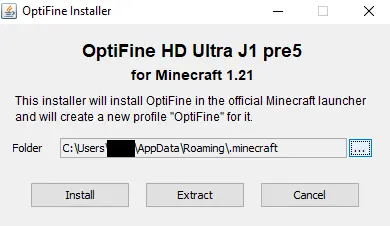 Once Optifine has been safely downloaded, move the file to your desktop, right-click it, and select “Open With…” Java should be a selectable option that can then be given a click. This will open the Optifine installer, which should have three options. Assuming the directory hasn’t been changed, simply click install, wait for the successful installation window to appear, and then open the game.
Step 5: Select the Optifine Minecraft Profile.
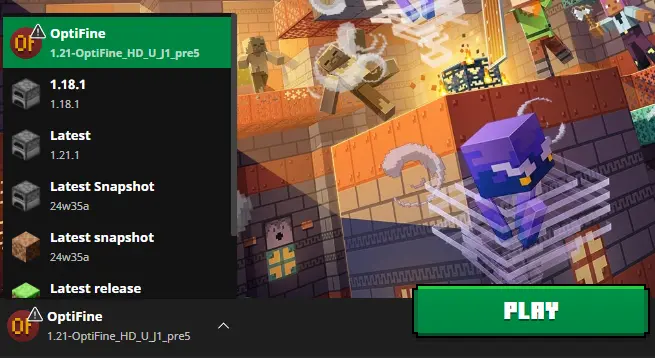 Finally, within the Minecraft launcher, a new Java Edition profile should be in the dropdown menu to the left of “Play” titled Optifine. Select it, click play, and then hop into the game. With that, the installation is complete!
Crea il tuo server
Minecraft
Minecraft
Scegli un piano, seleziona un gioco e gioca con i tuoi amici!
Iscriviti alla nostra Newsletter
Iscriviti per ricevere gli ultimi aggiornamenti sul mondo del gaming!

Unisciti al nostro Discord
Entra a far parte della nostra community con oltre 20.000 membri appassionati come te!
Come valuteresti questo blog?
Condividi la tua opinione e aiutaci a migliorare sempre di più i nostri blog!
Non mi è piaciuto
Neutrale
Mi è piaciuto

Hai bisogno di un server di gioco?
Noleggia un server di gioco dove tu e i tuoi amici potrete giocare in privato con bassa latenza e impostazioni personalizzate. Scegli tra 110+ giochi, invita persone da tutto il mondo, goditi le partite private o costruisci la tua community online con le tue regole.

Blog Pertinenti







SCOPRI LE ULTIME NOVITÀ!
Iscriviti alla nostra newsletter per ricevere aggiornamenti sui nostri giochi ospitati, novità aziendali e offerte esclusive. Rimani sempre aggiornato!













