
How to Add Friends in Hytale: Benefits, Discord Integration, & More
Pubblicato il da

Condividi:

Condividi su X

Condividi su Facebook

Condividi su Threads

Condividi su Bluesky

Copia negli Appunti

Condividi via email
As of update five, friends in Hytale are never more than a few clicks away. So, today, we answer how to add friends in Hytale, why it’s worth the time, and what social features are available, such as appearing offline.
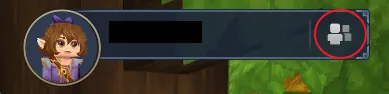 Step 1. Adding friends in Hytale is as easy as can be! The first step is heading to the main menu and selecting the small button depicting a person on the top right of the screen.
 Step 2. Upon clicking the button, a friends list with four buttons at the bottom will open up. From there, click the button depicting a person with a plus sign.
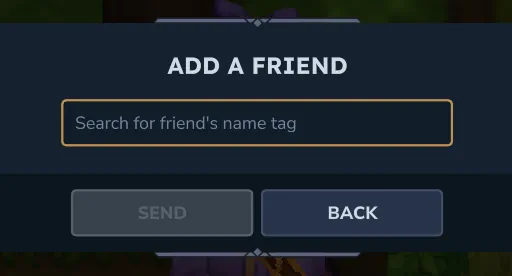 Step 3. When the button has been clicked, a text box will appear requesting the desired friend’s username. It is the same name that is seen in-game. However, if accidentally forgotten, any player can see their own name in the top-right of the main menu. Enter the provided name, and the friend request is complete!
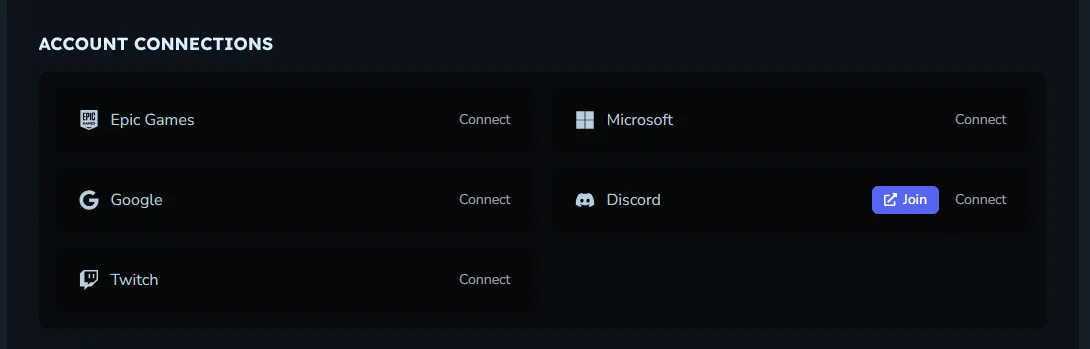 Another option for adding friends is Discord integration. To enable this, head over to the Hytale website and log in to the account management area. The option to connect a Hytale account to Discord is found near the bottom of the account management page. Select “Connect” to begin the security verifications.
Once complete, return to the Hytale client, select “Settings”, and turn on “Discord Integration” under the social tab. This should automatically make Discord friends who have also integrated visible in the friends list.
Another option for adding friends is Discord integration. To enable this, head over to the Hytale website and log in to the account management area. The option to connect a Hytale account to Discord is found near the bottom of the account management page. Select “Connect” to begin the security verifications.
Once complete, return to the Hytale client, select “Settings”, and turn on “Discord Integration” under the social tab. This should automatically make Discord friends who have also integrated visible in the friends list.
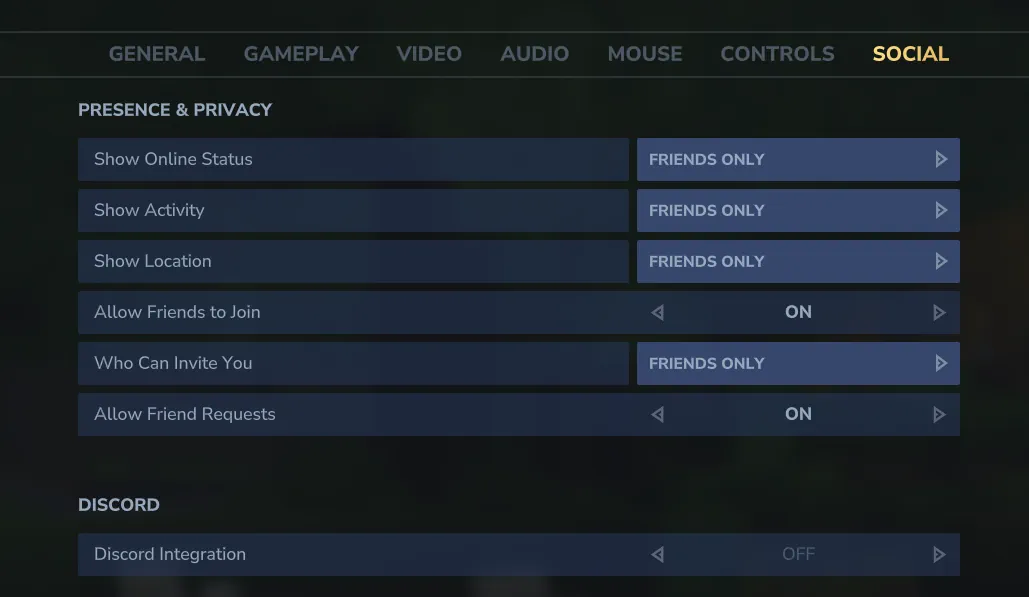 The addition of the friends list also means a few convenient social features! Below we have listed all those available as of Update 5.
How to Add Friends in Hytale
Step 1. Adding friends in Hytale is as easy as can be! The first step is heading to the main menu and selecting the small button depicting a person on the top right of the screen.
Step 2. Upon clicking the button, a friends list with four buttons at the bottom will open up. From there, click the button depicting a person with a plus sign.
Step 3. When the button has been clicked, a text box will appear requesting the desired friend’s username. It is the same name that is seen in-game. However, if accidentally forgotten, any player can see their own name in the top-right of the main menu. Enter the provided name, and the friend request is complete!
Discord Integration
Another option for adding friends is Discord integration. To enable this, head over to the Hytale website and log in to the account management area. The option to connect a Hytale account to Discord is found near the bottom of the account management page. Select “Connect” to begin the security verifications.
Once complete, return to the Hytale client, select “Settings”, and turn on “Discord Integration” under the social tab. This should automatically make Discord friends who have also integrated visible in the friends list.
Social Features
The addition of the friends list also means a few convenient social features! Below we have listed all those available as of Update 5.
Joining Worlds
Friends can join game sessions directly through the friends list or use it to invite online friends to their worlds.Appear Offline
Within the friends list, clicking the green online symbol changes the account to “Appear Offline.” This prevents friends from seeing the account as online and playing the game even if it is.Block
Players encountered in-game can now be blocked. This mutes their text and voice chat in-game. The list of blocked players can be found and managed via the friends list on the main menu.Crea il tuo server
Hytale
Hytale
Scegli un piano, seleziona un gioco e gioca con i tuoi amici!
Iscriviti alla nostra Newsletter
Iscriviti per ricevere gli ultimi aggiornamenti sul mondo del gaming!

Unisciti al nostro Discord
Entra a far parte della nostra community con oltre 20.000 membri appassionati come te!
Come valuteresti questo blog?
Condividi la tua opinione e aiutaci a migliorare sempre di più i nostri blog!
Non mi è piaciuto
Neutrale
Mi è piaciuto

Hai bisogno di un server di gioco?
Noleggia un server di gioco dove tu e i tuoi amici potrete giocare in privato con bassa latenza e impostazioni personalizzate. Scegli tra 110+ giochi, invita persone da tutto il mondo, goditi le partite private o costruisci la tua community online con le tue regole.

Blog Pertinenti







SCOPRI LE ULTIME NOVITÀ!
Iscriviti alla nostra newsletter per ricevere aggiornamenti sui nostri giochi ospitati, novità aziendali e offerte esclusive. Rimani sempre aggiornato!













