

How to Allocate More RAM to Minecraft Java & Bedrock
Pubblicato il da

Condividi:

Condividi su X

Condividi su Facebook

Condividi su Threads

Condividi su Bluesky

Copia negli Appunti

Condividi via email
The Minecraft client can use quite a bit of RAM, especially when it comes to mods or DLC. But thankfully, in times like these, there are simple ways to allocate more RAM from your PC. So, today, we answer, “How to Allocate More RAM to Minecraft Java & Bedrock.”
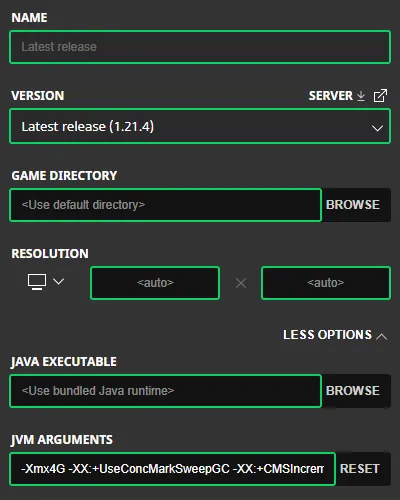 Allocating more RAM to Minecraft Java Editon is done from right inside the Minecraft Launcher. Below, we have detailed every step needed to get the task completed.
 At this time, RAM can not be manually allocated to the Minecraft Bedrock Edition client. This is because Bedrock will automatically use the amount of RAM it requires. If lag is being encountered client-side in Bedrock Edition, we recommend opening the task manager by pressing the “CRTL,” “ALT,” and “DEL” buttons at the same time to check current resource usage.
From there, many useful details, such as CPU and Memory, can be viewed. If either category is red with a percentage at or near 100%, it may indicate a hardware issue or lack of RAM available on the PC.
At this time, RAM can not be manually allocated to the Minecraft Bedrock Edition client. This is because Bedrock will automatically use the amount of RAM it requires. If lag is being encountered client-side in Bedrock Edition, we recommend opening the task manager by pressing the “CRTL,” “ALT,” and “DEL” buttons at the same time to check current resource usage.
From there, many useful details, such as CPU and Memory, can be viewed. If either category is red with a percentage at or near 100%, it may indicate a hardware issue or lack of RAM available on the PC.
How to Allocate More RAM to Minecraft Java & Bedrock
Minecraft Java Edition
Allocating more RAM to Minecraft Java Editon is done from right inside the Minecraft Launcher. Below, we have detailed every step needed to get the task completed.
- Open Minecraft Java Edition
- Select the “Installations” Tab
- Locate Your Desired Installation (Latest Release is the Default)
- Hover Over the Installation, Click the Three Dots, & Select “Edit”
- Click “MORE OPTIONS”
- Locate the “JVM ARGUMENTS”
- Update the Number in “-Xmx4G” to the Desired RAM Allocation
Minecraft Bedrock Edition
At this time, RAM can not be manually allocated to the Minecraft Bedrock Edition client. This is because Bedrock will automatically use the amount of RAM it requires. If lag is being encountered client-side in Bedrock Edition, we recommend opening the task manager by pressing the “CRTL,” “ALT,” and “DEL” buttons at the same time to check current resource usage.
From there, many useful details, such as CPU and Memory, can be viewed. If either category is red with a percentage at or near 100%, it may indicate a hardware issue or lack of RAM available on the PC.Crea il tuo server
Minecraft
Minecraft
Scegli un piano, seleziona un gioco e gioca con i tuoi amici!
Iscriviti alla nostra Newsletter
Iscriviti per ricevere gli ultimi aggiornamenti sul mondo del gaming!

Unisciti al nostro Discord
Entra a far parte della nostra community con oltre 20.000 membri appassionati come te!
Come valuteresti questo blog?
Condividi la tua opinione e aiutaci a migliorare sempre di più i nostri blog!
Non mi è piaciuto
Neutrale
Mi è piaciuto

Hai bisogno di un server di gioco?
Noleggia un server di gioco dove tu e i tuoi amici potrete giocare in privato con bassa latenza e impostazioni personalizzate. Scegli tra 110+ giochi, invita persone da tutto il mondo, goditi le partite private o costruisci la tua community online con le tue regole.

Blog Pertinenti







SCOPRI LE ULTIME NOVITÀ!
Iscriviti alla nostra newsletter per ricevere aggiornamenti sui nostri giochi ospitati, novità aziendali e offerte esclusive. Rimani sempre aggiornato!













