
Project Zomboid Controls Guide
Publié le par

Partager :

Partager sur X

Partager sur Facebook

Partager sur Threads

Partager sur Bluesky

Copier dans le presse-papiers

Partager par e-mail
Becoming proficient with the controls in Project Zomboid is crucial for staying alive in its unforgiving, zombie-filled environment. Survivors must use the game’s available controls to make conscious decisions, such as attacking or running away, which ultimately affect their survival. So, continue reading to learn more about the controls and keybinds for Project Zomboid and become a master survivor in Knox Country.
 The following controls and keybinds for Project Zomboid follow Build 41. Some controls may change with future builds.
All Project Zomboid Controls and Keybinds
The following controls and keybinds for Project Zomboid follow Build 41. Some controls may change with future builds.
Keyboard & Mouse
Note that most Project Zomboid controls and keybinds are editable. Players can modify certain controls to help fit their preferred playstyle.Player Control
- Forward: W
- Backward: S
- Left: A
- Right: D
- Run: Left Shift
- Sprint: Left Alt
- Rotate Building: R
- Toggle Mode: Tab
- Cancel Action: Escape
- Walk To: Y
Combat
- Sneak: C
- Aim: Left Control
- Shove/Stomp: Space
- Rack Firearm: X
- Reload Weapon: R
- Manual Floor Attack: Left Alt
Vehicle
- Start Vehicle Engine: N
- Toggle Vehicle Headlights: F
- Vehicle Heater: O
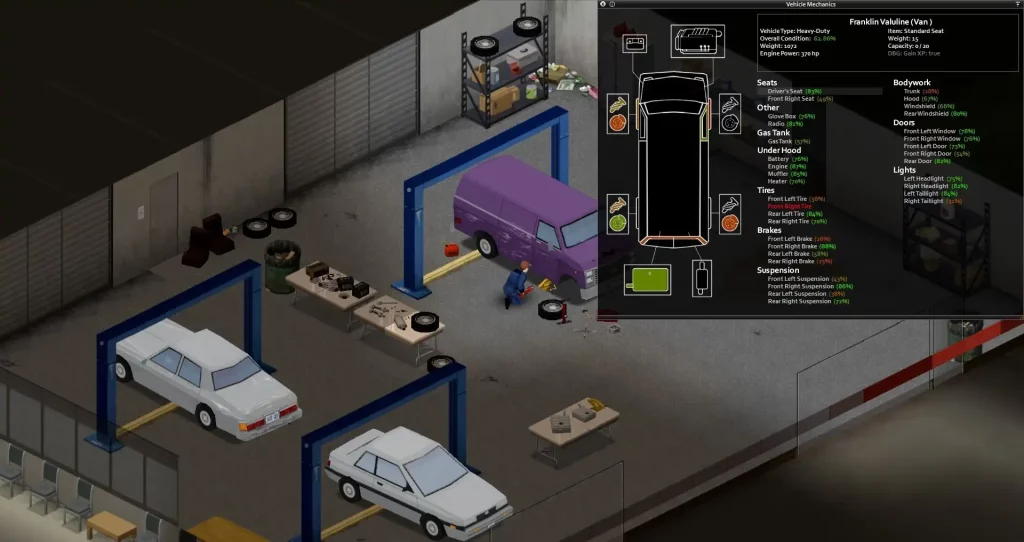
- Vehicle Info: U
- Horn: Q
- Vehicle Radial Menu: V
- Switch Seat: Z
User Interface
- Toggle Crafting UI: B
- Main Menu: Escape
- Toggle Inventory: I
- Toggle Skill Panel: L
- Toggle Health Panel: H
- Toggle Moveable Panel Mode: ]
- Toggle Map: M
- Take Screenshot: F10
- Toggle Survival Guide: F1
- Display FPS: K
- Pause: F2
- Normal Speed: F3
- Fast Forward x1: F4
- Fast Forward x2: F5
- Fast Forward x3: F6
- Zoom In: =
- Zoom Out: .
Hotkeys
- Hotbar 1: 1
- Hotbar 2: 2
- Hotbar 3: 3
- Hotbar 4: 4
- Hotbar 5: 5
- Equip/Turn/Off Light Source: F
Multiplayer
- Toggle Safety: G
- Toggle Chat: T
- Alt Toggle Chat: Return
- Switch Chat Stream: Tab
Voice
- Push-to-Talk: Left Alt
NPC Interaction
- Shout: Q
- Emotes Wheel (long press): Q
Debug
- Toggle Lua Debugger: F11
- Toggle Lua Console: `
- Toggle God Mode and Invisible: N
- Toggle Models Enabled: F3
- Toggle Animation Text: F6
Search Mode
- Toggle Search Mode: End
Gamepad
It’s important to mention that the gamepad controls for Project Zomboid are displayed with the configurations of an Xbox controller. Although it’s possible to use other gamepads with other button layouts, such as the PlayStation 5 DualSense controller, the game will still display the button configurations of an Xbox controller, which may confuse some players.- Move Player: Left stick
- Toggle Walk/Run: Press Left analog stick
- Navigate Contextual Menus: Directional Pad
- Sneak/Aim, Navigate Radial Menu: Right analog stick
- Interact 1: A
- Interact 2: B
- Display Contextual Menu, Available Interactions, & Quick Loot/Drop Item: X
- Inventory: Y
- Navigate Tabs: Left and Right Bumpers
- Shove/Stomp: Left Trigger
- Fire/Attack: Right Trigger
- Display Radial Menu: View/Back
- Pause/Menu: Start
Créez votre propre
serveur Project Zomboid
serveur Project Zomboid
Choisissez un plan, sélectionnez un jeu et jouez avec vos amis !
Abonnez-vous à notre newsletter
Abonnez-vous pour recevoir les dernières mises à jour sur l'univers du jeu vidéo !

Rejoignez notre Discord
Rejoignez notre communauté de plus de 20 000 membres passionnés !
Comment évalueriez-vous ce blog ?
Partagez votre avis et aidez-nous à améliorer nos blogs !
Pas aimé
Neutre
Aimé

Besoin d'un serveur de jeu ?
Louez un serveur de jeu où vous et vos amis pouvez jouer en privé avec une faible latence et des paramètres personnalisés. Choisissez parmi 110+ jeux, invitez des joueurs du monde entier et profitez de parties privées, ou créez votre propre communauté en ligne avec vos propres règles.

Blogs pertinents







OBTENEZ LES DERNIÈRES INFOS !
Inscrivez-vous à nos e-mails pour obtenir des mises à jour sur nos jeux hébergés, des nouvelles de l'entreprise et des offres exclusives. Restez au courant !













