

Minecraft Skyblock Setup Guide: Step by Step Walkthrough, Datapacks, & More
Publié le par

Partager :

Partager sur X

Partager sur Facebook

Partager sur Threads

Partager sur Bluesky

Copier dans le presse-papiers

Partager par e-mail
Skyblock has been one of the most beloved fan-made gamemodes since Minecraft’s earliest days, yet it can still be unclear how exactly one sets it up to play. So, today, we explore step by step how to enjoy skyblock alone or with friends in our Minecraft Skyblock setup guide.
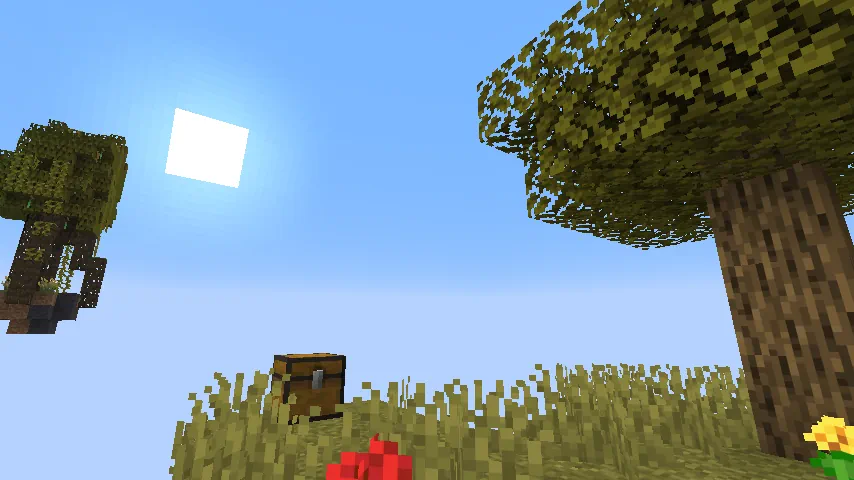 Skyblock is a modified version of Minecraft where players spawn on a small dirt island in the sky, with a tree and a chest that has a select number of items inside. Using only those starting blocks and items, alongside some Minecraft technical knowledge, the goal is to then expand, venturing to new islands.
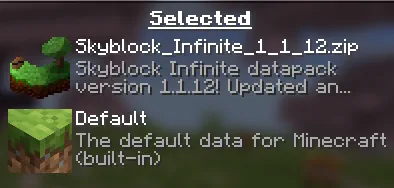 Today, there are many options for skyblock ranging everywhere from worlds to modpacks, each with their own unique take on the idea. However, what we will be using for this guide is a datapack called “Skyblock Infinite,” which offers a faithful rendition of the core vanilla skyblock experience.
To download it, first head over to the Modrinth page here and find the datapack file that matches the version you are currently playing. Once found, download the zip file before proceeding with either the singleplayer or multiplayer steps below.
Today, there are many options for skyblock ranging everywhere from worlds to modpacks, each with their own unique take on the idea. However, what we will be using for this guide is a datapack called “Skyblock Infinite,” which offers a faithful rendition of the core vanilla skyblock experience.
To download it, first head over to the Modrinth page here and find the datapack file that matches the version you are currently playing. Once found, download the zip file before proceeding with either the singleplayer or multiplayer steps below.
What is Skyblock?
Skyblock is a modified version of Minecraft where players spawn on a small dirt island in the sky, with a tree and a chest that has a select number of items inside. Using only those starting blocks and items, alongside some Minecraft technical knowledge, the goal is to then expand, venturing to new islands.
Minecraft Skyblock Setup Guide
Today, there are many options for skyblock ranging everywhere from worlds to modpacks, each with their own unique take on the idea. However, what we will be using for this guide is a datapack called “Skyblock Infinite,” which offers a faithful rendition of the core vanilla skyblock experience.
To download it, first head over to the Modrinth page here and find the datapack file that matches the version you are currently playing. Once found, download the zip file before proceeding with either the singleplayer or multiplayer steps below.
Singleplayer
- Select “Create New World”.
- Click the “More” tab near the top right of the window.
- Click “Data Packs”.
- Select “Open Pack Folder”.
- Upload the previously downloaded datapack zip file to the folder.
- Activate the datapack by clicking it.
- Create the world.
Multiplayer
- Stop the server.
- Open the server files.
- Find and open the world folder.
- Open the “datapacks” folder.
- Upload the previously downloaded datapack zip file to the folder.
- Start the server.
Créez votre propre
serveur Minecraft
serveur Minecraft
Choisissez un plan, sélectionnez un jeu et jouez avec vos amis !
Abonnez-vous à notre newsletter
Abonnez-vous pour recevoir les dernières mises à jour sur l'univers du jeu vidéo !

Rejoignez notre Discord
Rejoignez notre communauté de plus de 20 000 membres passionnés !
Comment évalueriez-vous ce blog ?
Partagez votre avis et aidez-nous à améliorer nos blogs !
Pas aimé
Neutre
Aimé

Besoin d'un serveur de jeu ?
Louez un serveur de jeu où vous et vos amis pouvez jouer en privé avec une faible latence et des paramètres personnalisés. Choisissez parmi 110+ jeux, invitez des joueurs du monde entier et profitez de parties privées, ou créez votre propre communauté en ligne avec vos propres règles.

Blogs pertinents







OBTENEZ LES DERNIÈRES INFOS !
Inscrivez-vous à nos e-mails pour obtenir des mises à jour sur nos jeux hébergés, des nouvelles de l'entreprise et des offres exclusives. Restez au courant !













