

Minecraft Experience Cape Guide: How to Redeem
Publié le par

Partager :

Partager sur X

Partager sur Facebook

Partager sur Threads

Partager sur Bluesky

Copier dans le presse-papiers

Partager par e-mail
One of the many exciting parts of Minecraft Experience is the goodies you get to bring home, including the Minecraft Experience cape, which every scanned ticket holder gets to own! So, today, we explain step by step how to redeem your Minecraft experience cape.
 Purchasing a ticket for Minecraft Experience does not automatically provide a cape code. Instead, it is emailed only after your ticket has been scanned at the door. Once that has been done, check the email used to purchase the tickets. An email should be present from the vendor containing the 25-digit promo codes, which expire thirty days after Minecraft Experience leaves the location where you attended.
 With the code in hand, the next step is heading over to Minecraft’s official code redemption page. A link should be present within the email the codes were obtained from, but if it wasn’t, the English redemption page can be found at https://www.minecraft.net/en-us/redeem.
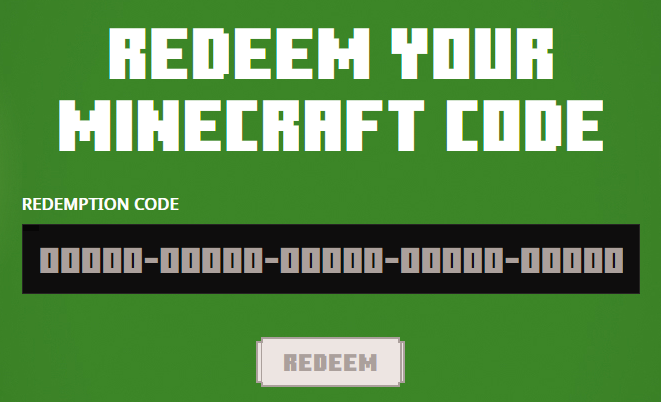
Once the page is open, copy your 25-digit code and paste it into the box beneath “Redemption Code” before clicking “Redeem.”
With the code in hand, the next step is heading over to Minecraft’s official code redemption page. A link should be present within the email the codes were obtained from, but if it wasn’t, the English redemption page can be found at https://www.minecraft.net/en-us/redeem.
Once the page is open, copy your 25-digit code and paste it into the box beneath “Redemption Code” before clicking “Redeem.”
 After redeeming, you will be prompted to log in to your Microsoft account. This step is very straightforward, but if multiple Microsoft accounts are owned, be sure the one associated with your Minecraft account is the one being logged into. Once logged in, proceed to step three.
 Upon successfully logging in, one final prompt will be displayed asking you to confirm the reward you would like to redeem. In this case, it should say “Minecraft Experience Cape.” If all looks correct, click “Confirm” and proceed to the next page.
 The cape should now be redeemed, complete with a confirmation on the screen. From there, Java Edition players can head over to the “All Games” tab on the left, select “Change Skin” under Java, and then equip their new cape. Meanwhile, Bedrock Edition players can find their cape in-game in the dressing room under the capes section on the left-hand side.
In either case, a short wait may occur before the cape appears as an option, but as soon as it does, all that remains is showing it off in-game.
The cape should now be redeemed, complete with a confirmation on the screen. From there, Java Edition players can head over to the “All Games” tab on the left, select “Change Skin” under Java, and then equip their new cape. Meanwhile, Bedrock Edition players can find their cape in-game in the dressing room under the capes section on the left-hand side.
In either case, a short wait may occur before the cape appears as an option, but as soon as it does, all that remains is showing it off in-game.
Obtaining a Cape Code
Purchasing a ticket for Minecraft Experience does not automatically provide a cape code. Instead, it is emailed only after your ticket has been scanned at the door. Once that has been done, check the email used to purchase the tickets. An email should be present from the vendor containing the 25-digit promo codes, which expire thirty days after Minecraft Experience leaves the location where you attended.
How to Redeem Your Minecraft Experience Cape
Step 1: Enter The Code
With the code in hand, the next step is heading over to Minecraft’s official code redemption page. A link should be present within the email the codes were obtained from, but if it wasn’t, the English redemption page can be found at https://www.minecraft.net/en-us/redeem.
Once the page is open, copy your 25-digit code and paste it into the box beneath “Redemption Code” before clicking “Redeem.”
Step 2: Sign In
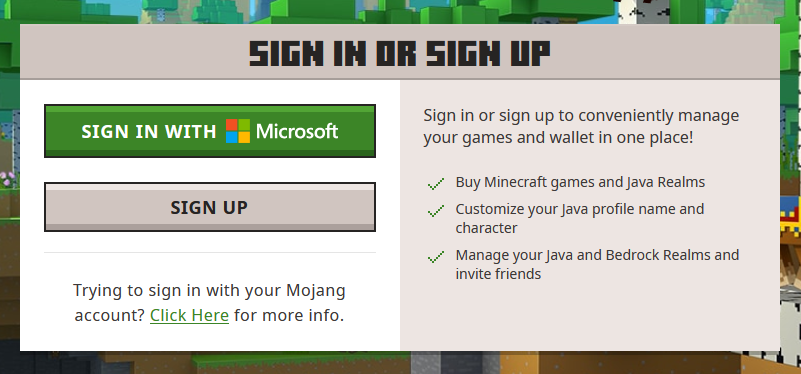
After redeeming, you will be prompted to log in to your Microsoft account. This step is very straightforward, but if multiple Microsoft accounts are owned, be sure the one associated with your Minecraft account is the one being logged into. Once logged in, proceed to step three.
Step 3: Confirm the Redemption
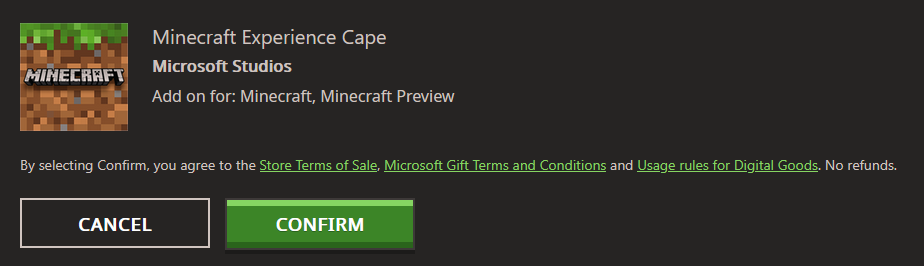
Upon successfully logging in, one final prompt will be displayed asking you to confirm the reward you would like to redeem. In this case, it should say “Minecraft Experience Cape.” If all looks correct, click “Confirm” and proceed to the next page.
Step 4: Equip the Cape
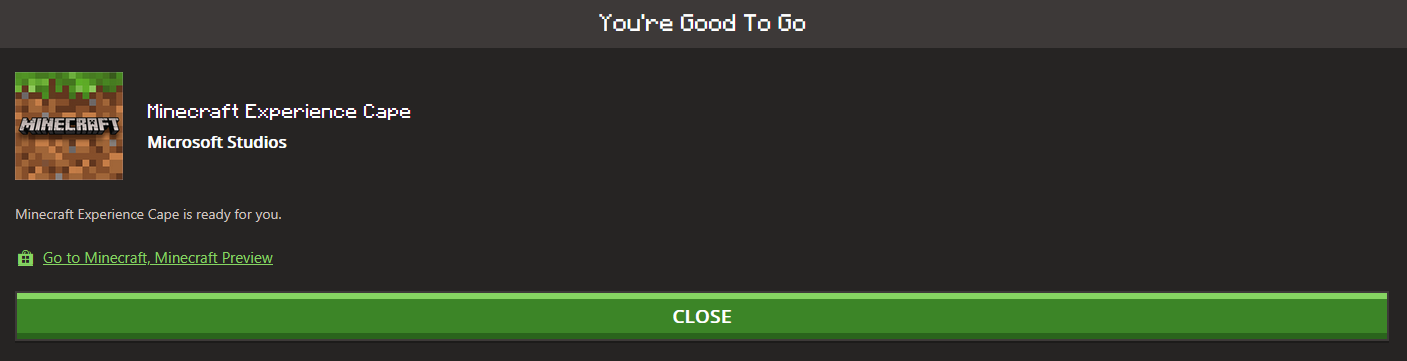
The cape should now be redeemed, complete with a confirmation on the screen. From there, Java Edition players can head over to the “All Games” tab on the left, select “Change Skin” under Java, and then equip their new cape. Meanwhile, Bedrock Edition players can find their cape in-game in the dressing room under the capes section on the left-hand side.
In either case, a short wait may occur before the cape appears as an option, but as soon as it does, all that remains is showing it off in-game.Créez votre propre
serveur Minecraft
serveur Minecraft
Choisissez un plan, sélectionnez un jeu et jouez avec vos amis !
Abonnez-vous à notre newsletter
Abonnez-vous pour recevoir les dernières mises à jour sur l'univers du jeu vidéo !

Rejoignez notre Discord
Rejoignez notre communauté de plus de 20 000 membres passionnés !
Comment évalueriez-vous ce blog ?
Partagez votre avis et aidez-nous à améliorer nos blogs !
Pas aimé
Neutre
Aimé

Besoin d'un serveur de jeu ?
Louez un serveur de jeu où vous et vos amis pouvez jouer en privé avec une faible latence et des paramètres personnalisés. Choisissez parmi 110+ jeux, invitez des joueurs du monde entier et profitez de parties privées, ou créez votre propre communauté en ligne avec vos propres règles.

Blogs pertinents







OBTENEZ LES DERNIÈRES INFOS !
Inscrivez-vous à nos e-mails pour obtenir des mises à jour sur nos jeux hébergés, des nouvelles de l'entreprise et des offres exclusives. Restez au courant !













