

Minecraft 1.21 Optifine in Five Easy Steps
Publié le par

Partager :

Partager sur X

Partager sur Facebook

Partager sur Threads

Partager sur Bluesky

Copier dans le presse-papiers

Partager par e-mail
(Estimated Read Time: 3 Minutes)
Since Optifine’s initial release over ten years ago, it has gone on to help countless players across the globe achieve performances only those with higher-end computers would typically know. Now, with the recent release of Minecraft 1.21, the time has once more for updates and fresh installs. So, today, we explain step by step how to install Minecraft 1.21 Optifine.Minecraft 1.21 Optifine in Five Easy Steps
Step 1: Install Minecraft Java Edition
 The first step to installing Optifine is ensuring Minecraft Java Edition has been installed, and Minecraft 1.21 has been played at least once. Optifine cannot be properly installed if either of those requirements has not been done before. Upon completion, close Minecraft and proceed to step 2.
Step 2: Install Java

Step 3: Download Optifine
 With Minecraft 1.21 and Java installed, it is time to head to the official Optifine website to download Optifine for Minecraft 1.21. The official Optifine website, found here, is safe to download from, but be wary of its ads, especially if you find yourself on an ad webpage.
Should the downloaded jar file not include Optifine in its name alongside the version, delete the file and immediately run a virus scan. Be very careful to only select the official download button.
With Minecraft 1.21 and Java installed, it is time to head to the official Optifine website to download Optifine for Minecraft 1.21. The official Optifine website, found here, is safe to download from, but be wary of its ads, especially if you find yourself on an ad webpage.
Should the downloaded jar file not include Optifine in its name alongside the version, delete the file and immediately run a virus scan. Be very careful to only select the official download button.
Step 4: Open Optfine with Java
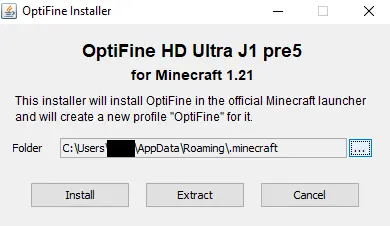 Once Optifine has been safely downloaded, move the file to your desktop, right-click it, and select “Open With…” Java should be a selectable option that can then be given a click. This will open the Optifine installer, which should have three options. Assuming the directory hasn’t been changed, simply click install, wait for the successful installation window to appear, and then open the game.
Step 5: Select the Optifine Minecraft Profile.
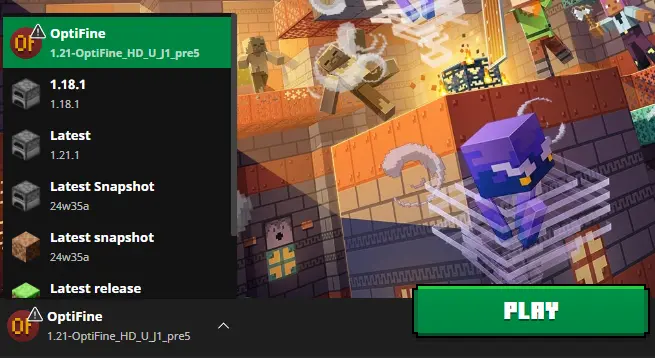 Finally, within the Minecraft launcher, a new Java Edition profile should be in the dropdown menu to the left of “Play” titled Optifine. Select it, click play, and then hop into the game. With that, the installation is complete!
Créez votre propre
serveur Minecraft
serveur Minecraft
Choisissez un plan, sélectionnez un jeu et jouez avec vos amis !
Abonnez-vous à notre newsletter
Abonnez-vous pour recevoir les dernières mises à jour sur l'univers du jeu vidéo !

Rejoignez notre Discord
Rejoignez notre communauté de plus de 20 000 membres passionnés !
Comment évalueriez-vous ce blog ?
Partagez votre avis et aidez-nous à améliorer nos blogs !
Pas aimé
Neutre
Aimé

Besoin d'un serveur de jeu ?
Louez un serveur de jeu où vous et vos amis pouvez jouer en privé avec une faible latence et des paramètres personnalisés. Choisissez parmi 110+ jeux, invitez des joueurs du monde entier et profitez de parties privées, ou créez votre propre communauté en ligne avec vos propres règles.

Blogs pertinents







OBTENEZ LES DERNIÈRES INFOS !
Inscrivez-vous à nos e-mails pour obtenir des mises à jour sur nos jeux hébergés, des nouvelles de l'entreprise et des offres exclusives. Restez au courant !













