

How to Update Minecraft Bedrock on PC
Publié le par

Partager :

Partager sur X

Partager sur Facebook

Partager sur Threads

Partager sur Bluesky

Copier dans le presse-papiers

Partager par e-mail
Minecraft Bedrock Edition should update automatically upon being opened, but in the rare instances where that is not the case, we have a few easy steps to try. Today, we answer how to update Minecraft Bedrock on PC.
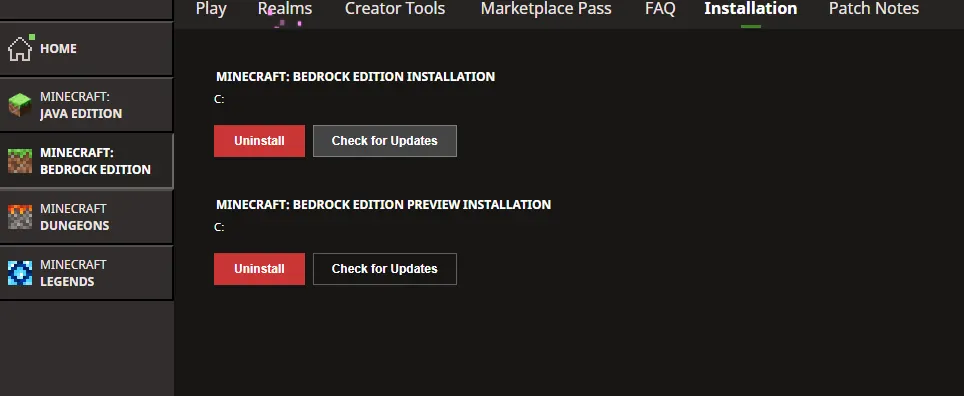 The first fix to attempt is manually checking for updates within the Minecraft launcher. This is done following the short few steps below.
 The second fix to attempt is forcing the update via the Microsoft Store. The exact steps for this will vary slightly depending on the version of Windows in use, but it is a feature on at least Windows 10 and up. Below are a general set of steps that should get you there.
 If both methods above were attempted with no luck, the update itself may simply not be out yet. Mojang has a tendency not to give out exact release times, and that can make when the update actually hits the launcher pretty random. Coming back in thirty minutes to an hour could very well resolve the problem.
Minecraft Launcher Update Check
The first fix to attempt is manually checking for updates within the Minecraft launcher. This is done following the short few steps below.
- Open the Minecraft Launcher.
- Select Minecraft Bedrock Edition in the left sidebar.
- Select the installation tab at the top of the screen.
- Click the “Check for Updates” Button.
Microsoft Store
The second fix to attempt is forcing the update via the Microsoft Store. The exact steps for this will vary slightly depending on the version of Windows in use, but it is a feature on at least Windows 10 and up. Below are a general set of steps that should get you there.
- Open the Microsoft Store.
- Click “Library” on the left sidebar. (Windows 11 Users may see an updates tab instead.)
- Find Minecraft for Windows in the list.
- Click Update.
Not Yet Out
If both methods above were attempted with no luck, the update itself may simply not be out yet. Mojang has a tendency not to give out exact release times, and that can make when the update actually hits the launcher pretty random. Coming back in thirty minutes to an hour could very well resolve the problem.Créez votre propre
serveur Minecraft
serveur Minecraft
Choisissez un plan, sélectionnez un jeu et jouez avec vos amis !
Abonnez-vous à notre newsletter
Abonnez-vous pour recevoir les dernières mises à jour sur l'univers du jeu vidéo !

Rejoignez notre Discord
Rejoignez notre communauté de plus de 20 000 membres passionnés !
Comment évalueriez-vous ce blog ?
Partagez votre avis et aidez-nous à améliorer nos blogs !
Pas aimé
Neutre
Aimé

Besoin d'un serveur de jeu ?
Louez un serveur de jeu où vous et vos amis pouvez jouer en privé avec une faible latence et des paramètres personnalisés. Choisissez parmi 110+ jeux, invitez des joueurs du monde entier et profitez de parties privées, ou créez votre propre communauté en ligne avec vos propres règles.

Blogs pertinents







OBTENEZ LES DERNIÈRES INFOS !
Inscrivez-vous à nos e-mails pour obtenir des mises à jour sur nos jeux hébergés, des nouvelles de l'entreprise et des offres exclusives. Restez au courant !













