

How to Allocate More RAM to Minecraft Java & Bedrock
Publié le par

Partager :

Partager sur X

Partager sur Facebook

Partager sur Threads

Partager sur Bluesky

Copier dans le presse-papiers

Partager par e-mail
The Minecraft client can use quite a bit of RAM, especially when it comes to mods or DLC. But thankfully, in times like these, there are simple ways to allocate more RAM from your PC. So, today, we answer, “How to Allocate More RAM to Minecraft Java & Bedrock.”
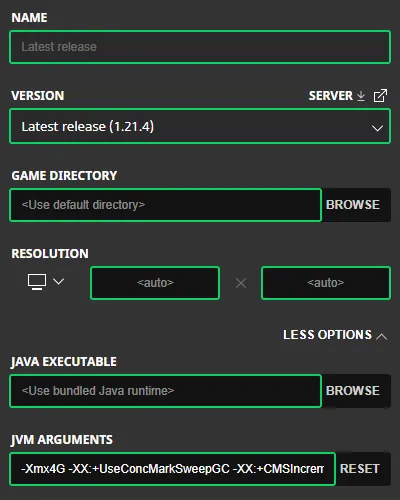 Allocating more RAM to Minecraft Java Editon is done from right inside the Minecraft Launcher. Below, we have detailed every step needed to get the task completed.
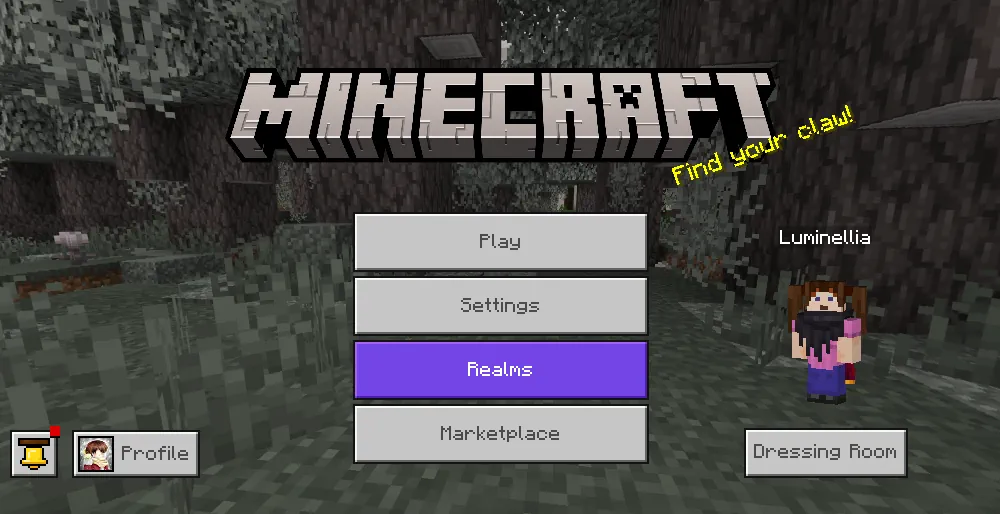 At this time, RAM can not be manually allocated to the Minecraft Bedrock Edition client. This is because Bedrock will automatically use the amount of RAM it requires. If lag is being encountered client-side in Bedrock Edition, we recommend opening the task manager by pressing the “CRTL,” “ALT,” and “DEL” buttons at the same time to check current resource usage.
From there, many useful details, such as CPU and Memory, can be viewed. If either category is red with a percentage at or near 100%, it may indicate a hardware issue or lack of RAM available on the PC.
At this time, RAM can not be manually allocated to the Minecraft Bedrock Edition client. This is because Bedrock will automatically use the amount of RAM it requires. If lag is being encountered client-side in Bedrock Edition, we recommend opening the task manager by pressing the “CRTL,” “ALT,” and “DEL” buttons at the same time to check current resource usage.
From there, many useful details, such as CPU and Memory, can be viewed. If either category is red with a percentage at or near 100%, it may indicate a hardware issue or lack of RAM available on the PC.
How to Allocate More RAM to Minecraft Java & Bedrock
Minecraft Java Edition
Allocating more RAM to Minecraft Java Editon is done from right inside the Minecraft Launcher. Below, we have detailed every step needed to get the task completed.
- Open Minecraft Java Edition
- Select the “Installations” Tab
- Locate Your Desired Installation (Latest Release is the Default)
- Hover Over the Installation, Click the Three Dots, & Select “Edit”
- Click “MORE OPTIONS”
- Locate the “JVM ARGUMENTS”
- Update the Number in “-Xmx4G” to the Desired RAM Allocation
Minecraft Bedrock Edition
At this time, RAM can not be manually allocated to the Minecraft Bedrock Edition client. This is because Bedrock will automatically use the amount of RAM it requires. If lag is being encountered client-side in Bedrock Edition, we recommend opening the task manager by pressing the “CRTL,” “ALT,” and “DEL” buttons at the same time to check current resource usage.
From there, many useful details, such as CPU and Memory, can be viewed. If either category is red with a percentage at or near 100%, it may indicate a hardware issue or lack of RAM available on the PC.Créez votre propre
serveur Minecraft
serveur Minecraft
Choisissez un plan, sélectionnez un jeu et jouez avec vos amis !
Abonnez-vous à notre newsletter
Abonnez-vous pour recevoir les dernières mises à jour sur l'univers du jeu vidéo !

Rejoignez notre Discord
Rejoignez notre communauté de plus de 20 000 membres passionnés !
Comment évalueriez-vous ce blog ?
Partagez votre avis et aidez-nous à améliorer nos blogs !
Pas aimé
Neutre
Aimé

Besoin d'un serveur de jeu ?
Louez un serveur de jeu où vous et vos amis pouvez jouer en privé avec une faible latence et des paramètres personnalisés. Choisissez parmi 110+ jeux, invitez des joueurs du monde entier et profitez de parties privées, ou créez votre propre communauté en ligne avec vos propres règles.

Blogs pertinents







OBTENEZ LES DERNIÈRES INFOS !
Inscrivez-vous à nos e-mails pour obtenir des mises à jour sur nos jeux hébergés, des nouvelles de l'entreprise et des offres exclusives. Restez au courant !













