Minecraft Skyblock Setup Guide: Step by Step Walkthrough, Datapacks, & More
Publicado el por

Compartir:

Compartir en X

Compartir en Facebook

Compartir en Threads

Compartir en Bluesky

Copiar al portapapeles

Compartir por correo electrónico
Skyblock has been one of the most beloved fan-made gamemodes since Minecraft’s earliest days, yet it can still be unclear how exactly one sets it up to play. So, today, we explore step by step how to enjoy skyblock alone or with friends in our Minecraft Skyblock setup guide.
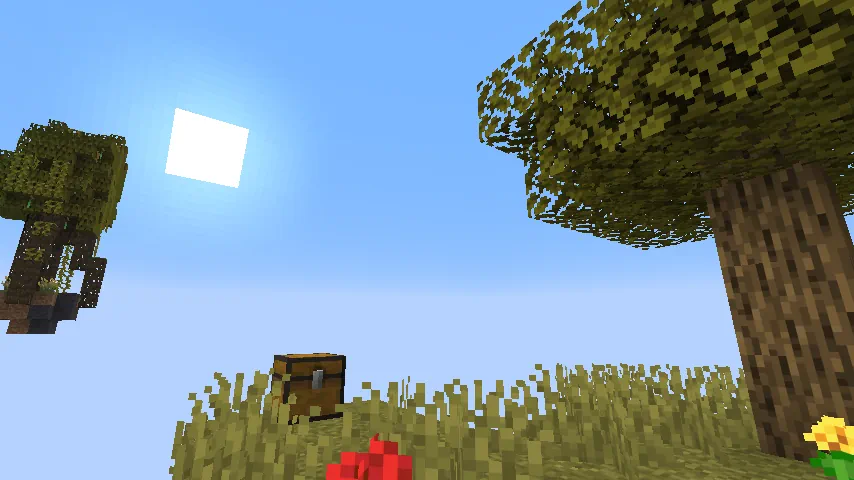 Skyblock is a modified version of Minecraft where players spawn on a small dirt island in the sky, with a tree and a chest that has a select number of items inside. Using only those starting blocks and items, alongside some Minecraft technical knowledge, the goal is to then expand, venturing to new islands.
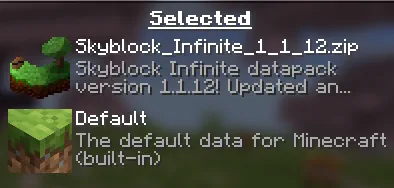 Today, there are many options for skyblock ranging everywhere from worlds to modpacks, each with their own unique take on the idea. However, what we will be using for this guide is a datapack called “Skyblock Infinite,” which offers a faithful rendition of the core vanilla skyblock experience.
To download it, first head over to the Modrinth page here and find the datapack file that matches the version you are currently playing. Once found, download the zip file before proceeding with either the singleplayer or multiplayer steps below.
Today, there are many options for skyblock ranging everywhere from worlds to modpacks, each with their own unique take on the idea. However, what we will be using for this guide is a datapack called “Skyblock Infinite,” which offers a faithful rendition of the core vanilla skyblock experience.
To download it, first head over to the Modrinth page here and find the datapack file that matches the version you are currently playing. Once found, download the zip file before proceeding with either the singleplayer or multiplayer steps below.
What is Skyblock?
Skyblock is a modified version of Minecraft where players spawn on a small dirt island in the sky, with a tree and a chest that has a select number of items inside. Using only those starting blocks and items, alongside some Minecraft technical knowledge, the goal is to then expand, venturing to new islands.
Minecraft Skyblock Setup Guide
Today, there are many options for skyblock ranging everywhere from worlds to modpacks, each with their own unique take on the idea. However, what we will be using for this guide is a datapack called “Skyblock Infinite,” which offers a faithful rendition of the core vanilla skyblock experience.
To download it, first head over to the Modrinth page here and find the datapack file that matches the version you are currently playing. Once found, download the zip file before proceeding with either the singleplayer or multiplayer steps below.
Singleplayer
- Select “Create New World”.
- Click the “More” tab near the top right of the window.
- Click “Data Packs”.
- Select “Open Pack Folder”.
- Upload the previously downloaded datapack zip file to the folder.
- Activate the datapack by clicking it.
- Create the world.
Multiplayer
- Stop the server.
- Open the server files.
- Find and open the world folder.
- Open the “datapacks” folder.
- Upload the previously downloaded datapack zip file to the folder.
- Start the server.
Crea tu propio servidor
de Minecraft
de Minecraft
¡Elige un plan, escoge un juego y juega con tus amigos!
Suscríbete a nuestro boletín
¡Suscríbete para recibir las últimas actualizaciones sobre todo lo relacionado con los videojuegos!

Únete a nuestro Discord
¡Sé parte de nuestra comunidad de más de 20.000 miembros con ideas afines!
¿Cómo calificarías este blog?
¡Comparte tu opinión y ayúdanos a mejorar nuestros blogs!
No me gustó
Neutral
Me gustó

¿Necesitas un servidor de juegos?
Renta un servidor de juego donde tú y tus amigos puedan jugar en privado con baja latencia y configuraciones personalizadas. Elige entre 110+ juegos, invita a gente de todo el mundo y disfruta de partidas privadas, o construye tu propia comunidad en línea con tus propias reglas.

Blogs relevantes



¡ENTÉRATE DE TODO!
Únete a nuestro correo para recibir actualizaciones sobre nuestros juegos alojados, noticias de la empresa y ofertas exclusivas. ¡Mantente al día!